
Appearance
Two-step verification
Two-step verification adds a second check when you sign in. After your password, you enter a 6-digit code from an authenticator app on your phone. Someone who learns your password still can't get in without your phone.
Kipdesky works with any standard authenticator app, such as Google Authenticator, Microsoft Authenticator, Authy or 1Password. It doesn't send codes by SMS or email.
Set up an authenticator app
You need your phone with an authenticator app installed.
Click your name in the top-right corner and choose Profile.
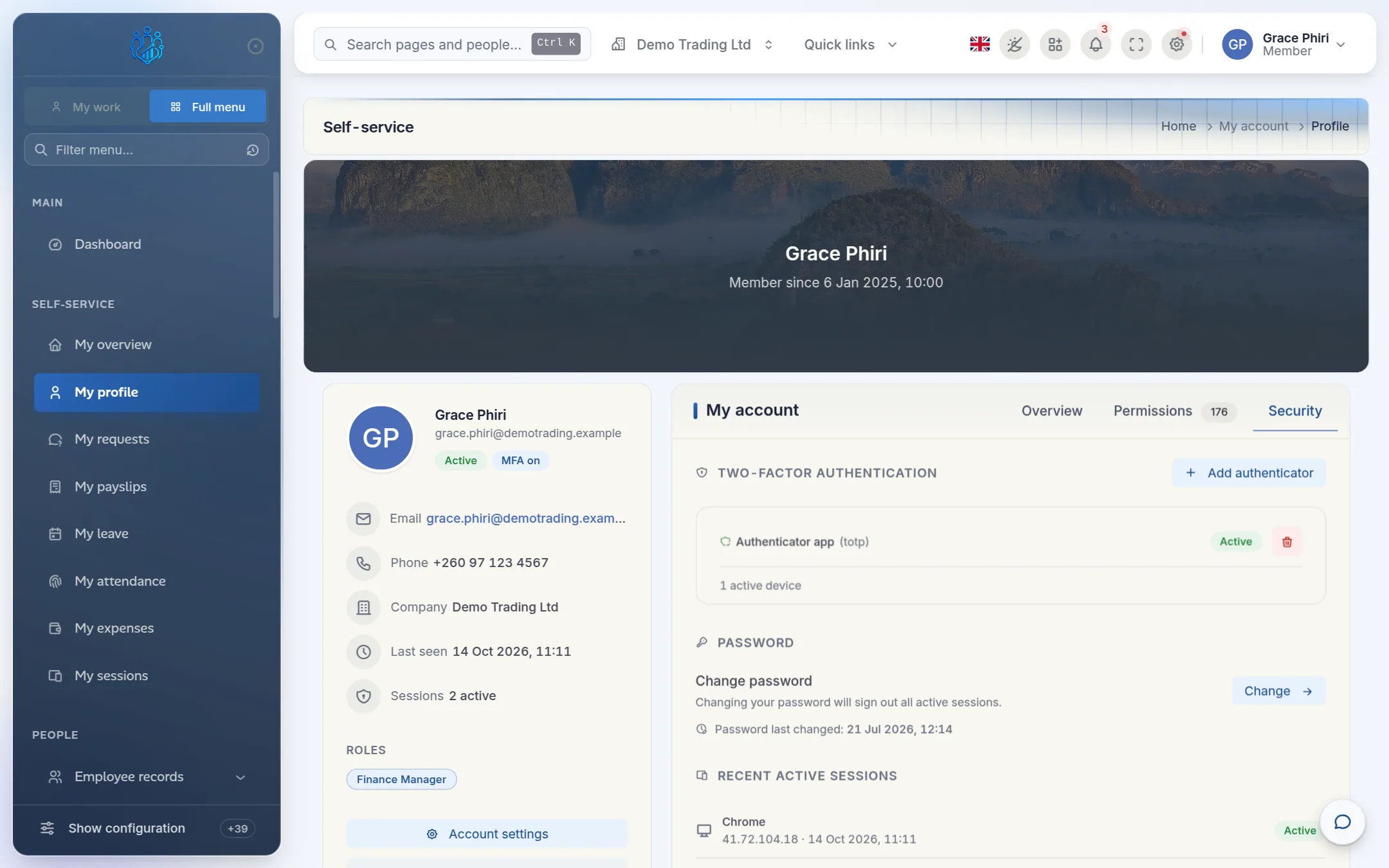
Open the Security tab. Under Two-factor authentication, click Add authenticator.
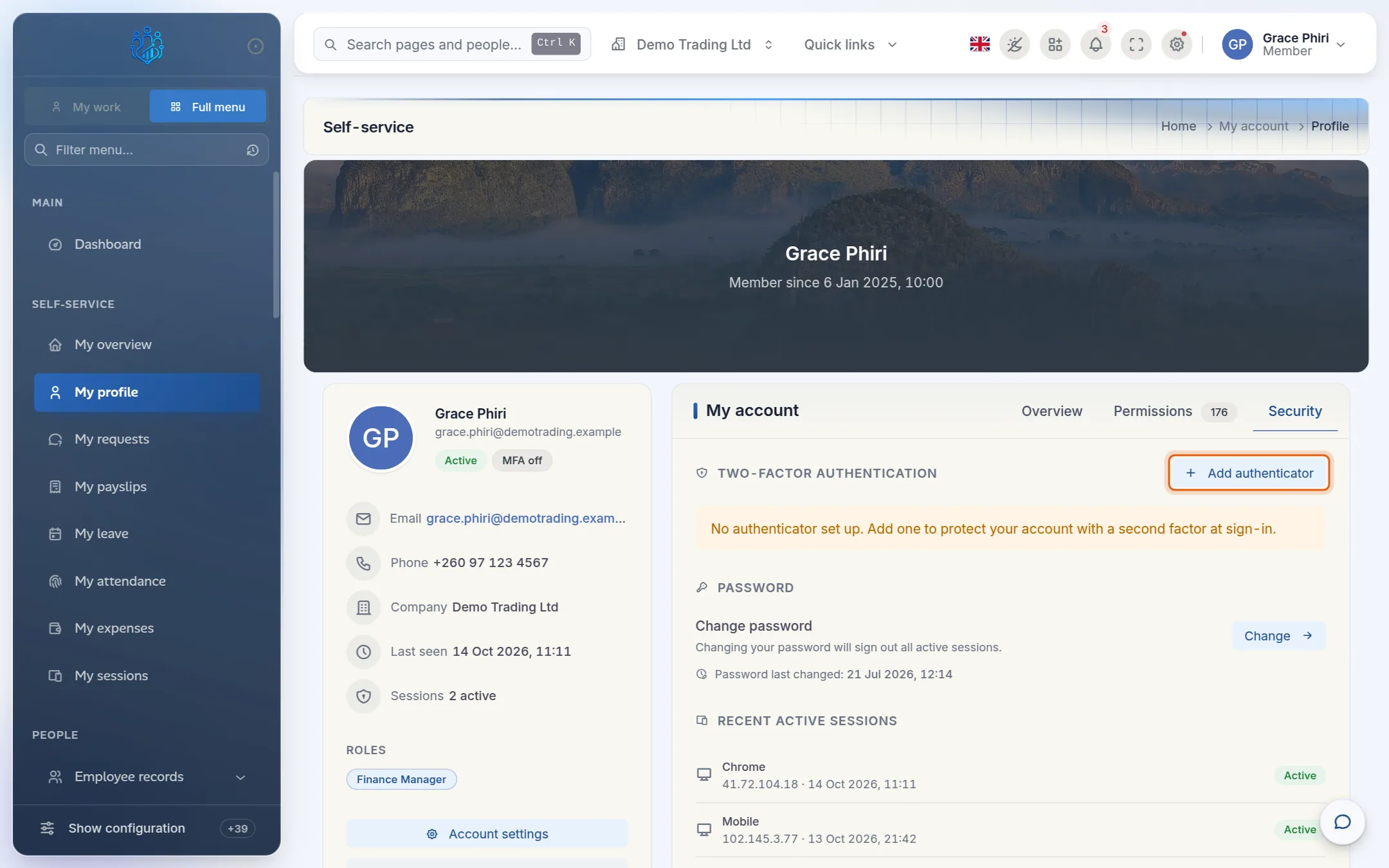
Open your authenticator app, add a new account and scan the QR code on screen.
If you can't scan, type the Setup key into the app instead.
In Device name, give the device a name you'll recognise, for example Work iPhone.
Type the 6-digit code your app shows into 6-digit code, then click Verify & activate.
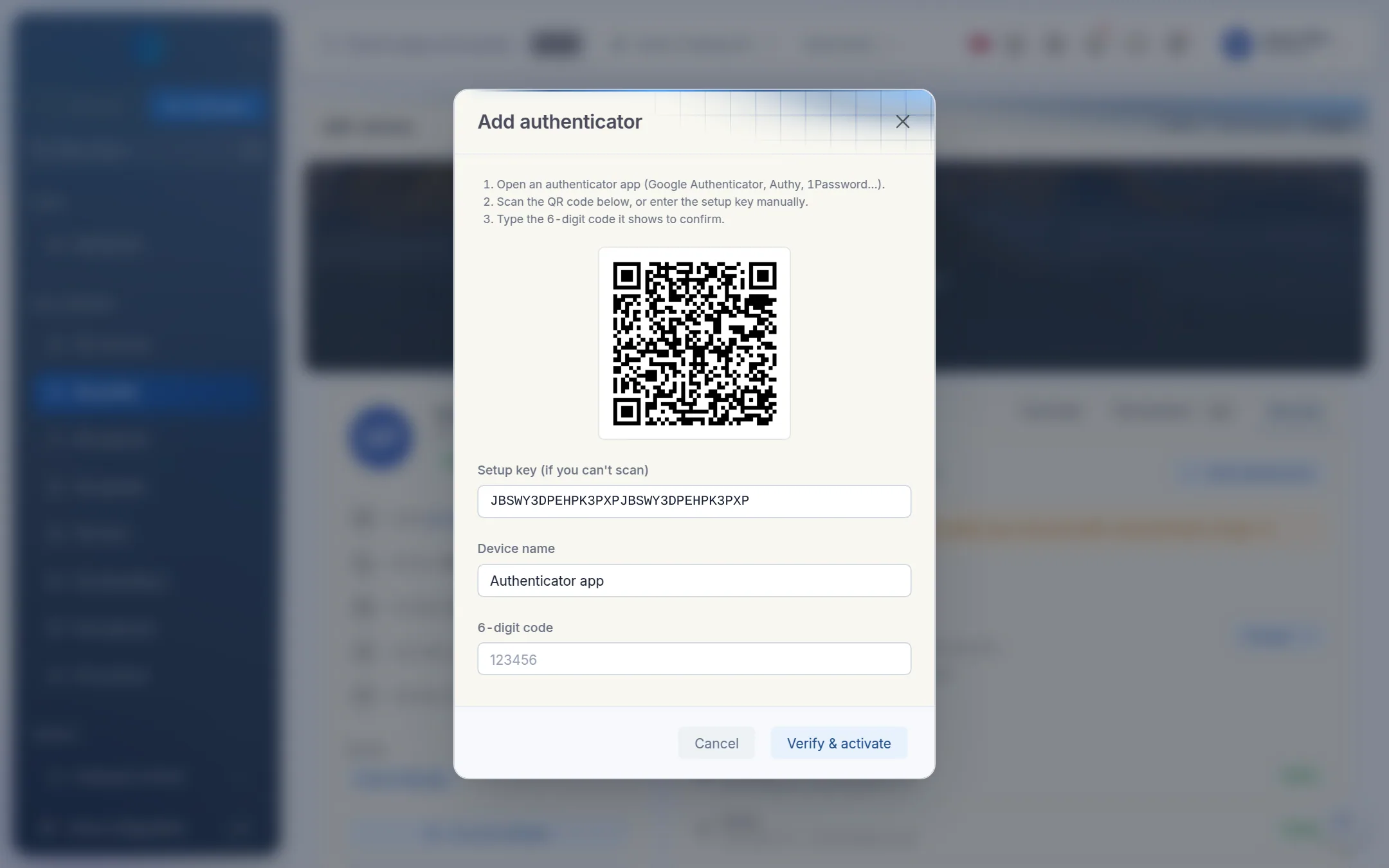
The message Authenticator added confirms it worked. The device now shows on the Security tab, and your profile shows MFA on.
From your next sign-in, Kipdesky asks for a code every time.
Signing in with a code
Sign in with your email and password as usual.
On the Two-factor verification screen, open your authenticator app and type the 6-digit code shown for Kipdesky. You can also paste the whole code into the first box.
Click Confirm.
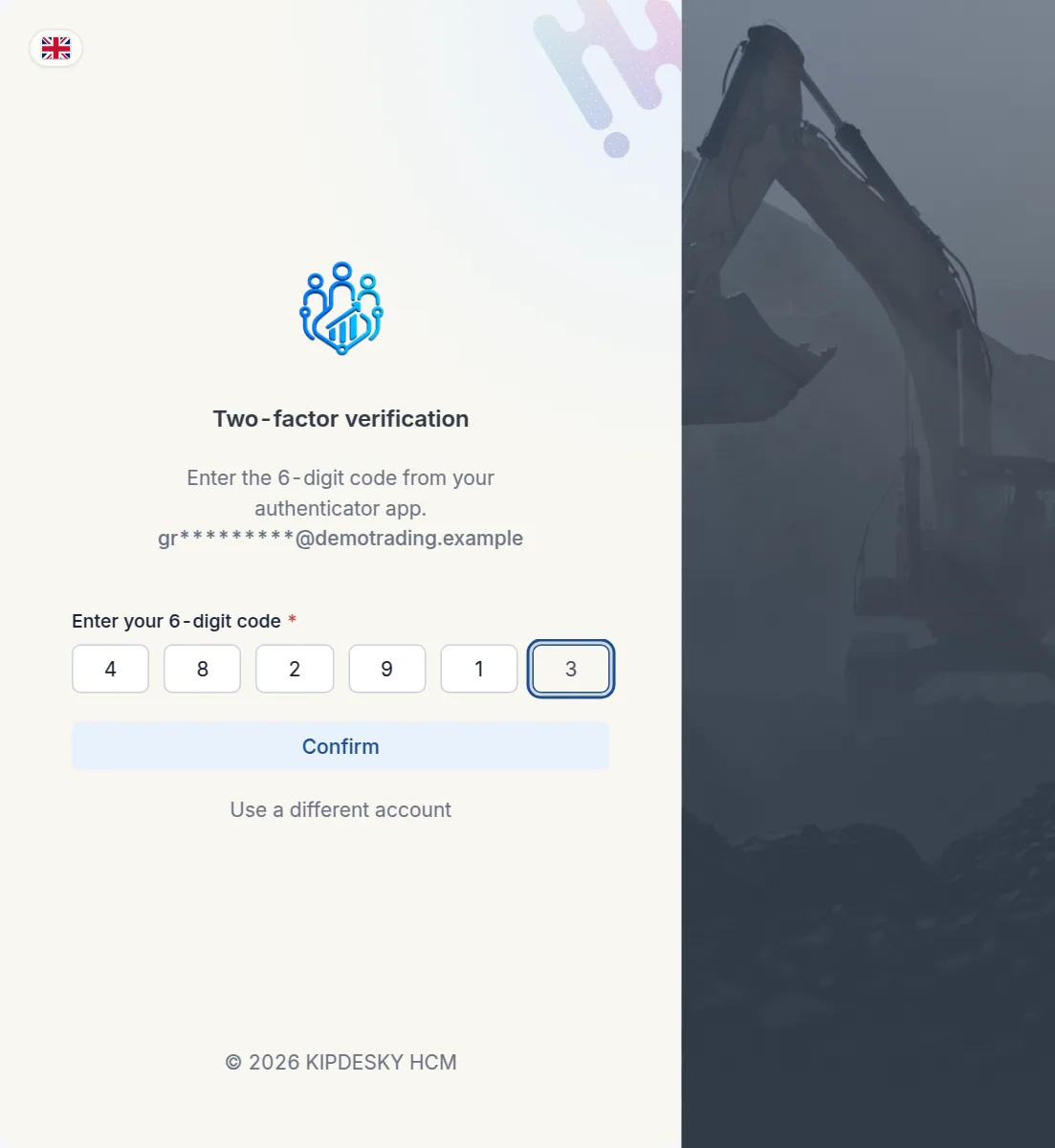
Codes change every 30 seconds. If one is about to expire, wait for the next one.
Remove an authenticator
To stop using a device, for example when you replace your phone, go to Profile › Security. Click the bin icon next to the device, then confirm Remove authenticator?
Add the new device before removing the old one
If you remove your only authenticator, sign-in goes back to password only. When you change phones, add the new phone first, then remove the old one.
Tips and common mistakes
- The phone clock is wrong. Codes depend on the time. If every code is rejected, check your phone is set to update its date and time automatically.
- Using an old code. After an error the boxes clear. Wait for a fresh code instead of retyping the old one.
- Taking too long on the code screen. You have 5 minutes after entering your password. After that the error Invalid MFA challenge. appears. Click Use a different account and sign in again.
- Having only one device. You can add more than one authenticator, for example your phone and a password manager. Then losing one device doesn't lock you out.
FAQs
I've lost my phone. How do I get back in?
Kipdesky doesn't use backup codes, so you can't remove the authenticator yourself without signing in. Ask your administrator to remove the lost device under Administration › Security › MFA devices. You can then sign in with your password and set up your new phone.
Is two-step verification compulsory?
Your company decides. Even if it's optional, we recommend it for anyone who can see payroll, bank or personal data.
Do I need a code when I change my password?
Yes. If two-step verification is on, changing your password also asks for a current code.