
Appearance
Financial reports
Kipdesky produces its financial reports straight from the general ledger, so they're always current. Every report counts **posted** entries only. Drafts and approved-but-unposted journals are left out.
All reports are under Finance & ERP › Financial statements. They cover the company shown in the top bar. To report on another company, switch company first.
| Report | Answers the question |
|---|---|
| Trial balance | Do the books balance, and what's the balance on every account? |
| Income statement | Did we make a profit in this period? |
| Balance sheet | What do we own and owe on this date? |
| Cash flow statement | Where did our cash come from and go? |
| VAT return | How much VAT do we owe ZRA, or can we reclaim? |
| Receivables ageing | Which customers owe us, and how overdue are they? |
| Payables ageing | Which suppliers do we owe, and when is it due? |
Trial balance
The trial balance lists every account with its total debits, total credits and net balance.
Open Trial balance.
Choose a Period, or leave it on All dates and set Posting date from and Posting date to. When a period is chosen, the dates are taken from it.
Optionally choose a Cost centre.
Read the banner. Debits and credits agree. means the books balance.
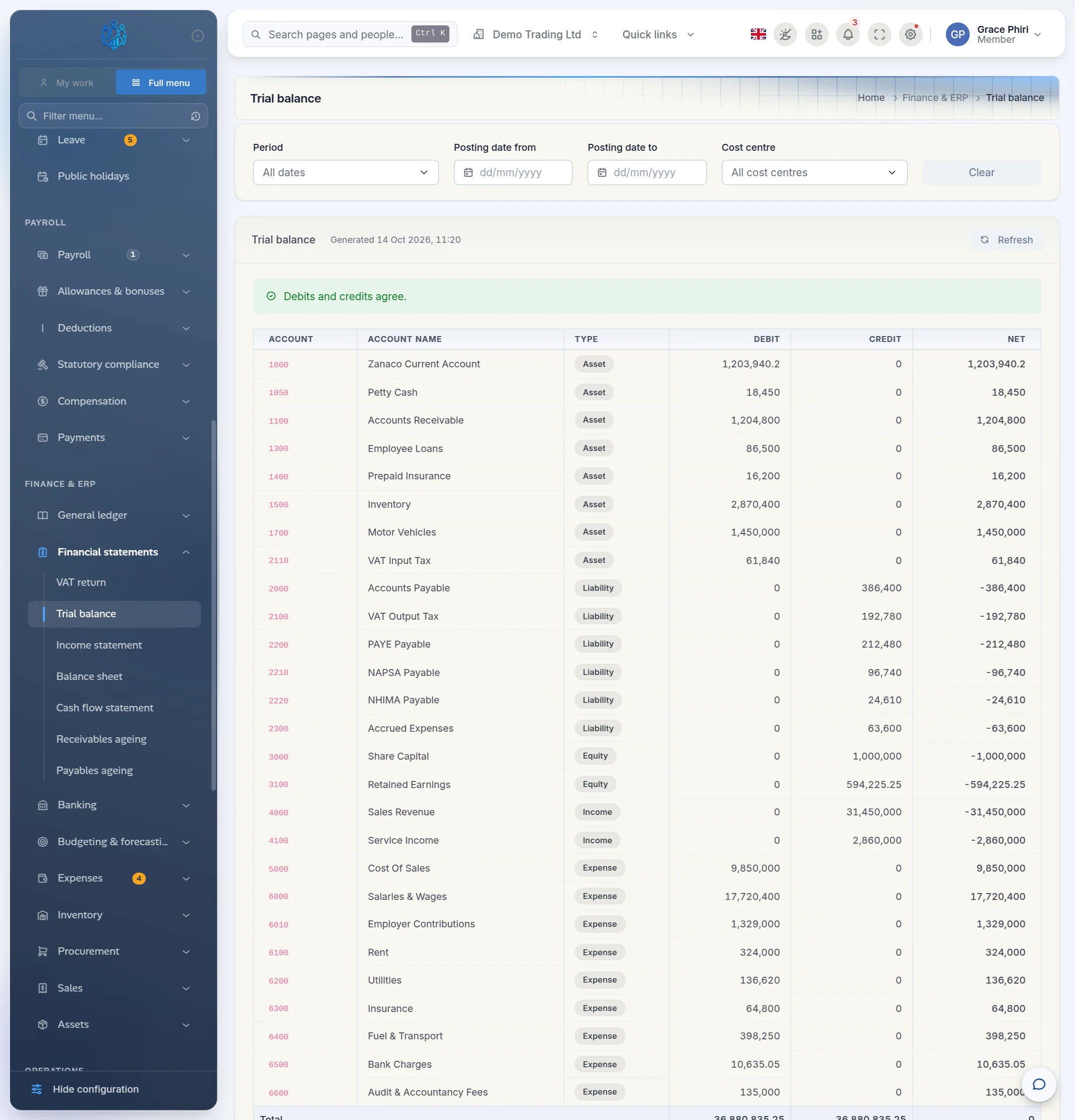
Click Clear to reset the filters, or Refresh to re-run the report.
Income statement
The income statement (profit and loss) shows revenue, cost of sales, gross profit, operating expenses and net profit for one accounting period.
Open Income statement.
Choose a Period. The report runs once you've chosen one.
Optionally choose a Cost centre to see one department's or branch's results.
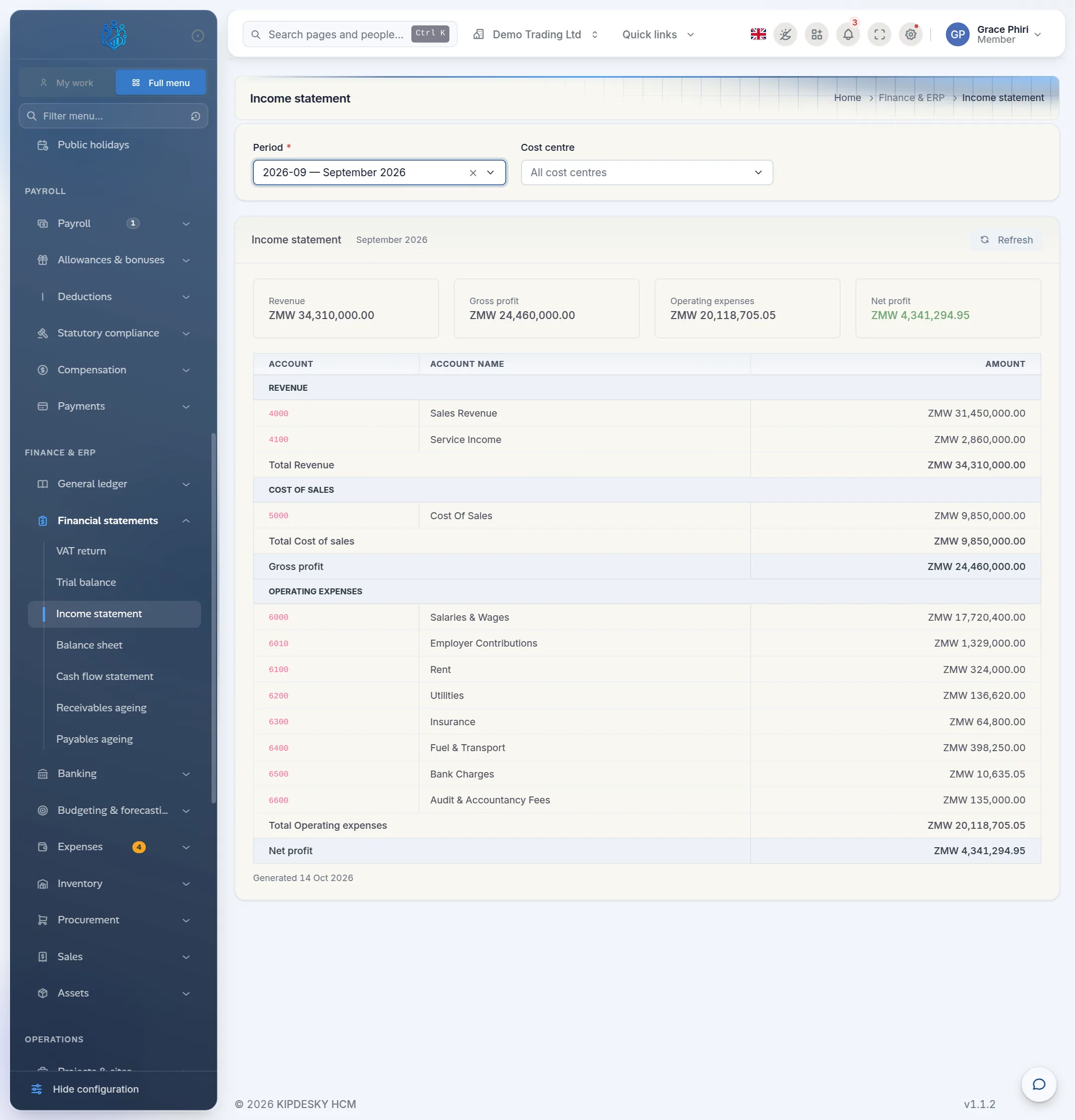
The tiles at the top show the headline figures. Net profit turns red when it's a loss. Accounts appear according to their type in the chart of accounts: Income accounts under revenue, cost-of-sales accounts under cost of sales, and other Expense accounts under operating expenses.
Balance sheet
The balance sheet shows assets, liabilities and equity on a chosen date.
Open Balance sheet.
Set As of to the date you want, usually the last day of a month.
Optionally choose a Cost centre.
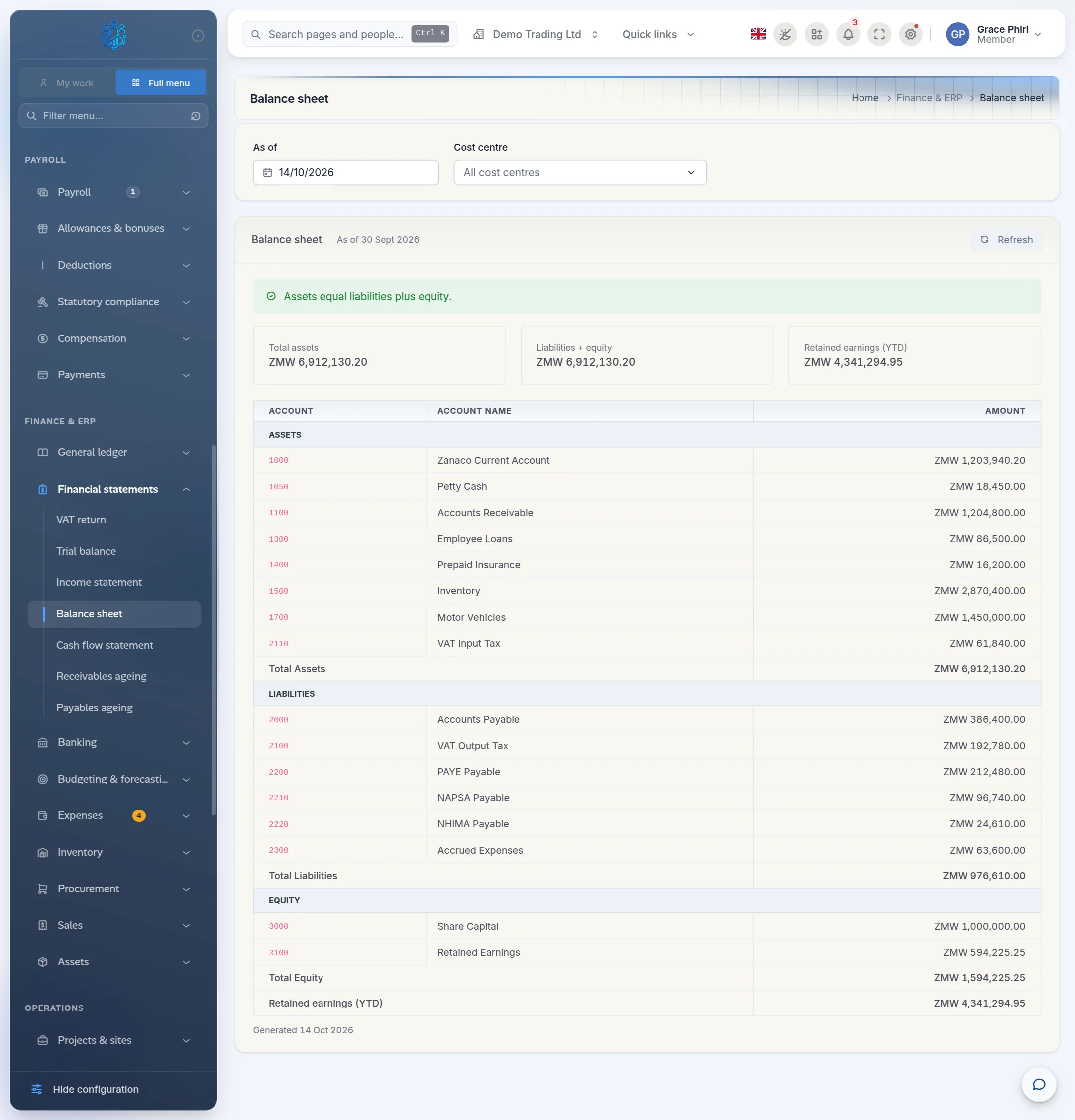
- Retained earnings (YTD) is this year's profit to date. It's added to equity so the sheet balances.
- The banner Assets equal liabilities plus equity. confirms the sheet balances. If it says the sheet doesn't balance, look for unposted or unbalanced entries.
Cash flow statement
The cash flow statement shows how cash moved between two dates, split into operating, investing and financing activities.
Open Cash flow statement.
Set From and To.
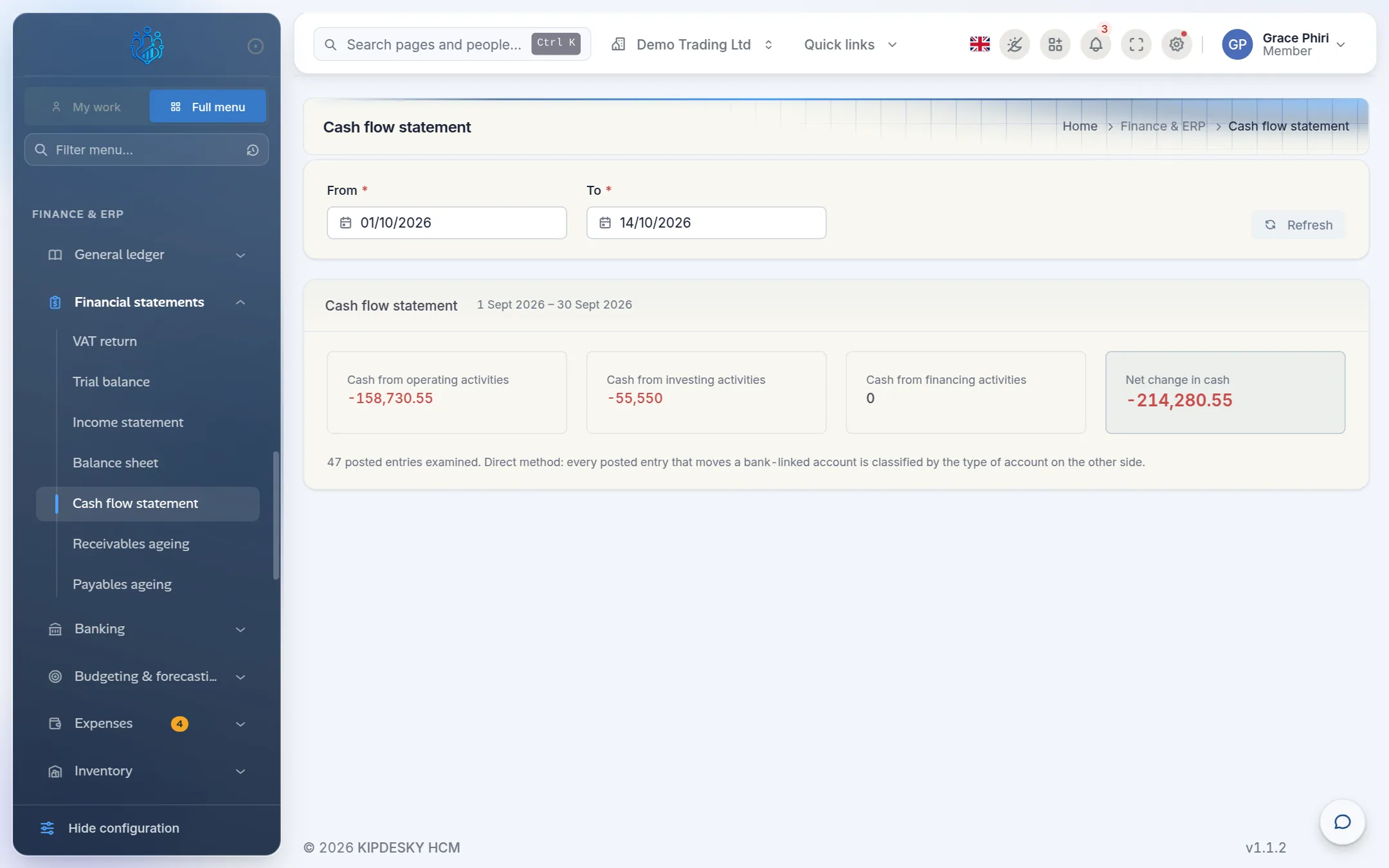
Kipdesky uses the direct method. Every posted entry that moves a bank-linked account is classified by the type of account on the other side. This only works if your bank accounts are linked to GL accounts.
VAT return
The VAT return adds up output tax on sales and input tax on purchases for a date range, ready for your return to ZRA.
Open VAT return.
Set Period from and Period to to your VAT period, usually one month.
Check the three totals at the top: Output tax (on sales), Input tax (on purchases), and Net VAT payable (or Refund claimable).
Check the ledger banner. This return agrees with the general ledger. means the invoices and the ledger match.
Review the Sales and output tax and Purchases and input tax tables, line by tax code.
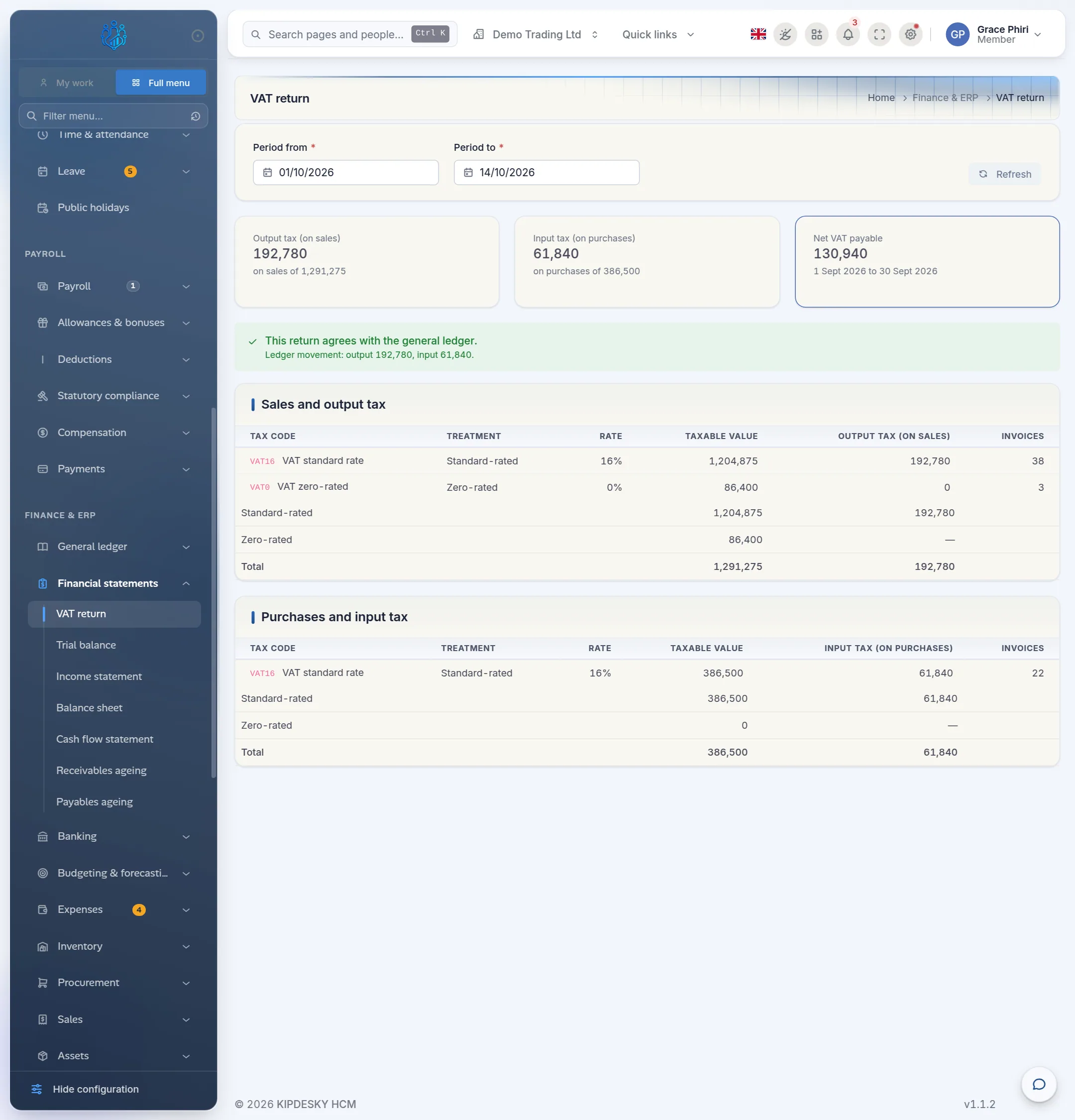
Before filing, fix anything listed under No tax code — classify before filing. Those invoices have no tax code, so Kipdesky can't tell whether they're standard-rated, zero-rated or outside VAT. Invoices are included when they're posted, open or paid.
Receivables and payables ageing
The ageing reports list unpaid invoices by how overdue they are. Receivables ageing covers money customers owe you. Payables ageing covers money you owe suppliers.
Open Receivables ageing or Payables ageing.
Set As of, usually today or a month end.
The tiles show the total in each bucket: Current, 1–30 days, 31–60 days, 61–90 days, 90+ days, and Total open.
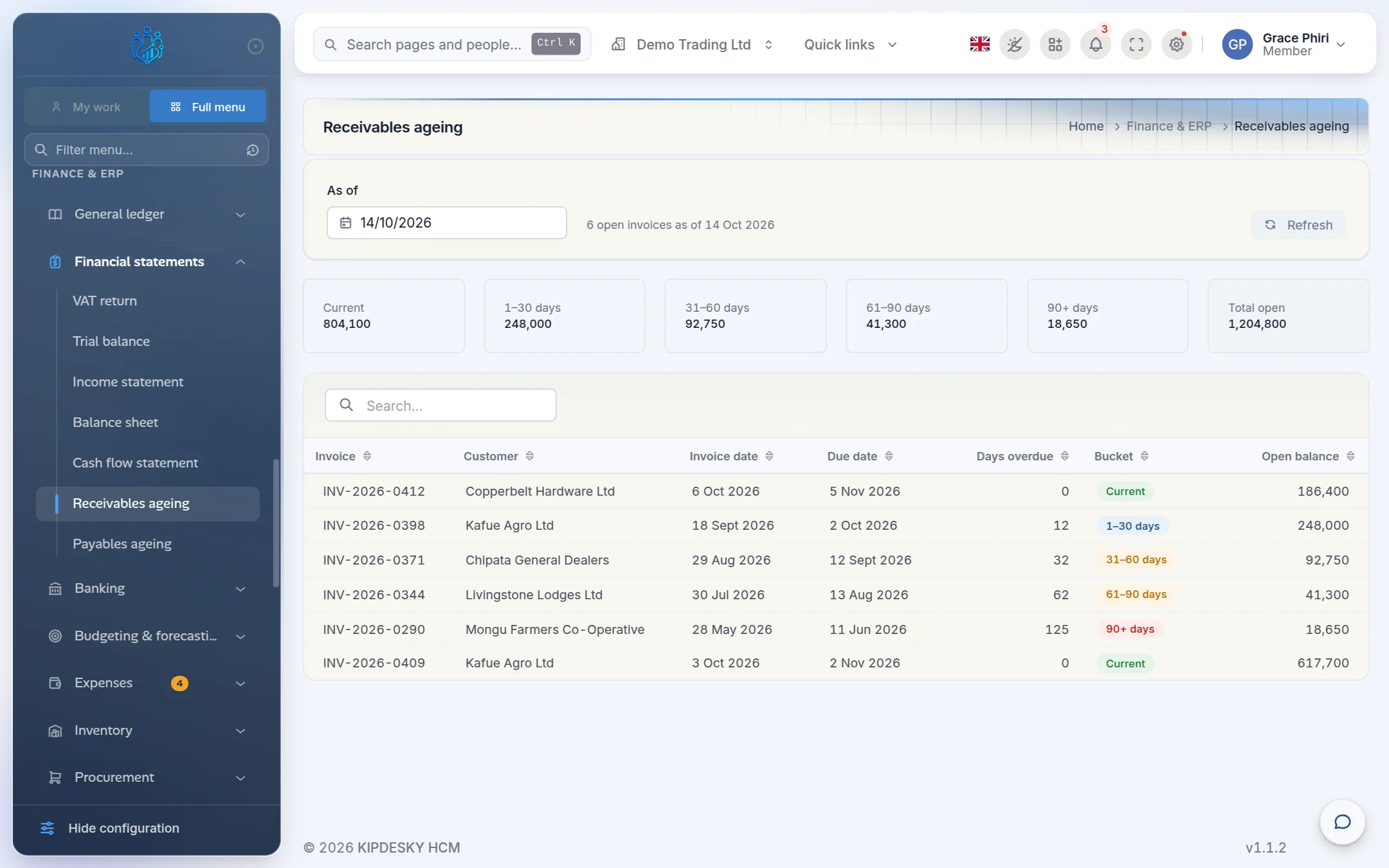
Days overdue count from the invoice's due date, or from the invoice date if there's no due date. Type in the search box to find a customer, supplier or invoice.
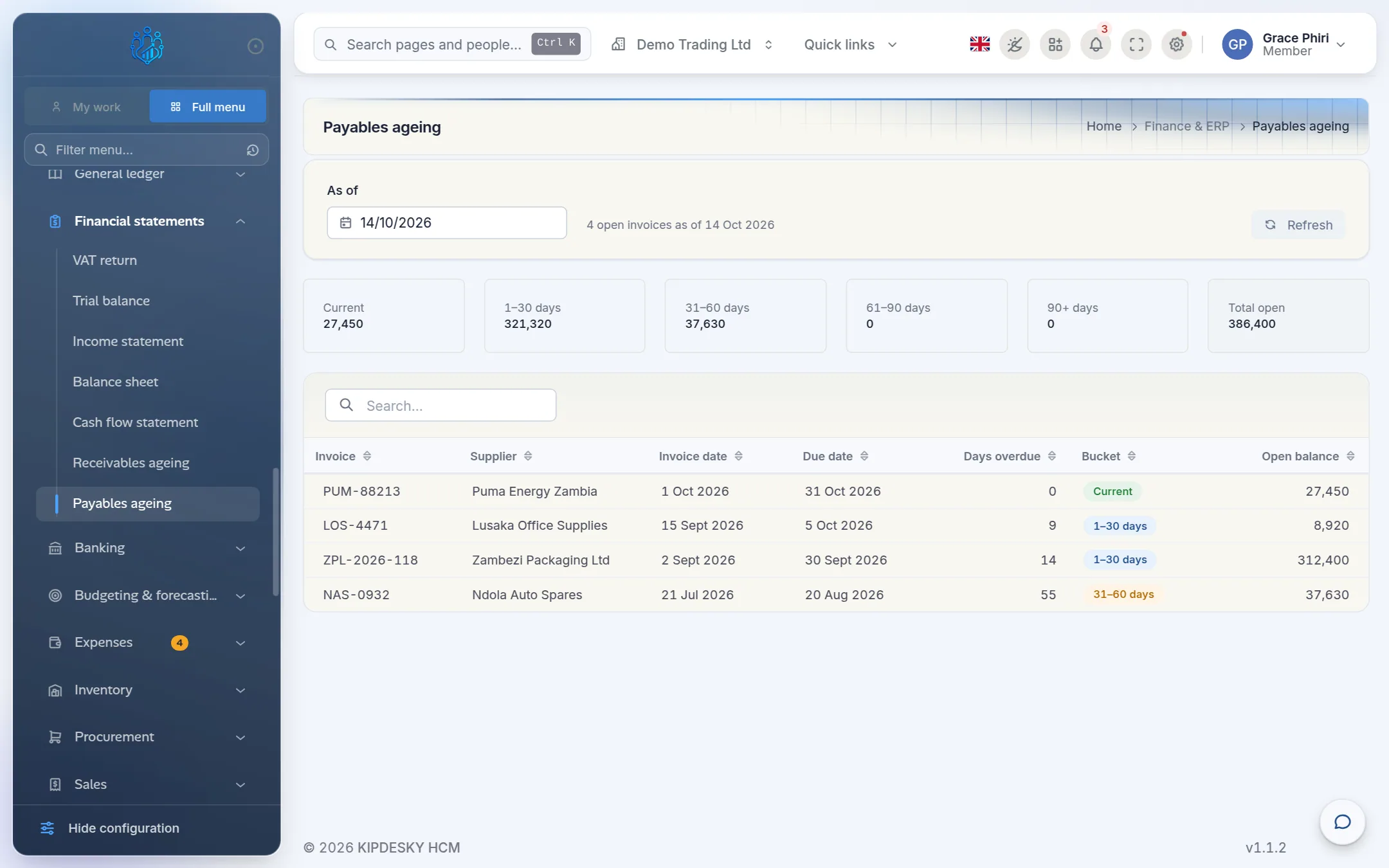
Tips and common mistakes
- "My figures are missing." Reports count posted entries only. Check that the journals are Posted, not just approved.
- The wrong company. Reports follow the company in the top bar.
- Comparing periods. There's no side-by-side comparison yet. Run the report for each period and compare.
- Total open doesn't match Accounts Receivable. The ageing is built from invoices, the trial balance from the ledger. A difference means something was posted to the AR or AP account by journal rather than by invoice. Find and correct it.
FAQs
Can I export or print a report?
There's no export button on these reports yet. To print one, use your browser's print command (Ctrl + P). For spreadsheets, use Reports & Analytics › Data import & export › Data exports.
Why is the income statement empty?
Choose an accounting period first. If none are listed, set them up in Fiscal years and periods.
Who can see the financial reports?
Anyone whose role can read journal entries. The ageing reports also need access to customer or supplier invoices.