
Appearance
Finding your way around
Every page in Kipdesky has the same frame: the sidebar menu on the left, the top bar across the top and the page itself in the middle. Once you know the frame, you can find anything.
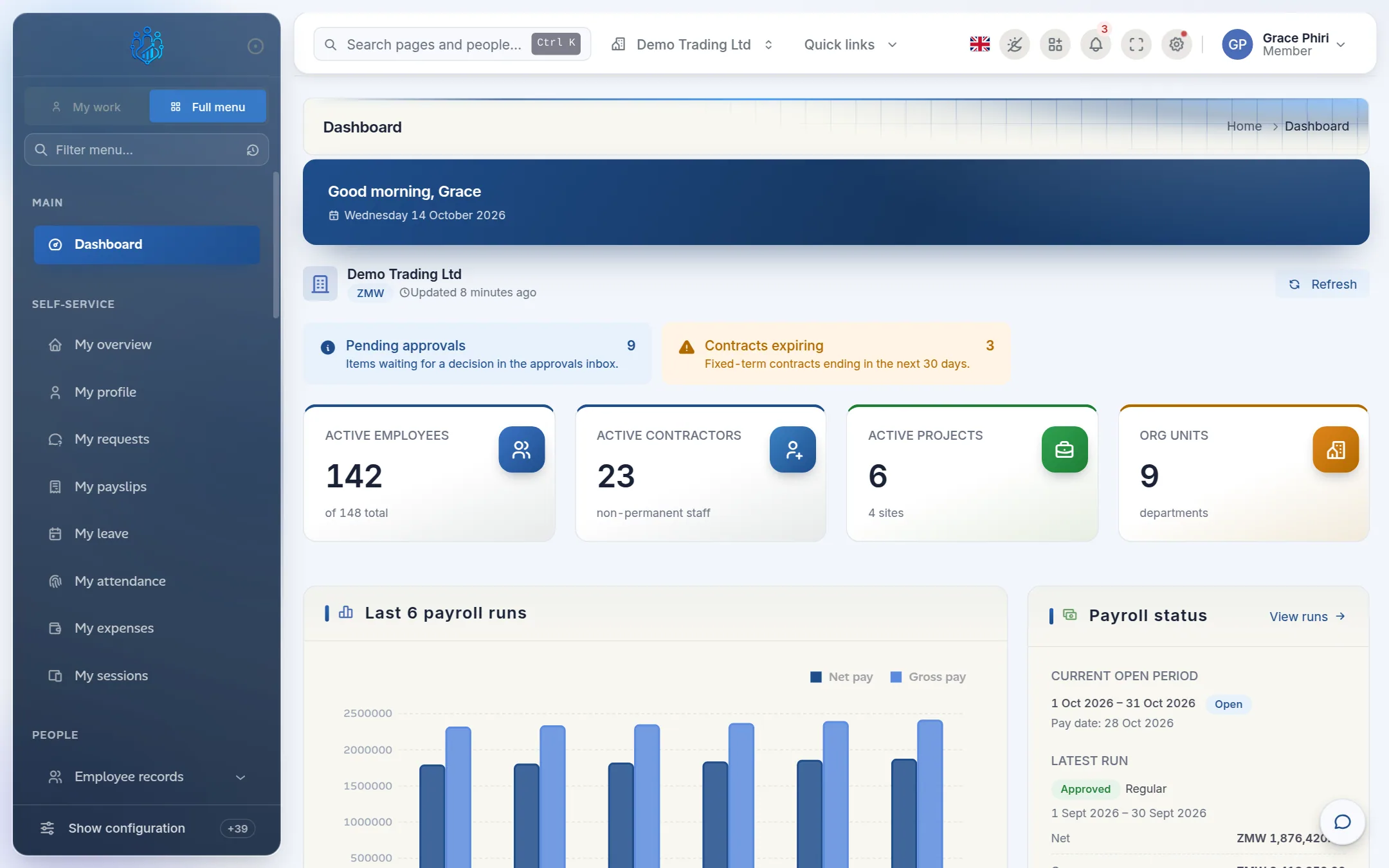
| Area | What it's for |
|---|---|
| Sidebar | The full menu, grouped by area: Self-service, People, Time & Leave, Payroll, Finance & ERP, Operations, Communication, Reports & Analytics and Administration. |
| Search box (top left) | Jump to any page, or find an employee by name. |
| Workspace | Shows which company you're working in, and lets you switch. |
| Quick links | Shortcuts to the most-used HR, leave and payroll pages. |
| Bell | Your notifications. |
| Your name | Profile, active sessions, account settings and sign out. |
Find a page with search
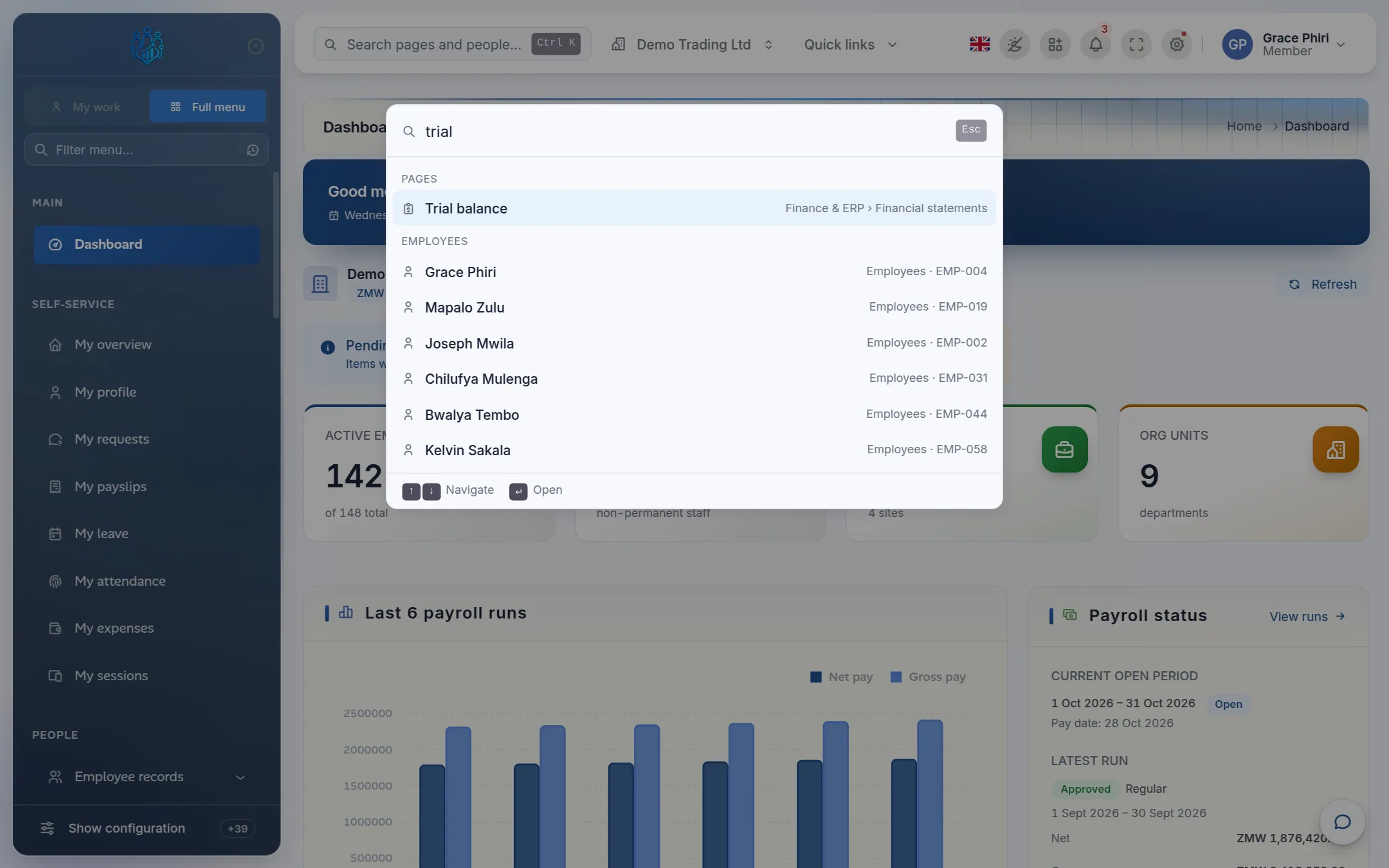
The fastest way to get anywhere is the search box, also called the command palette.
Click Search pages and people… at the top of the screen, or press Ctrl + K (⌘ + K on a Mac).
Start typing the page you want, for example trial. Matching pages appear under Pages, with where they live in the menu.
If you can see employee records, typing two or more letters of a name also lists matching people under Employees.
Use ↑ ↓ to choose and Enter to open. Esc closes the search.
Use the sidebar
- Click a group, such as General ledger, to open it and see its pages. Opening one group closes the others.
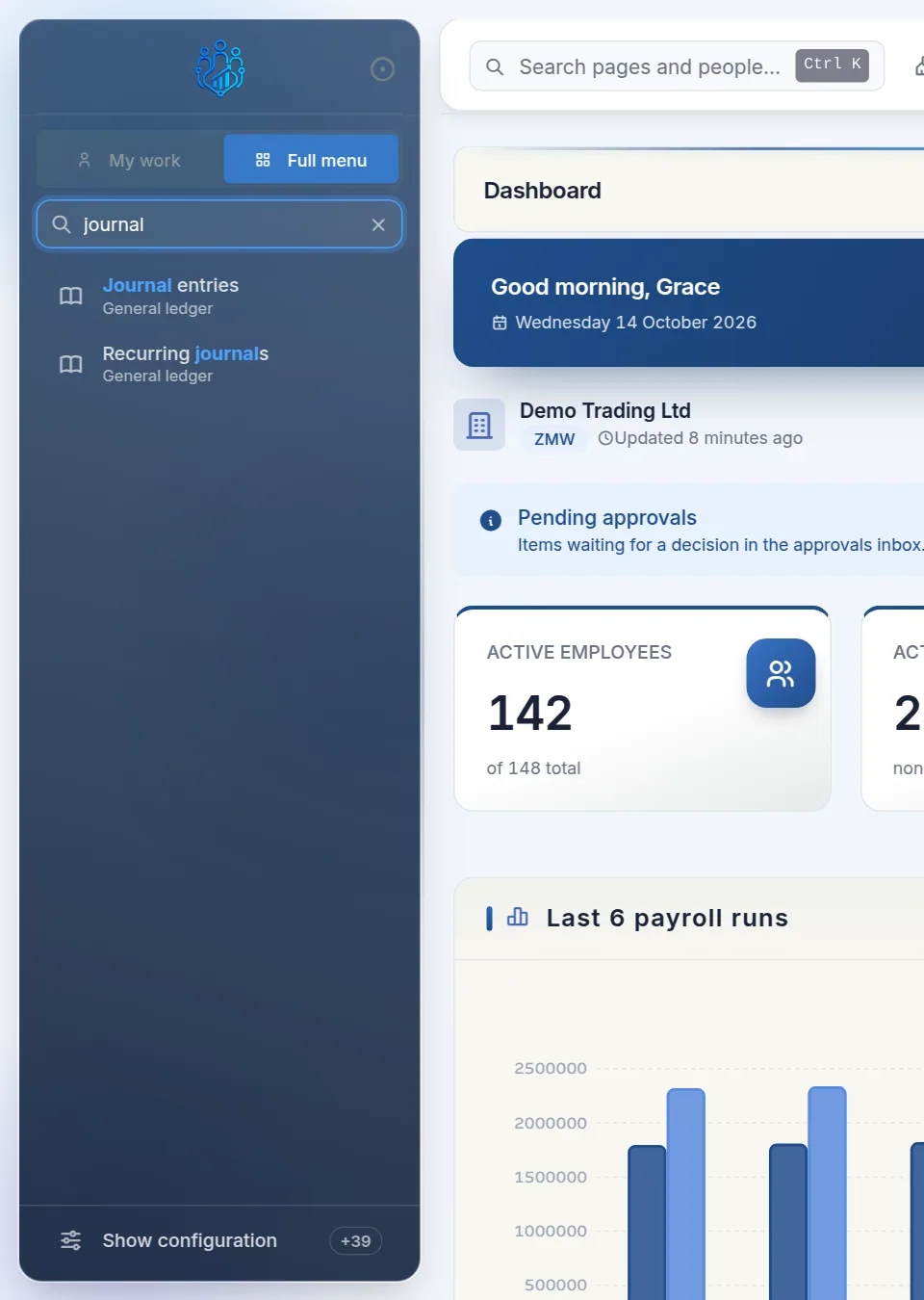
- To filter the menu, type in Filter menu… at the top of the sidebar, or press /. Press Enter to open the first match.
Coloured counters next to some items show work waiting for you. For example, the amber number next to Approvals inbox is the number of items waiting for your decision.
Pin the pages you use most
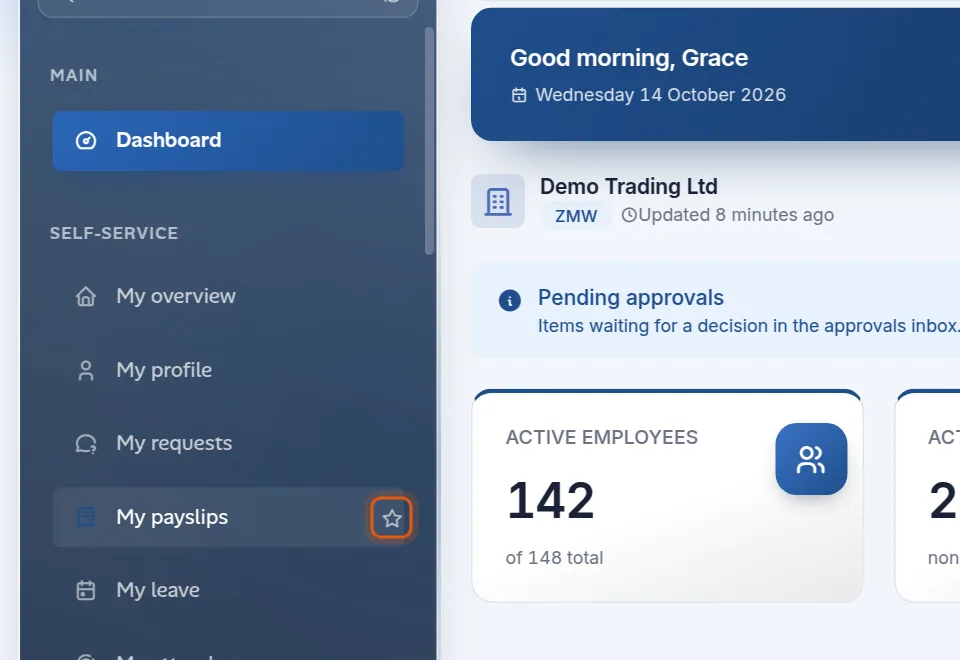
Hover over a page in the sidebar and click the star to pin it to the top of the menu, under Pinned. You can pin up to 8 pages. Click the star again to unpin.
The clock icon in the filter box lists the last 5 pages you opened.
Show configuration pages
Set-up pages you rarely need, such as Chart of accounts, Tax codes or Leave types, are hidden to keep the menu short. To see them, click Show configuration at the bottom of the sidebar. The number beside it shows how many pages are hidden.
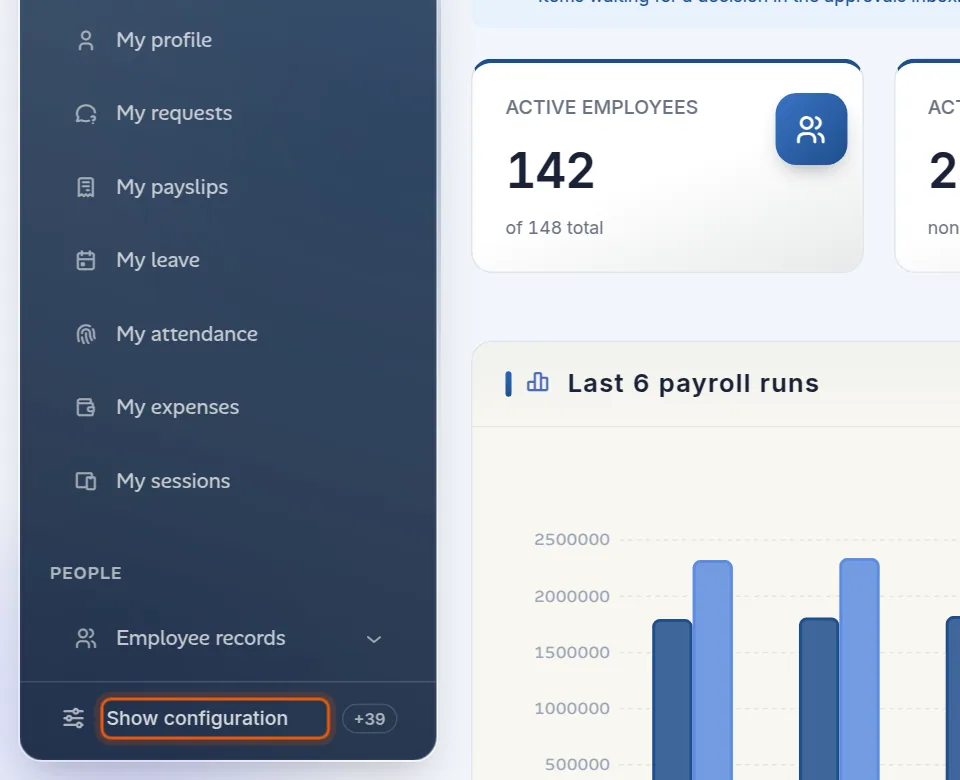
Configuration pages then appear at the bottom of each group under a Configuration heading. Click Hide configuration to tuck them away again. Hidden pages can still be found with search.
My work and Full menu
If your login is linked to an employee record, the top of the sidebar has two buttons:
- My work shows only your own items: your profile, payslips, leave, attendance, expenses and requests.
- Full menu shows everything your role allows.
Employees start in My work. Managers and administrators start in Full menu.
Switch company
If your organisation runs more than one company in Kipdesky, the Workspace menu in the top bar shows which company you're working in.
Click the company name in the top bar.
Choose the company you want. A tick marks the current one.
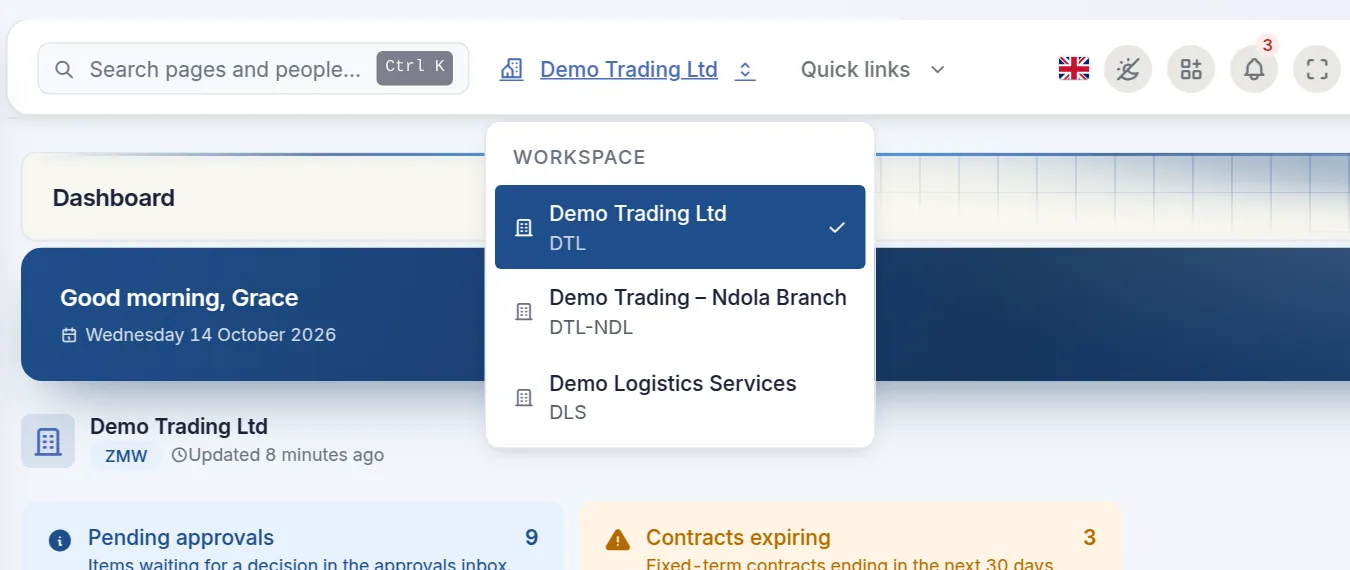
Every page reloads with the new company's data. Employees, payroll, journals and reports are all kept separate per company.
Using Kipdesky on a phone or tablet
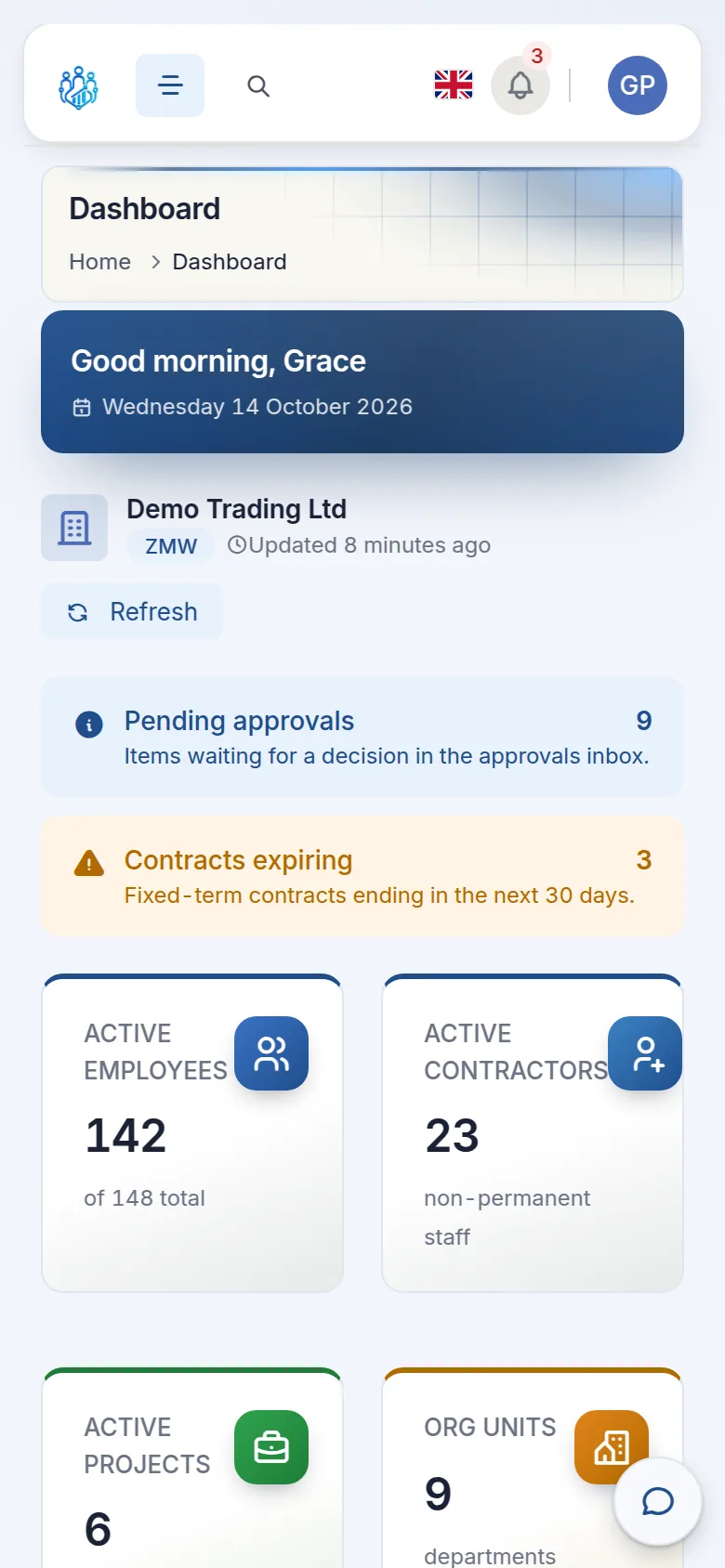
Kipdesky works in the browser on phones and tablets. Nothing needs installing.
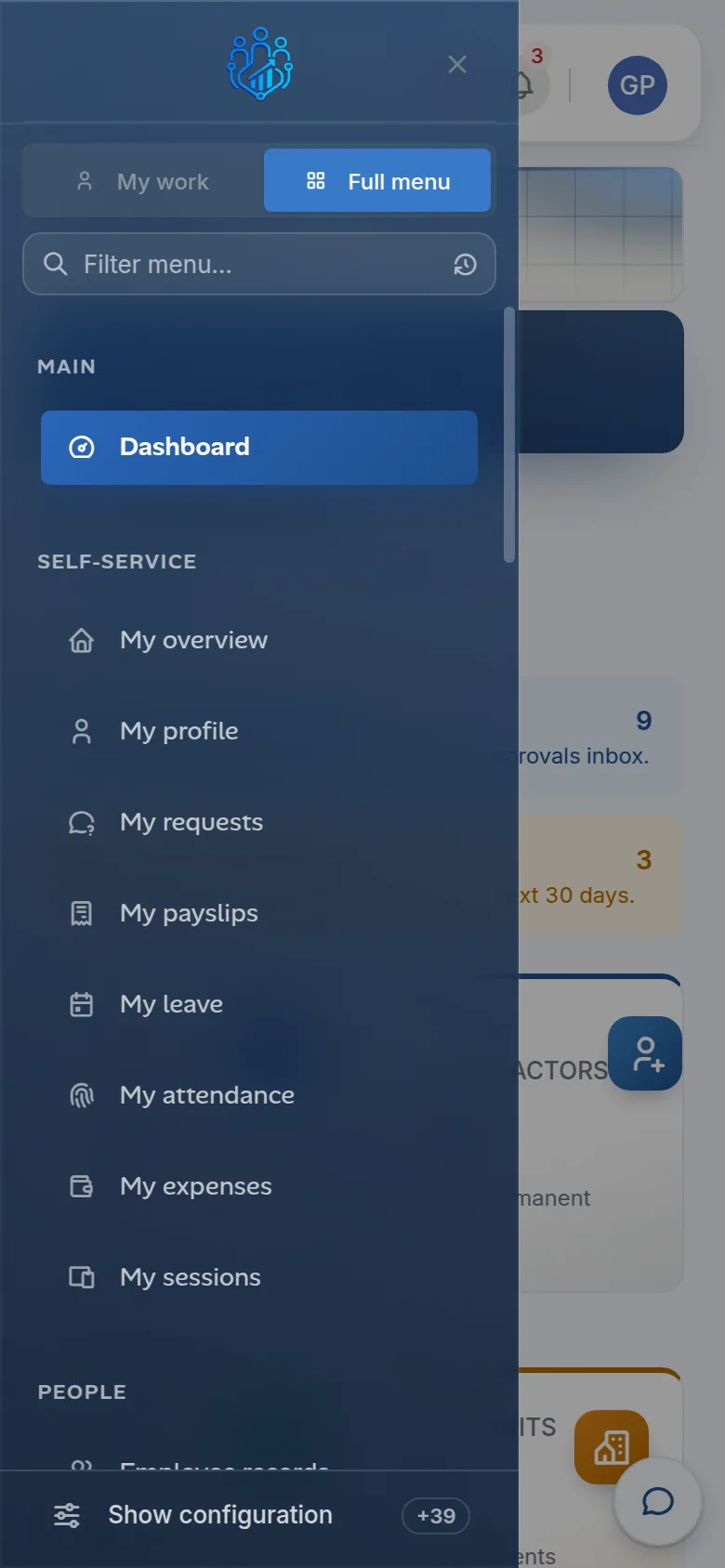
- On a phone, the sidebar is hidden. Tap the menu button (three lines) to open it, and tap outside it or the ✕ to close it.
- On a tablet, the sidebar shrinks to icons. Tap an icon to see that group's pages.
Tips and common mistakes
- Not being able to find a set-up page. It's probably hidden. Click Show configuration, or just search for it.
- Working in the wrong company. Check the company name in the top bar before entering anything. It's the most common reason people "lose" an entry.
- A missing menu item. Menus follow your role. If you need access to something, ask your administrator. A blocked page shows "You don't have access to that page".
- Working offline. A yellow bar appears when your connection drops: "You're offline — changes may not be saved until your connection returns." Wait for Back online before saving.
FAQs
Can I change the colours or make the screen more compact?
Yes. Click the cog icon in the top bar to open Theme settings. You can choose a light or dark colour scheme, a compact density and different menu styles. Theme settings are kept until you close the browser. To make light or dark mode permanent, use Account settings › Appearance instead.
Can I use Kipdesky in another language?
Yes. Click the flag in the top bar and pick a language. Kipdesky supports English, Español, Français, Português, Deutsch, Русский, العربية, हिन्दी, 中文 and 日本語.
What is the sparkle button in the bottom-right corner?
It opens the AI assistant, if your company has it switched on. You can ask it questions about Kipdesky and your own records. The speech-bubble button next to it opens Messages.