
Appearance
Finance
The Finance module is Kipdesky's general ledger. It holds your chart of accounts, journals, bank accounts and budgets, and produces your trial balance, financial statements and VAT return. Payroll, supplier and customer invoices, expenses and fuel post into it automatically, so the ledger reflects what happens elsewhere in Kipdesky.
Who uses it: accountants, finance managers and anyone who approves journals or reconciles the bank. Your role decides which pages you can see and whether you can create, approve or only view.
Where to find it
Finance lives under Finance & ERP in the sidebar, in four groups:
| Group | Pages |
|---|---|
| General ledger | Journal entries, Recurring journals. Configuration pages: Chart of accounts, Posting profiles, Fiscal years, Accounting periods, Tax codes, Cost centres. |
| Financial statements | VAT return, Trial balance, Income statement, Balance sheet, Cash flow statement, Receivables ageing, Payables ageing |
| Banking | Bank accounts, Bank transactions, Bank reconciliations |
| Budgeting & forecasting | Budgets |
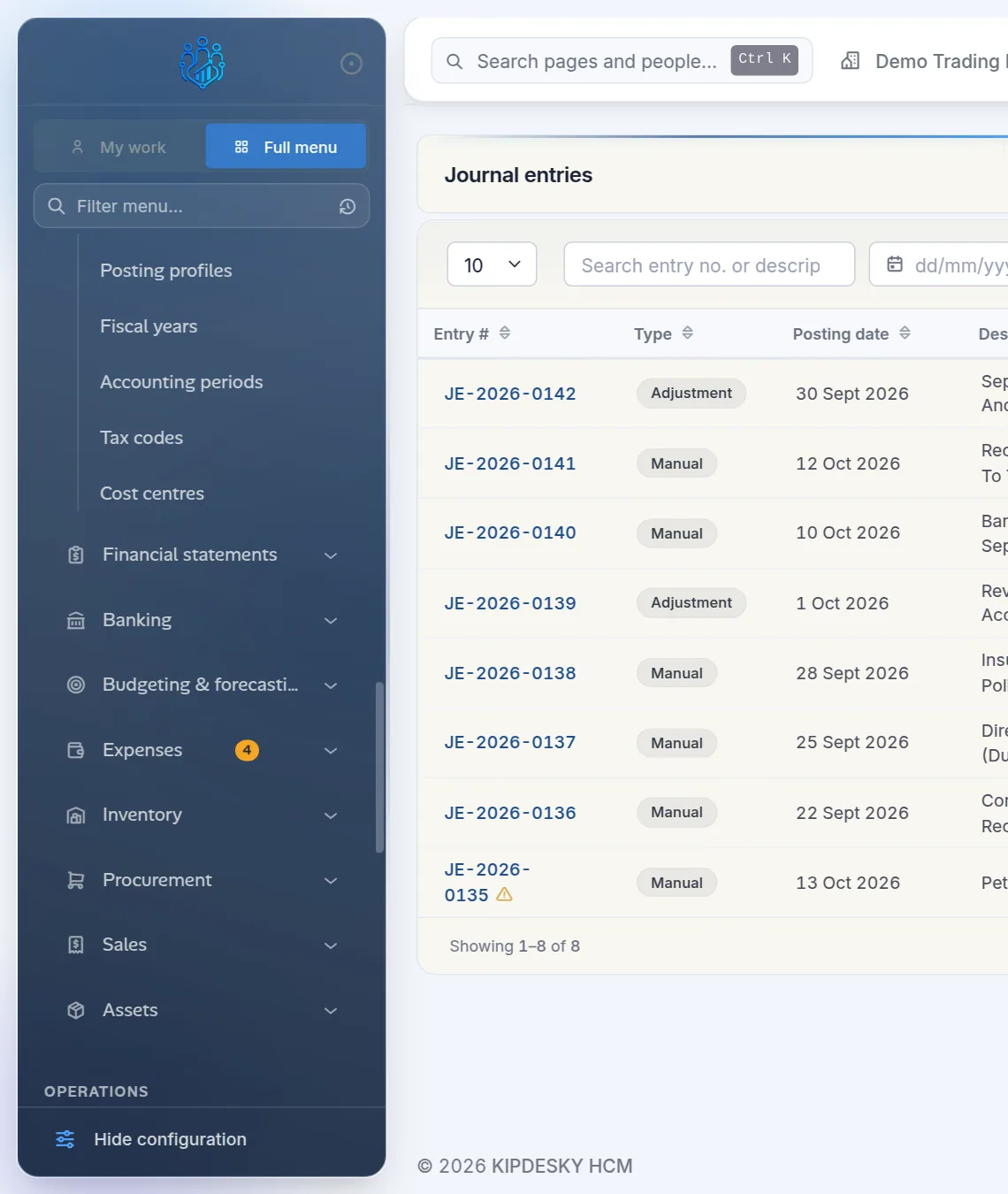
Can't see the set-up pages?
Chart of accounts, Fiscal years, Accounting periods, Tax codes, Cost centres and Posting profiles are configuration pages, hidden by default. Click Show configuration at the bottom of the sidebar to see them. See Finding your way around.
Setting up Finance for the first time
Do these in order. Each step relies on the one before.
- Chart of accounts: the accounts you post to.
- Fiscal years and periods: Kipdesky won't post a journal unless an open accounting period covers its date.
- Tax codes: VAT and other rates used on invoices and the VAT return.
- Cost centres: optional, if you report by department, branch or site.
- Bank accounts: each linked to its ledger account.
- Posting profiles: tell Kipdesky which accounts payroll, invoices, fuel and stock post to.
How the books are kept
- Everything goes through journals. Manual journals, recurring journals, and postings from payroll and invoices all become journal entries.
- Only posted entries count. Reports and balances include posted entries only. Drafts and approved-but-unposted entries are ignored.
- Every entry must balance. Debits must equal credits before an entry can be posted.
- Two people per journal. The person who creates a manual journal can't approve it. Someone else must.
- Closed periods are locked. Once a period is closed, nothing more can be posted into it. Month end is covered in Closing a period.
In this chapter
Chart of accountsCreate and maintain the accounts you post to.Fiscal years and periodsSet up your financial year and its monthly periods.Tax codesVAT, withholding tax and other rates.Cost centresDepartments, branches and sites for reporting.Bank accountsYour bank accounts and their ledger accounts.Posting profilesWhich accounts payroll, invoices and stock post to.Journal entriesCreate, approve and post journals.Recurring journalsRent, accruals and prepayments that repeat.Bank transactionsRecord what went in and out of the bank.Bank reconciliationAgree the bank statement to your books.BudgetsSet budgets and compare them with actual spend.Closing a periodThe month-end checklist and locking a period.Financial reportsTrial balance, statements, VAT return and ageing.
FAQs
Does payroll post to the ledger automatically?
Yes, once posting profiles are set up. The Posting profiles page shows a green banner when every payroll component in use has accounts mapped. If a component is missing, the payroll journal is refused until you map it.
Can I export reports to Excel or PDF?
Not from the Finance pages at the moment. To get data out, use Reports & Analytics › Data import & export › Data exports, or ask your administrator about scheduled reports.
We have more than one company. Are the books separate?
Yes. Each company has its own chart of accounts, periods, journals and reports. Switch company from the Workspace menu in the top bar.