
Appearance
Notifications and approvals
Kipdesky tells you when something needs your attention: a request to approve, a decision on your own request, or a finished job. The bell shows the latest notifications. The approvals inbox collects everything waiting for your decision.
The notification bell
The bell in the top bar shows a red number when you have unread notifications.
Click the bell to see your 6 most recent notifications. Unread ones are highlighted with a blue dot.
Click a notification to open the page it's about. Opening it marks it as read.
Click Mark all read to clear the counter, or Open notifications to see them all.
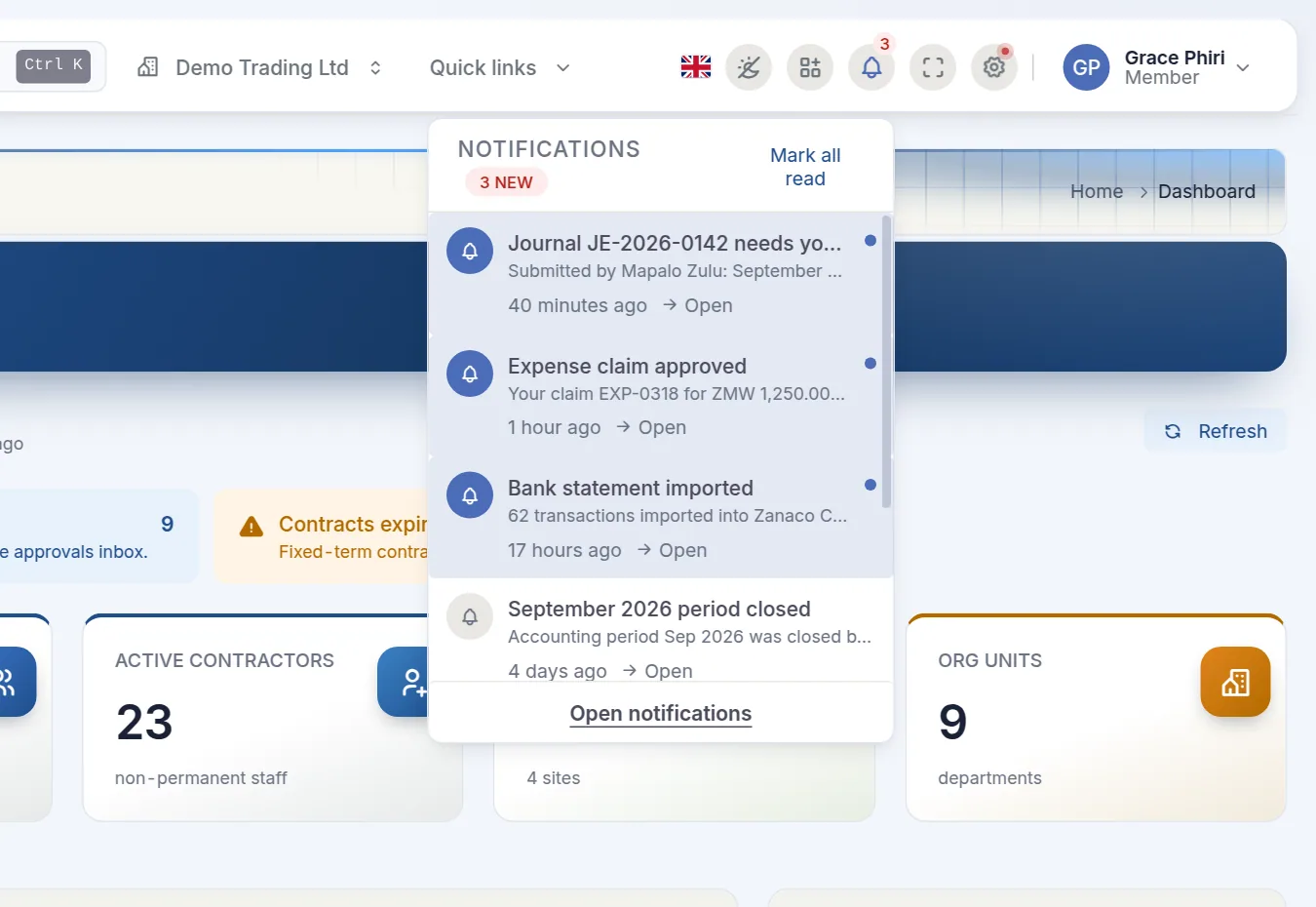
The bell checks for new notifications every 2 minutes.
The notifications page
Open notifications (or Communication › Notifications in the sidebar) shows all your notifications, grouped by day.
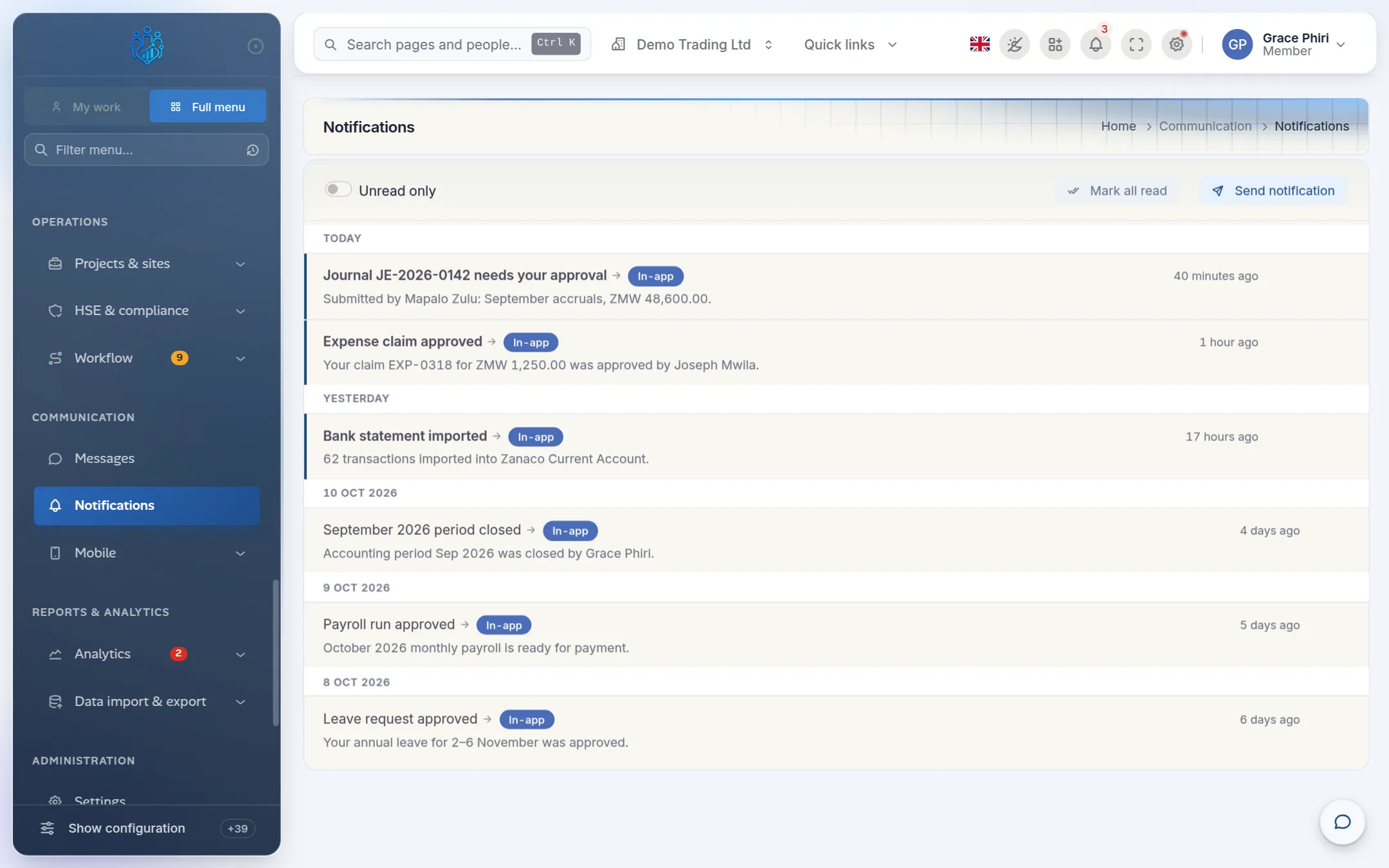
- Turn on Unread only to hide what you've already seen.
- Click ✓ on a notification to mark it read, or the bin icon to dismiss it.
- Click Load more at the bottom to see older notifications.
Send a notification
If your role allows it, Send notification lets you message staff in the app or by email.
- Choose the Channel: in-app or email.
- Choose who to send it to: selected employees, everyone with a role, everyone in the company, or everyone at a site.
- Enter a Title and Message.
Before you send, Kipdesky shows how many people it will reach.
The approvals inbox
The approvals inbox lists every request waiting for your decision in one place: leave, timesheets, employee requests, expense claims and other approvals, such as journal entries.
Open Operations › Workflow › Approvals inbox. The amber number beside it in the sidebar shows how many items are waiting.
The chips at the top show how many items there are of each type. Each row shows who asked, what they asked for and when.
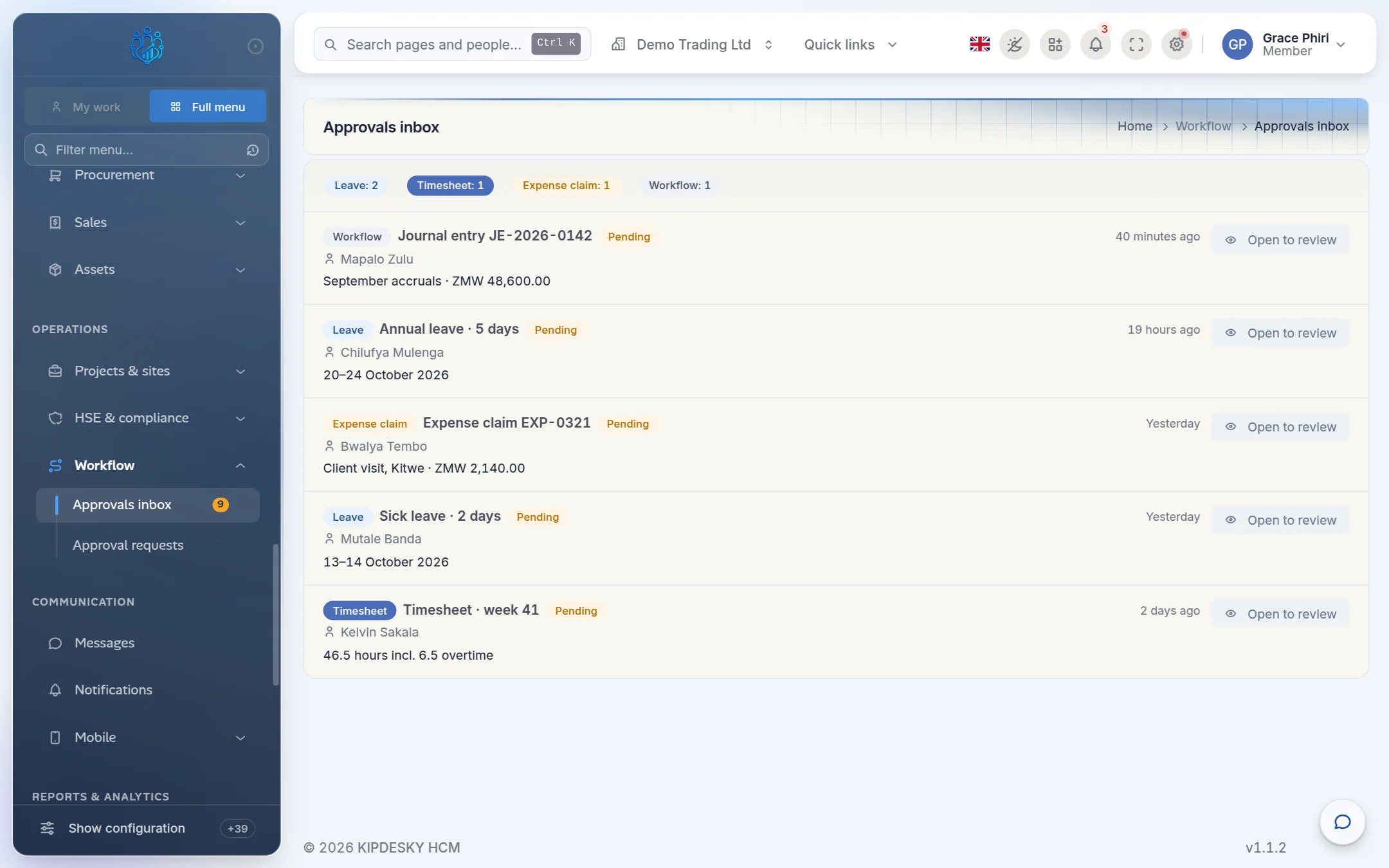
For leave, timesheets, employee requests and expense claims, click Approve or Reject directly in the inbox.
For anything else, or to see the full details first, click Open to review. Make your decision on the page that opens.
When the list is empty, the inbox says "You're all caught up — no pending approvals."
Tips and common mistakes
- Approving without opening. Approve straight from the inbox only when the summary tells you everything. If in doubt, click Open to review.
- Waiting for an email. Kipdesky shows approvals in the inbox first. Check the inbox daily rather than relying on email.
- Approving your own request. For most requests, including journal entries and your own leave or expense claims, Kipdesky won't let you approve something you created yourself. Another approver has to do it.
FAQs
Why can't I see Approve and Reject on some items?
Some approvals, such as journal entries and other workflow requests, can only be decided on their own page. Use Open to review. The buttons also only appear if your role can approve that type of request.
Someone says they sent me a request, but my inbox is empty.
Check that you're in the right company (top bar), then click the inbox again to reload it. If it's still missing, the request may have been sent to a different approver. Ask them to check who it's waiting on.
Can I get notifications on my phone?
Kipdesky works in your phone's browser, so you can check the bell and approve requests from the inbox wherever you are.