
Appearance
Passwords
How to reset a password you've forgotten, change your password while signed in, and replace a temporary password from your administrator.
Password rules
Every Kipdesky password must have:
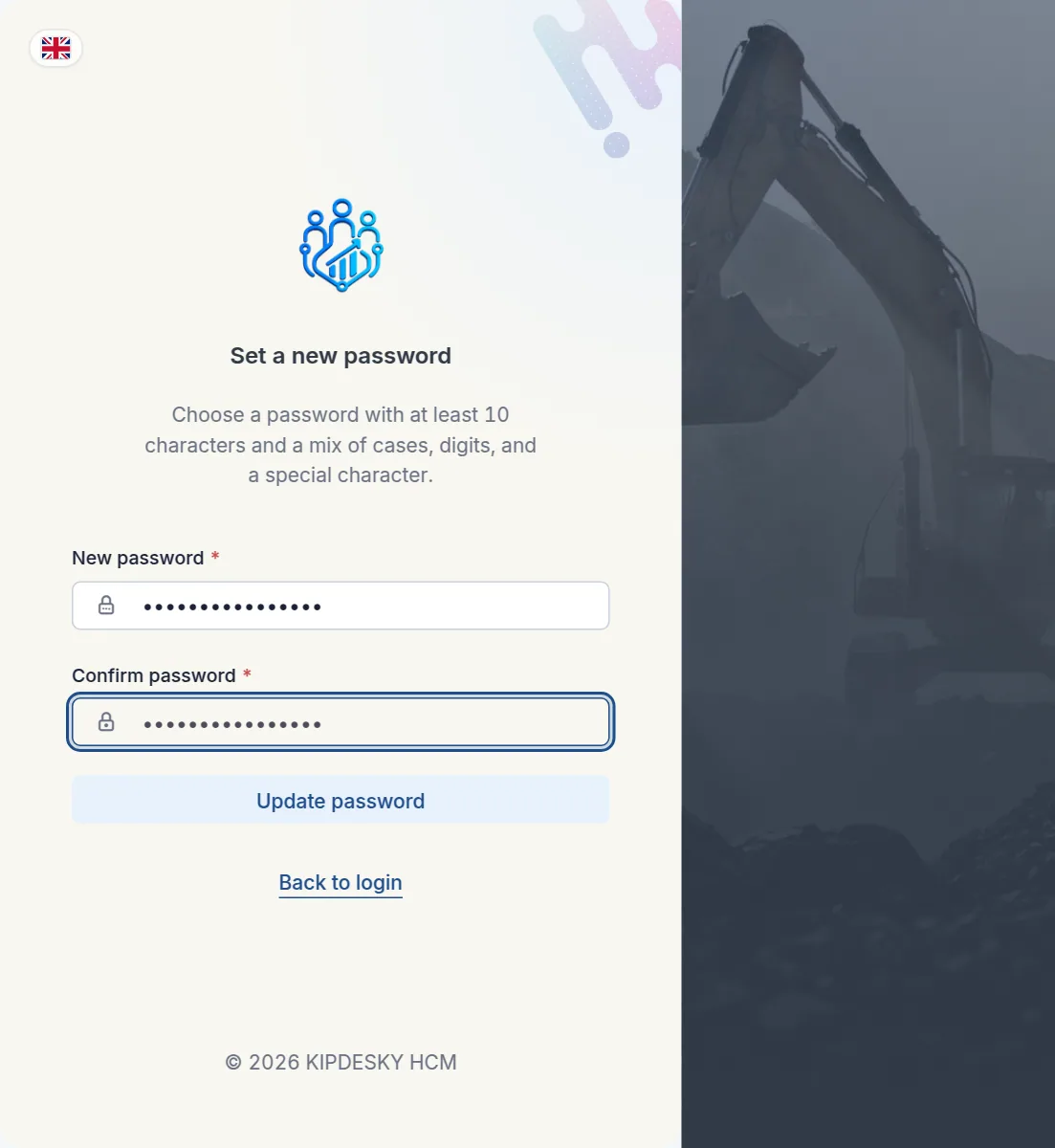
- at least 10 characters
- an uppercase letter and a lowercase letter
- a digit (0–9)
- a special character, such as
! @ # $ % & * ? -
You can't reuse your current password or any of your last 5.
An easy way to a strong password
String three or four unrelated words together with a digit and a symbol, for example Copper-River-Kettle-7!. It's easier to remember than a jumble of letters, and harder to guess.
Reset a forgotten password
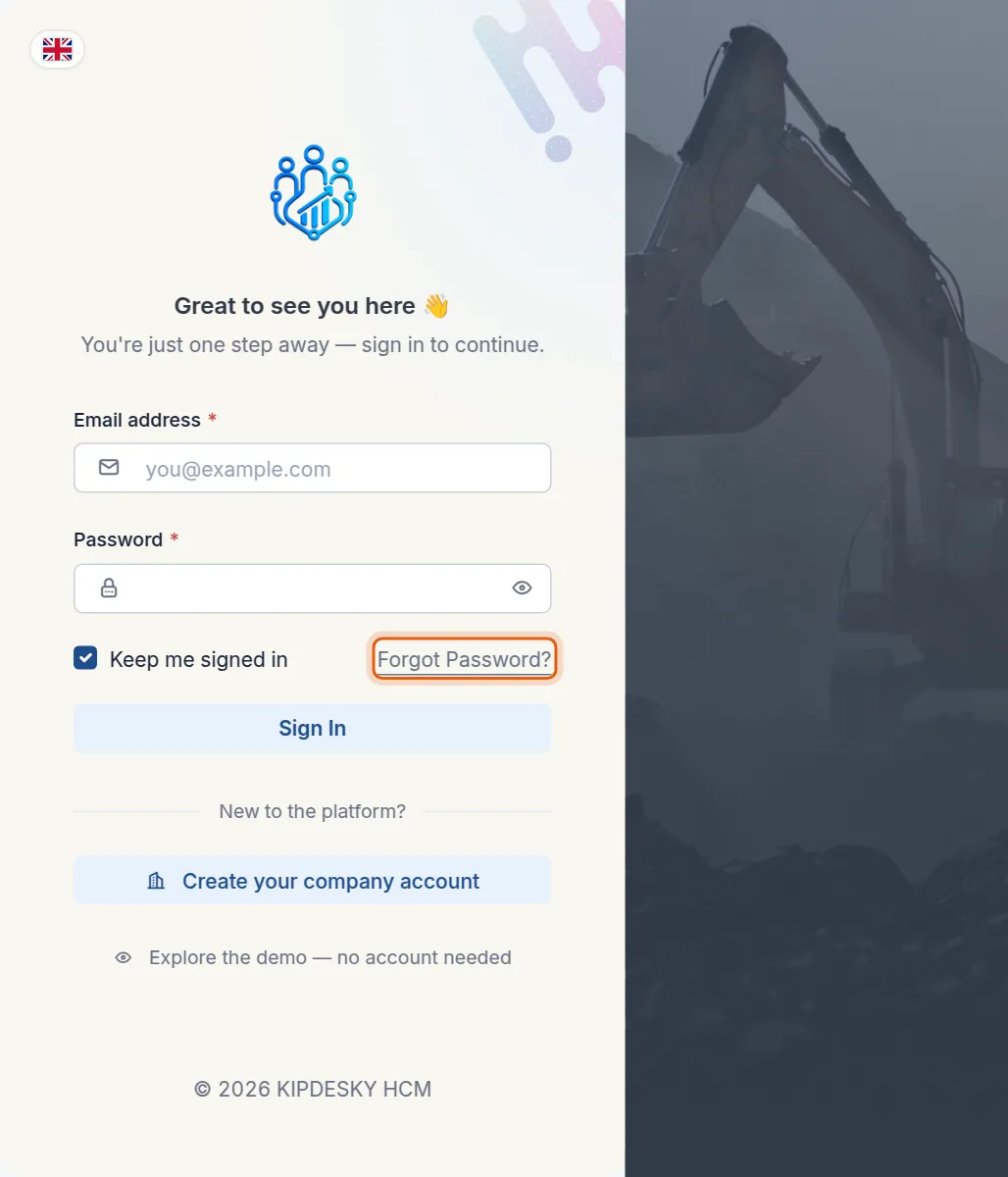
On the sign-in page, click Forgot Password?
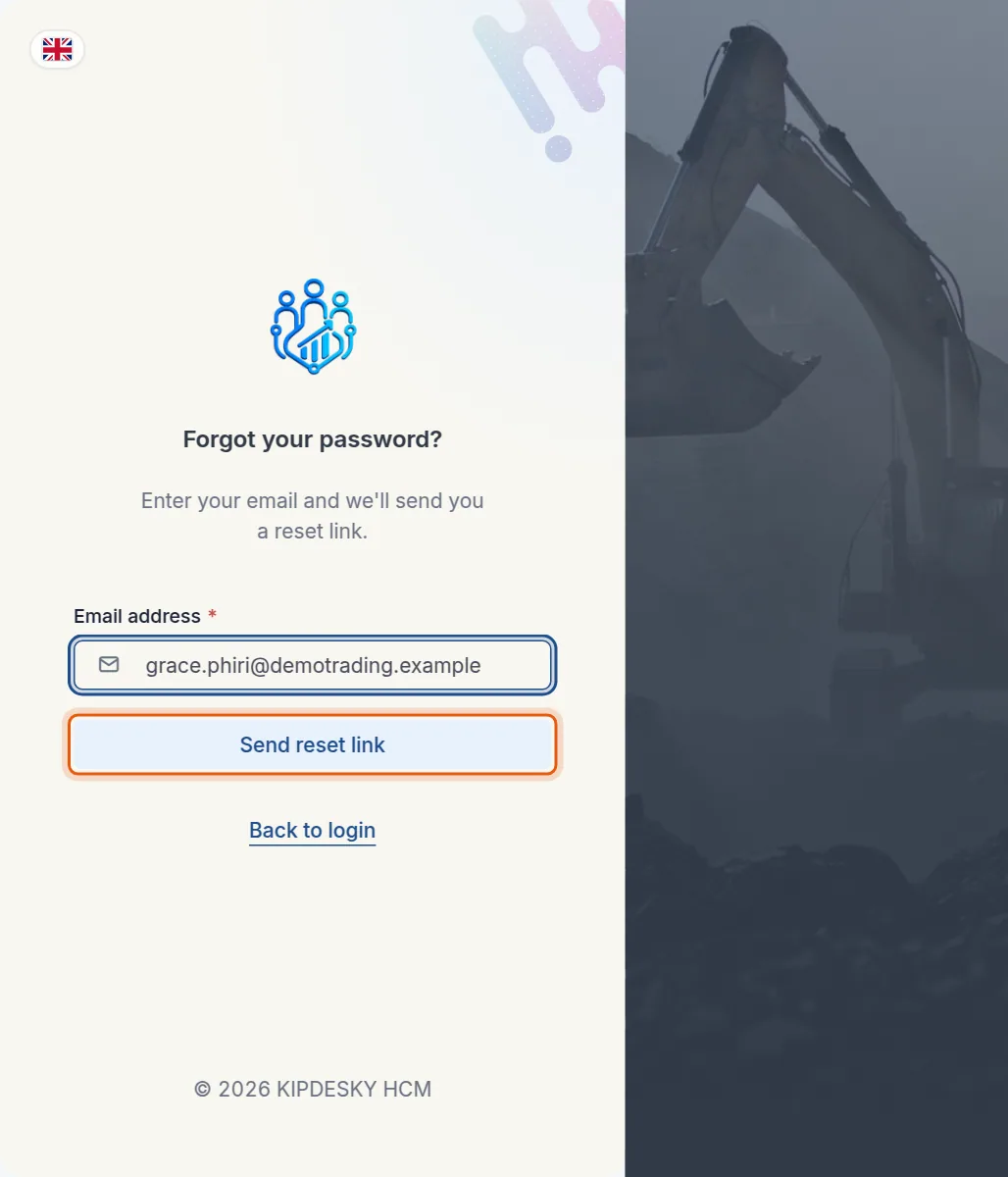
Enter your work email address and click Send reset link.
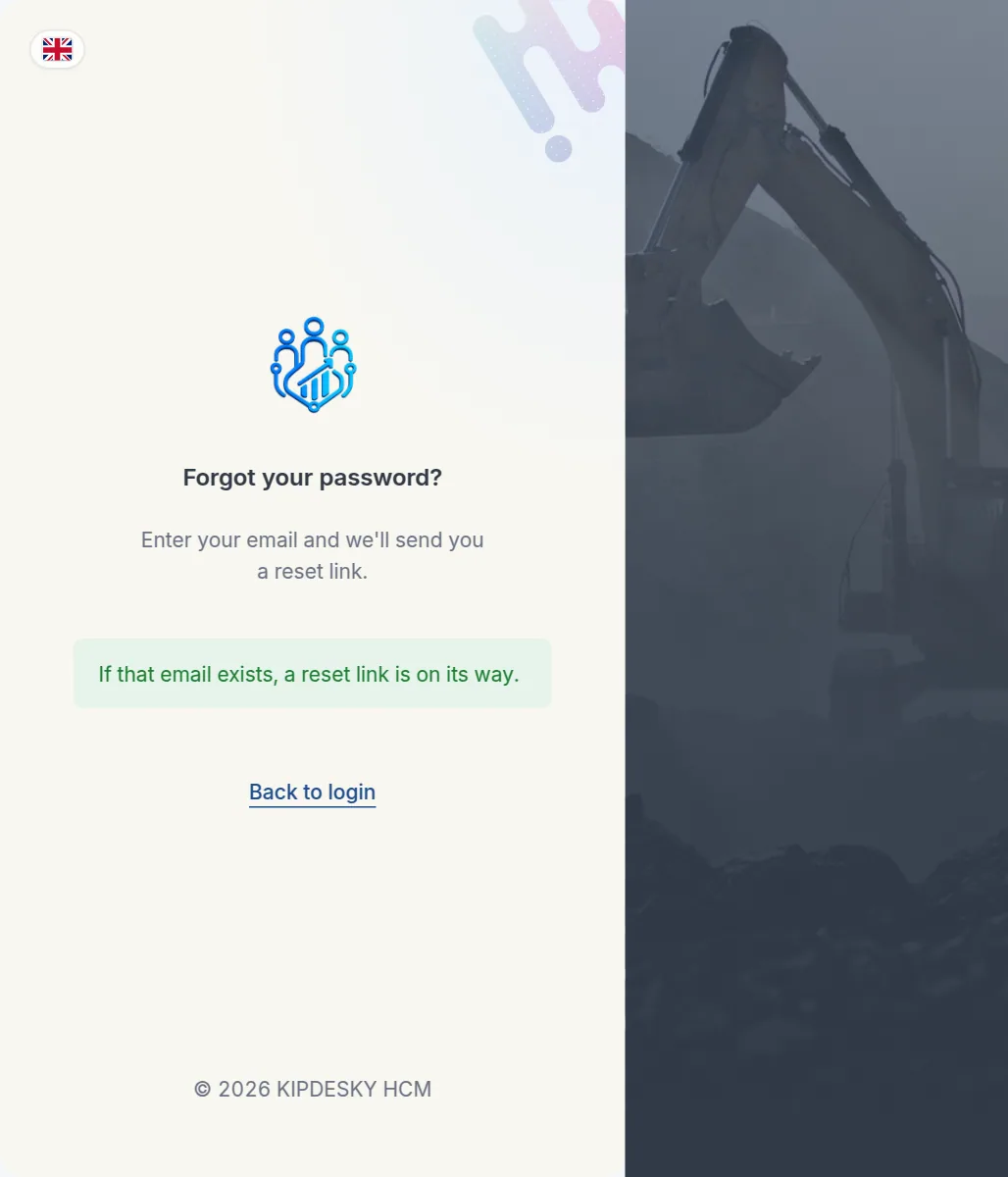
Kipdesky shows "If that email exists, a reset link is on its way." You see this message whether or not the address has an account, so the page can't be used to find out who works at your company.
Open the email from Kipdesky and click the link. The link expires after 30 minutes.
Enter your new password in New password and Confirm password, then click Update password.
You see "Password updated. Redirecting to sign in…" Sign in with your new password.
Resetting your password signs you out on every device.
Change your password
Do this if you think someone else knows your password, or your company asks you to change it.
Click your name in the top-right corner and choose Account settings.
Under Change password, enter your Current password, then your New password twice.
If you use two-step verification, enter the current code from your app in MFA code.
Click Change password.
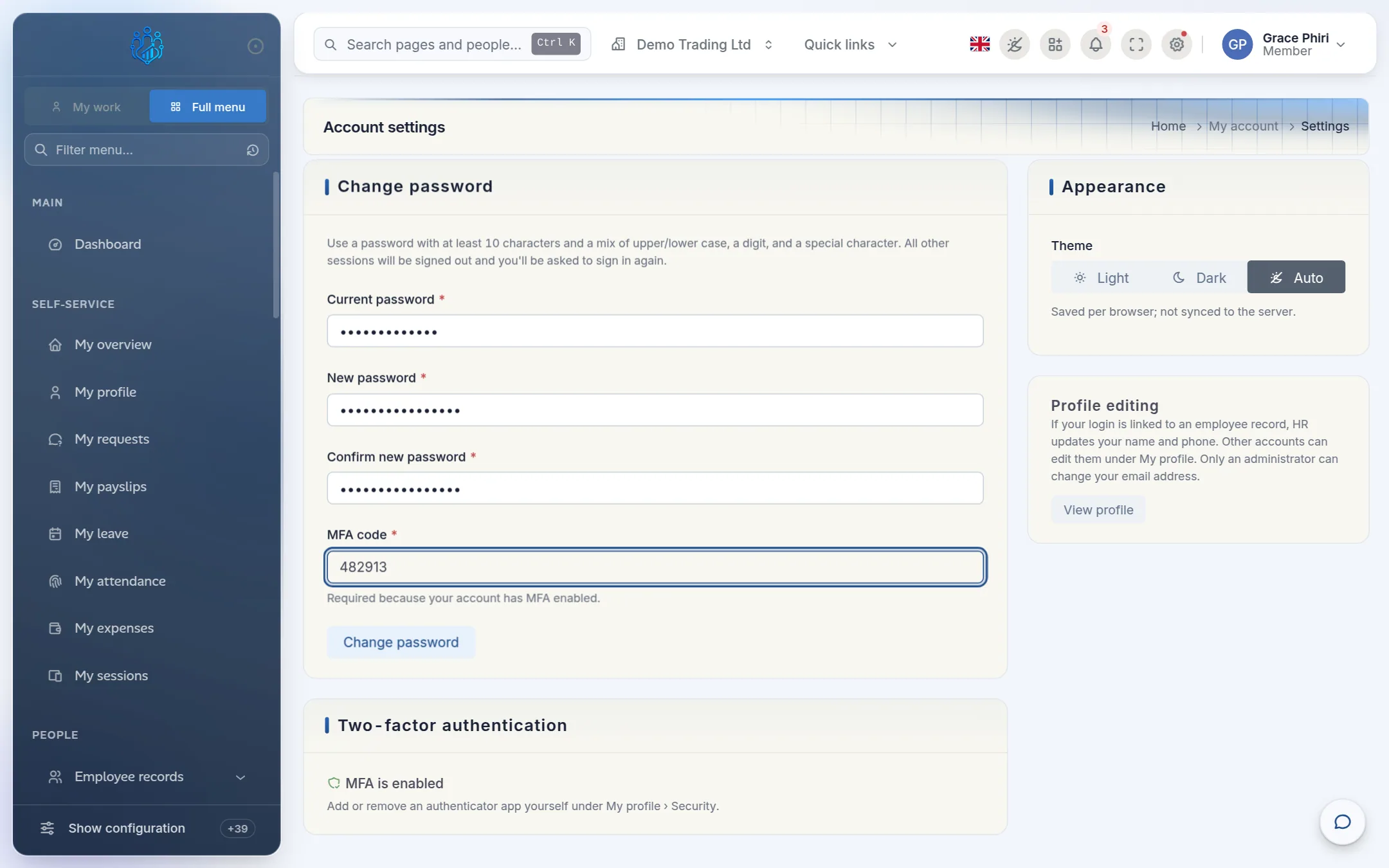
Kipdesky signs you out of every device and opens the sign-in page. Sign in with your new password.
Replacing a temporary password
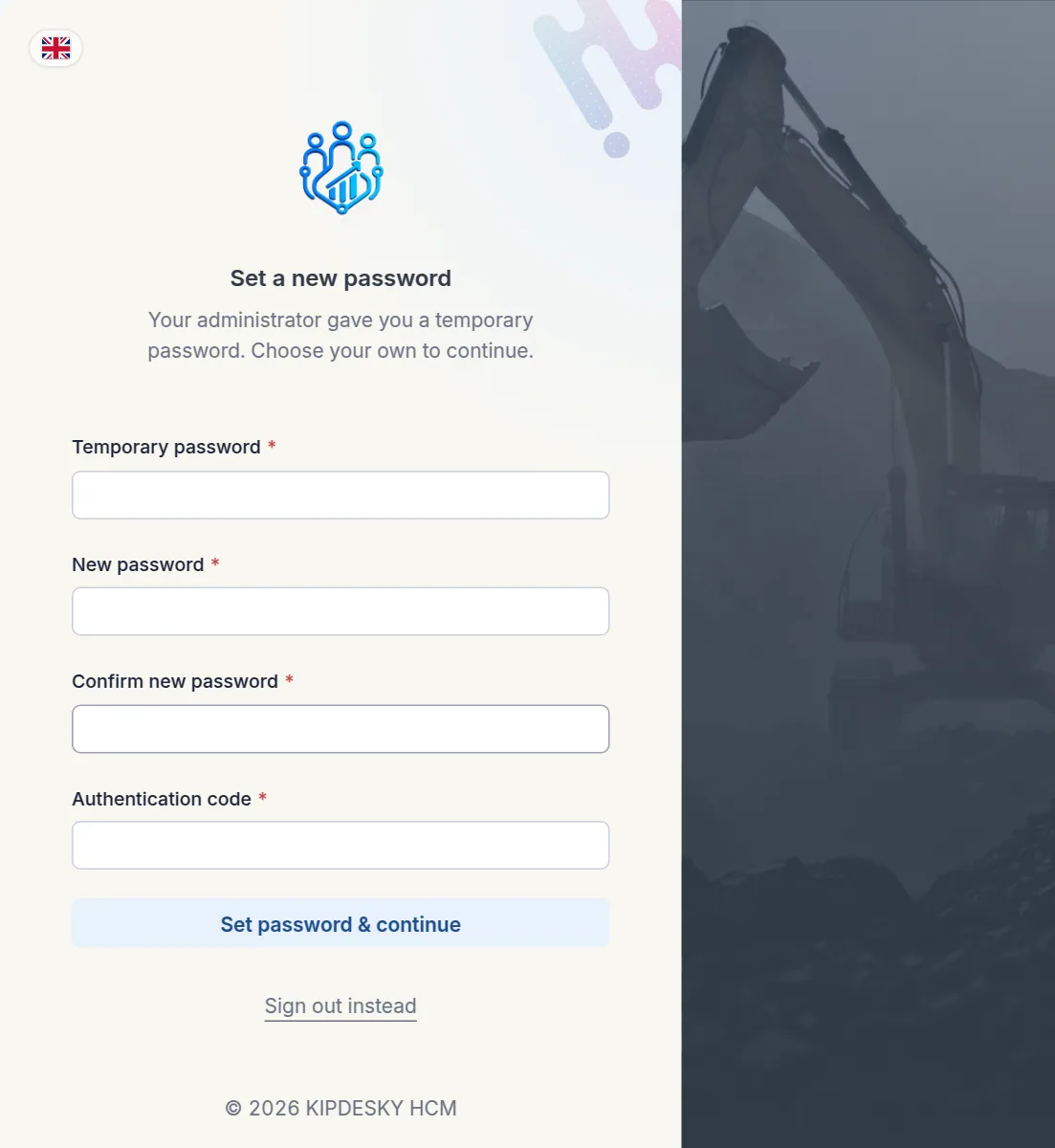
When an administrator creates your account or resets your password for you, you get a temporary password. The first time you sign in with it, Kipdesky opens the Set a new password screen, and you can't use the rest of the system until you've chosen your own.
Enter the Temporary password you were given.
Enter your New password and Confirm new password.
If asked, enter your Authentication code from your authenticator app.
Click Set password & continue, then sign in again with your new password.
Tips and common mistakes
- The reset link has expired. Reset links last 30 minutes. Request a new one and use the most recent email.
- "Passwords do not match." The two new-password boxes must be identical. Click the eye icon to check what you typed.
- Using an old password again. Kipdesky remembers your last 5 passwords and refuses them.
- Sharing a password. Every action in Kipdesky is recorded against the person who signed in. Never share your password, even with IT.
FAQs
I didn't receive the reset email.
Wait a couple of minutes and check your spam folder. Make sure you used your work address, the one your Kipdesky login was created with. If nothing arrives, ask your administrator to send you a reset link.
Can my administrator see my password?
No. Kipdesky stores passwords so that nobody, including administrators and Kipdesky staff, can read them. An administrator can only set a new temporary password for you.
Does Kipdesky make me change my password regularly?
No. Change it whenever you think it may be known to someone else.