
Appearance
Signing in
You sign in with your work email address and password. If your account has two-step verification, Kipdesky then asks for a 6-digit code.
Sign in
Go to your Kipdesky web address, for example
https://hcm.kipdesky.com. The sign-in page opens.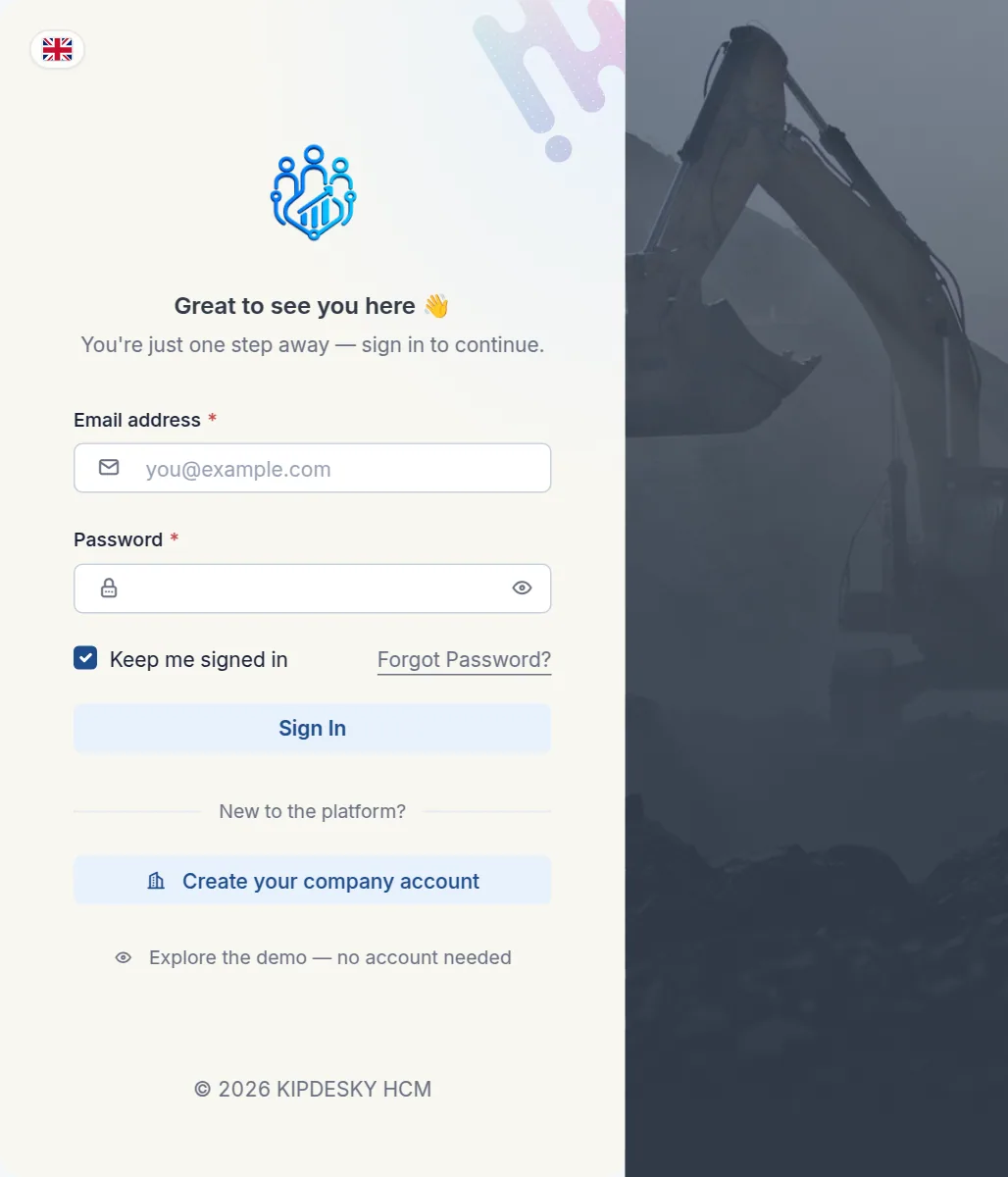
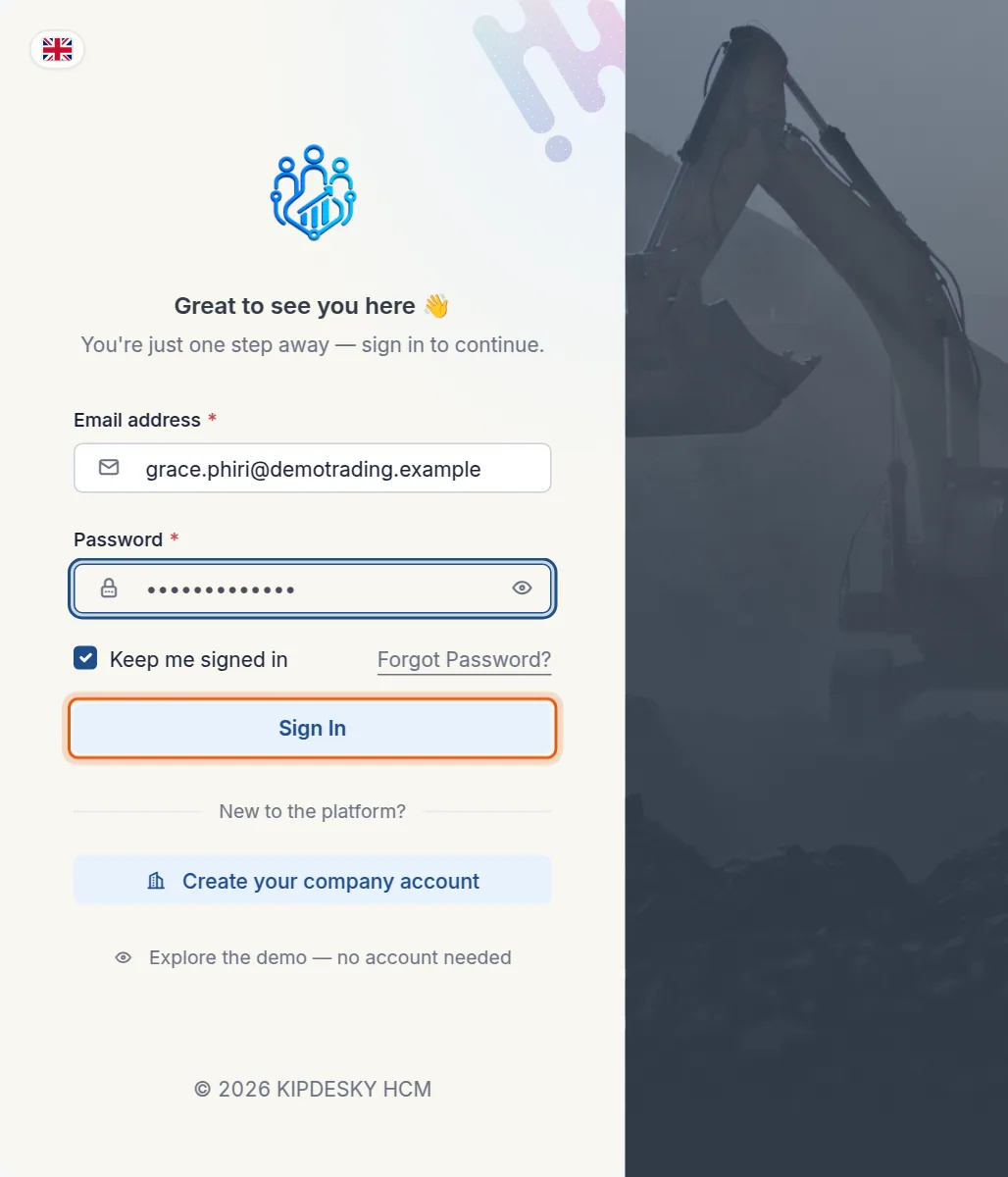
Enter your Email address and Password, then click Sign In.
Leave Keep me signed in ticked on your own computer. Untick it on a shared or public computer (see How long you stay signed in).
If your account uses two-step verification, enter the 6-digit code from your authenticator app. See Two-step verification.
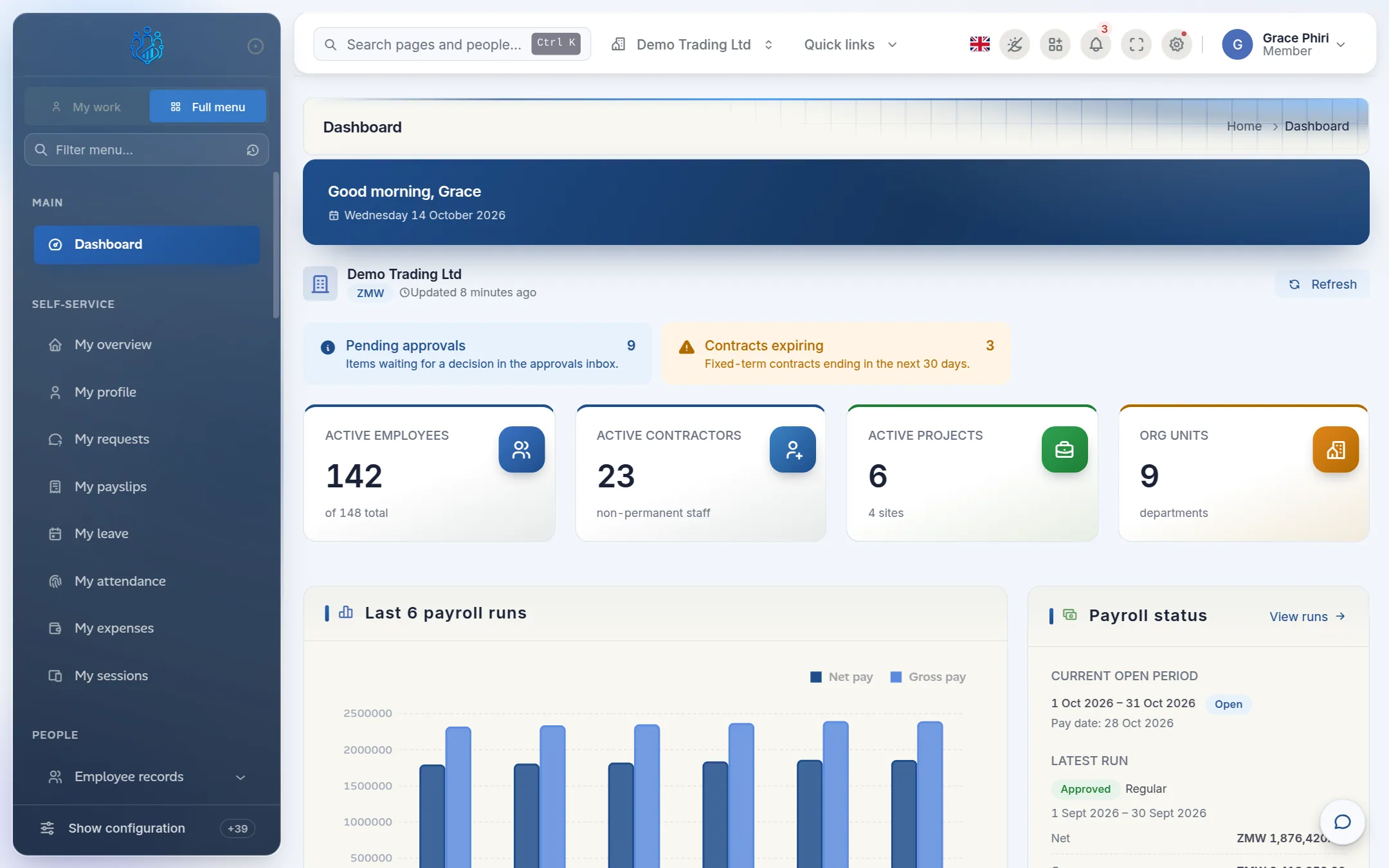
Kipdesky opens your start page:
- managers and administrators see the Dashboard
- employees see My space, with their leave balance, payslips and requests.
First sign-in with a temporary password
If your administrator set a temporary password for you, Kipdesky asks you to choose your own before you can go any further. See Passwords › Replacing a temporary password.
Sign out
Click your name in the top-right corner.
Click Sign out.
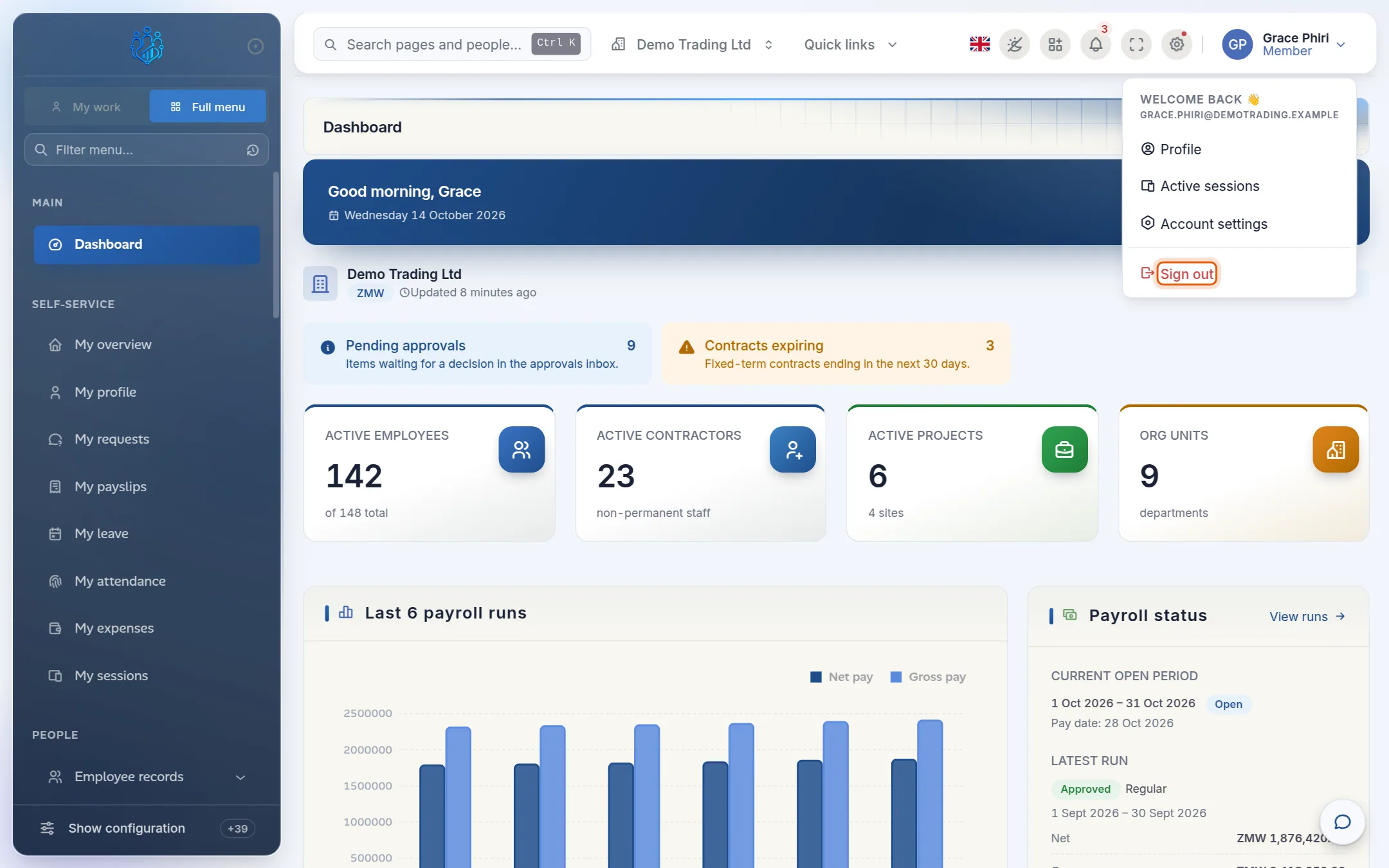
Signing out ends the session on this device only. To sign out a phone or another computer as well, see Profile and settings › Signed-in devices.
How long you stay signed in
Kipdesky has no idle timeout, so leaving a tab open doesn't sign you out.
- Keep me signed in ticked: you stay signed in on that browser for up to 30 days.
- Keep me signed in unticked: you stay signed in for up to 7 days.
While you keep using Kipdesky, your session renews itself automatically. If it does expire, the sign-in page opens with the message "Your session expired. Please sign in again."
If you can't sign in
| Message | What it means | What to do |
|---|---|---|
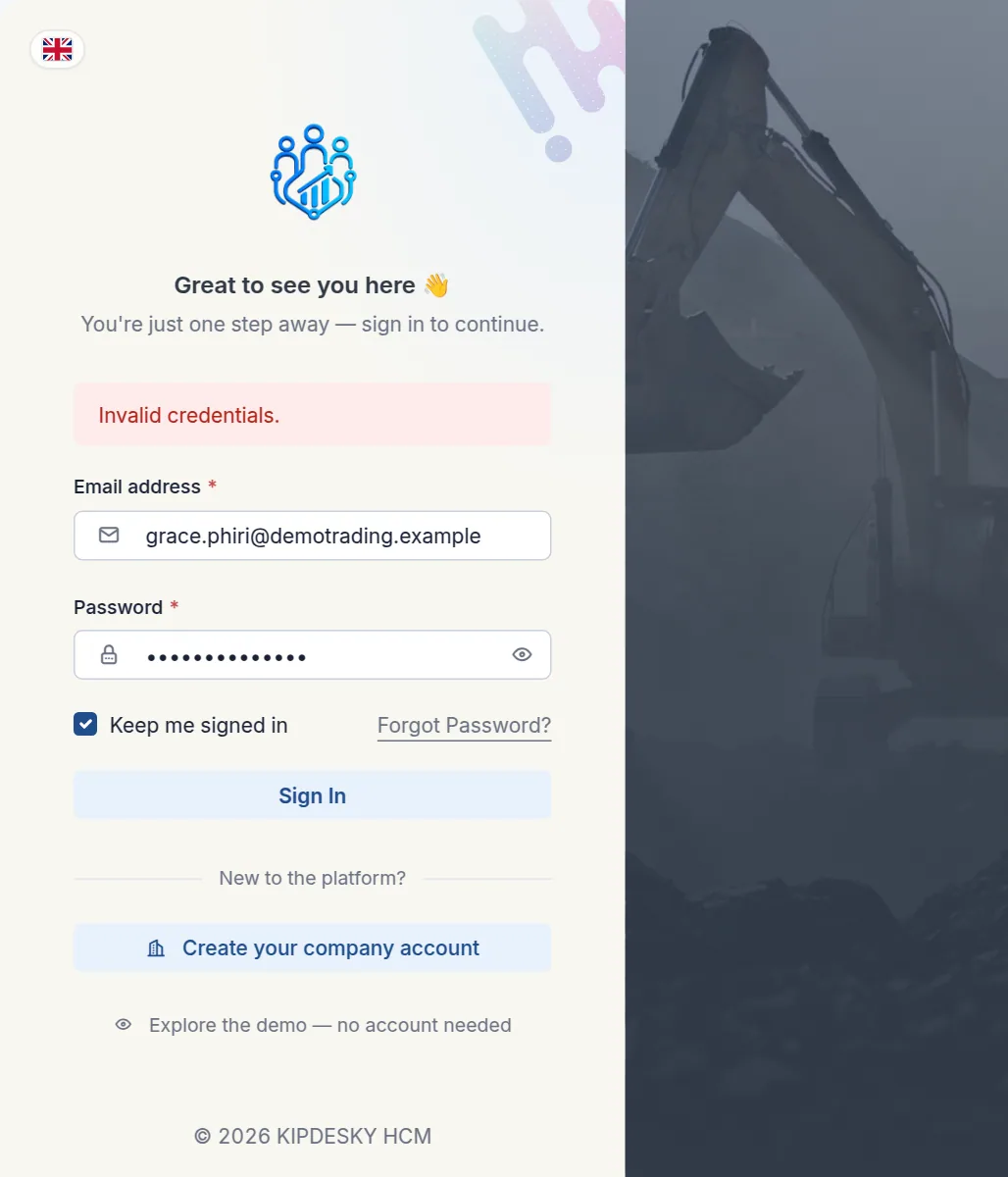
| Invalid credentials. | The email or password is wrong, or your account has been deactivated. | Check for typing mistakes and Caps Lock, then try again. If you've forgotten your password, reset it. |
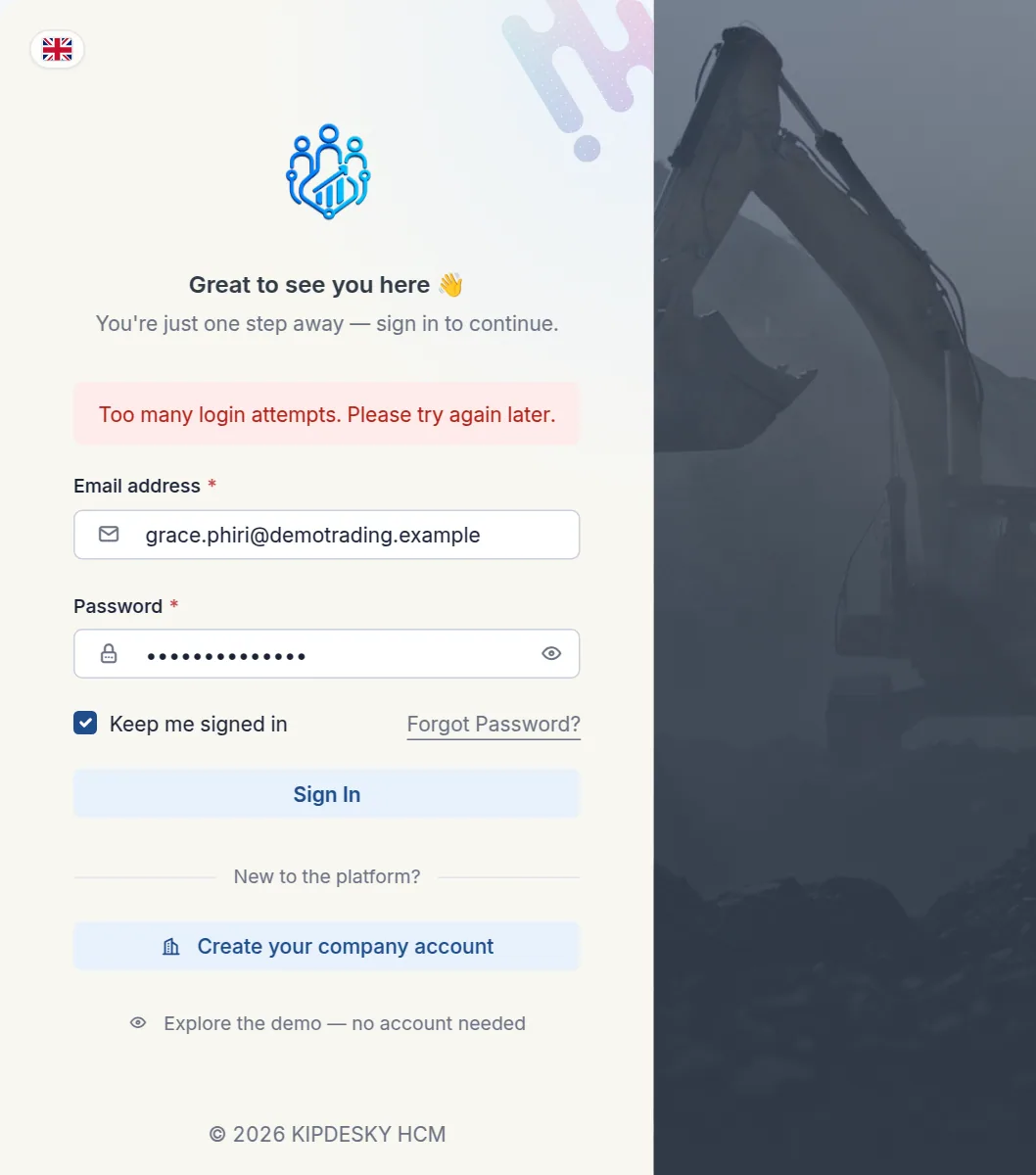
| Too many login attempts. Please try again later. | Your account is temporarily locked after too many wrong passwords. | Wait 15 minutes, or ask your administrator to clear the lock. |
| This workspace is suspended… | Your company's subscription needs attention. | Contact your administrator. Only they can resolve this. |
| Too many sign-in attempts from your network. Wait a minute and try again. | More than 10 sign-in attempts came from your network within a minute. | Wait a minute and try again. |
| Network Error | Your browser couldn't reach Kipdesky. | Check your internet connection. |
How lockout works
Kipdesky locks sign-in to protect your account from password guessing:
- 5 wrong passwords within 15 minutes from the same network locks your account for 15 minutes.
- 20 wrong passwords within an hour from anywhere locks your account for 30 minutes.
While the lock is on, even the correct password is refused. A successful sign-in resets the count. An administrator can see and clear locks under Administration › Security › Login attempts.
Tips and common mistakes
- Copying a password with a space. Copying a password from an email often picks up a space at the end. Type the password instead.
- Retrying again and again. Five wrong attempts in 15 minutes locks your account. After two failures, use Forgot Password? instead of guessing.
- Signing in on a shared computer. Untick Keep me signed in and click Sign out when you're done.
- Bookmarking the dashboard. Bookmark your company's Kipdesky address, not a page deep inside it. If your session has expired, a deep bookmark just takes you to the sign-in page.
- Not seeing your menus after a move. If you've changed company or role, sign out and back in so Kipdesky picks up your new access.
FAQs
I never received the email to set my password.
Check your spam or junk folder for a message from Kipdesky. Invitation links expire after 7 days. If yours has expired, ask your administrator to send a new invitation, or use Forgot Password? on the sign-in page.
Can I sign in with my Microsoft or Google account?
Only if your company has set up single sign-on. Most companies sign in with email and password. Ask your administrator if you're unsure.
What is “Explore the demo”?
It opens a sample company so you can look around Kipdesky without an account. Nothing you do there affects your real company.
Can I be signed in on my phone and my computer at the same time?
Yes. Each device has its own session. You can see them all, and sign any of them out, under My sessions.
I was signed out unexpectedly. Why?
Usually it's one of three things:
- you changed your password, which signs out every device
- someone signed out that session from My sessions
- the session reached its maximum length.
Sign in again to continue.