
Appearance
Recurring journals
A recurring journal is a template for an entry that repeats: monthly rent, an audit fee accrual, or releasing a prepaid insurance premium over twelve months. Kipdesky generates the entry from the template when it's due, so you don't retype it every month.
Open Finance & ERP › General ledger › Recurring journals.
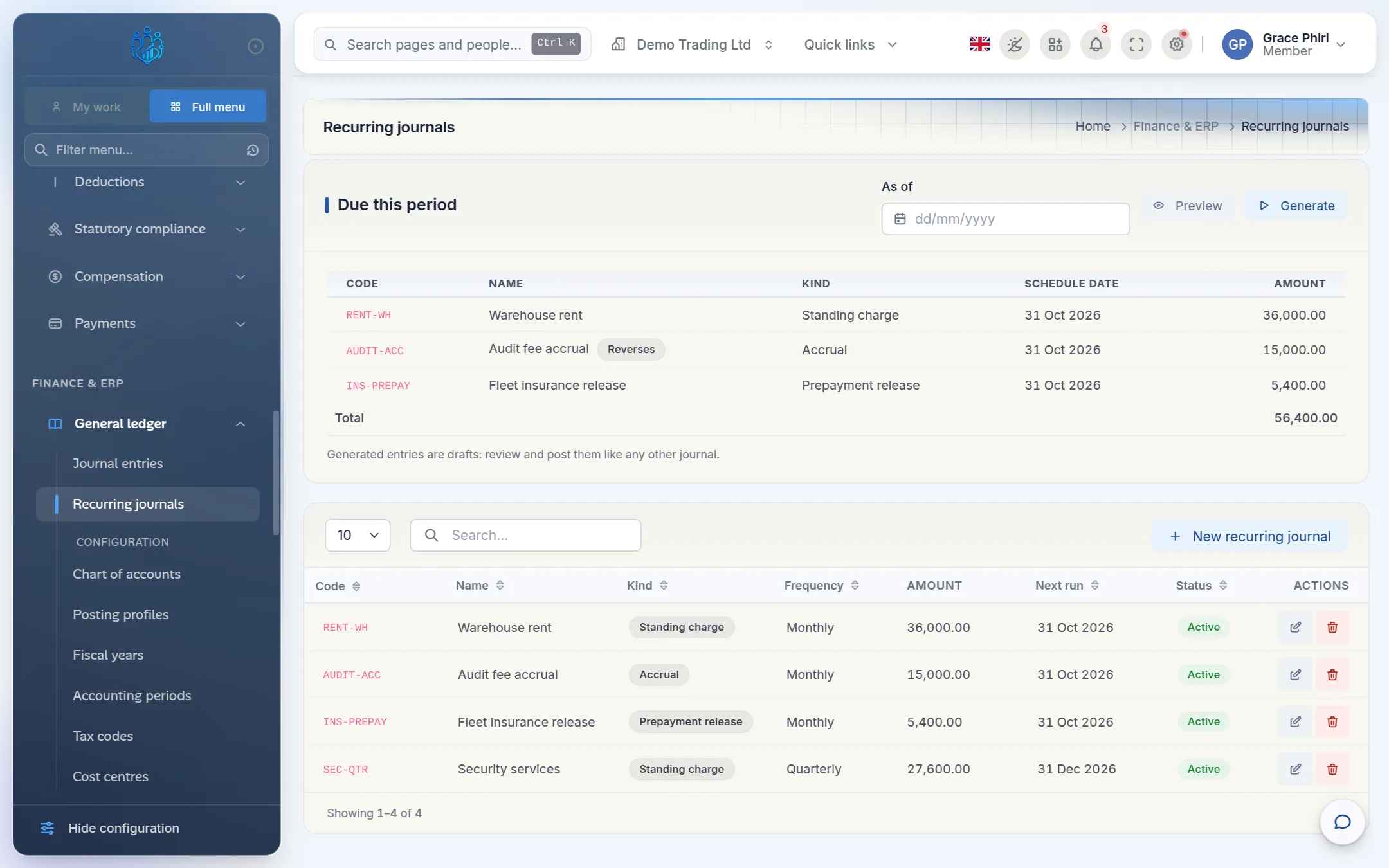
The page has two parts:
- Due this period lists the templates due on or before the As of date, with their amounts and a total.
- The list below holds all your templates, with their kind, frequency, amount and next run date.
The three kinds
| Kind | Use it for | What happens |
|---|---|---|
| Standing charge | The same cost every period, such as rent or a service contract. | Repeats every period. It isn't reversed. |
| Accrual | A cost you owe but haven't been invoiced for yet, such as audit fees. | Raised at period end and reversed on the first day of the next period, when the real invoice replaces it. |
| Prepayment release | Spreading an amount paid in advance, such as an annual insurance premium. | Releases a share each period. Set an end date so it stops once the prepayment is fully released. |
Create a recurring journal
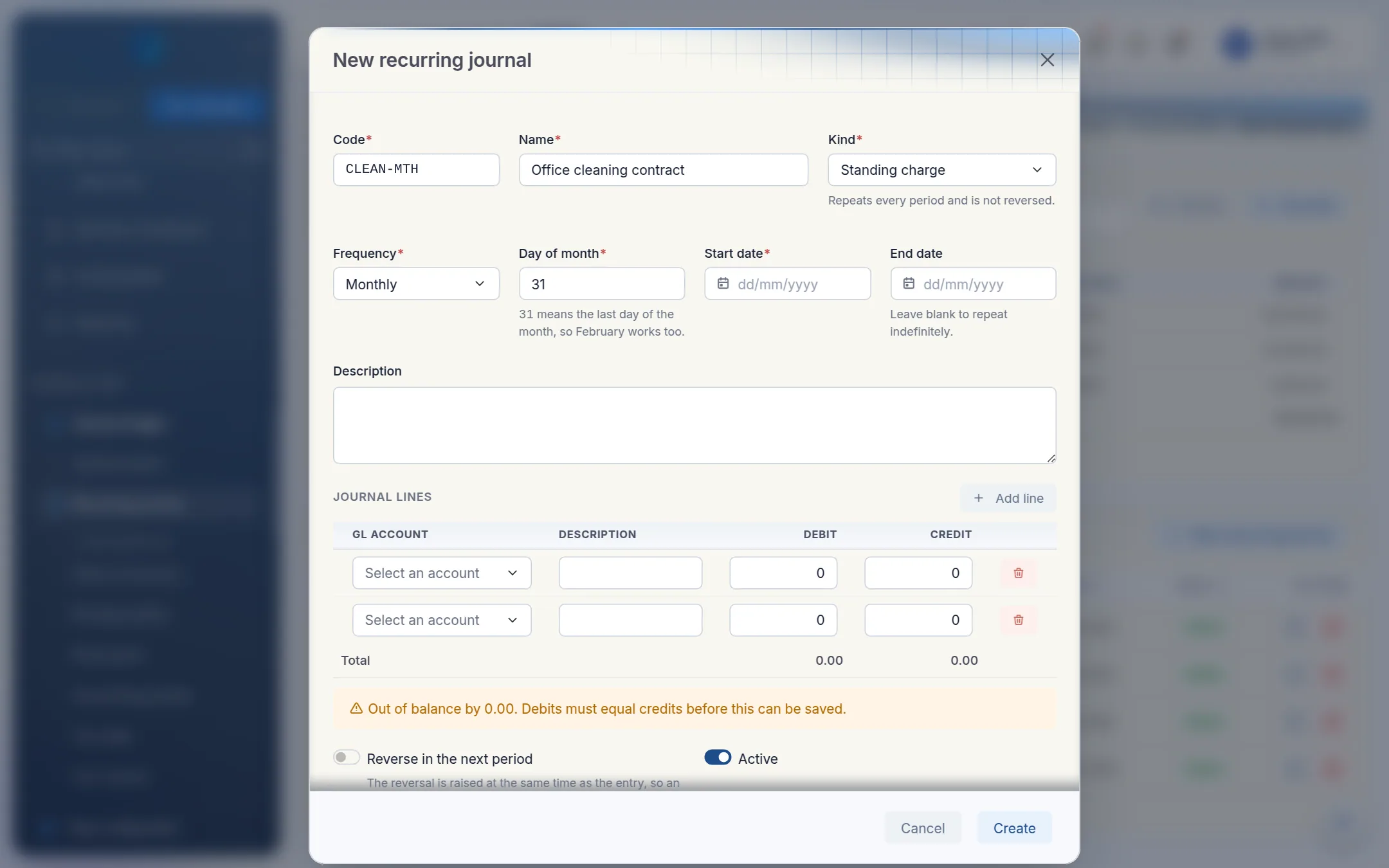
Click New recurring journal.
Fill in the header:
- Code and Name, for example
CLEAN-MTHand Office cleaning contract. - Kind: standing charge, accrual or prepayment release.
- Frequency: Monthly, Quarterly or Annually.
- Day of month: the day the entry is dated.
31means the last day of every month, so February works too. - Start date, and an End date if the journal should stop. Leave it blank to repeat indefinitely.
- Code and Name, for example
Under Journal lines, choose a GL account for each line and enter a Debit or a Credit. Click Add line for more lines. You need at least two.
Check the balance message under the lines. It must say Debits equal credits. before you can save.
For an accrual, Reverse in the next period is switched on automatically.
Click Create.
Generate the entries each period
In Due this period, set As of to the last day of the period, for example 31 October.
Click Preview to see what would be generated, without writing anything.
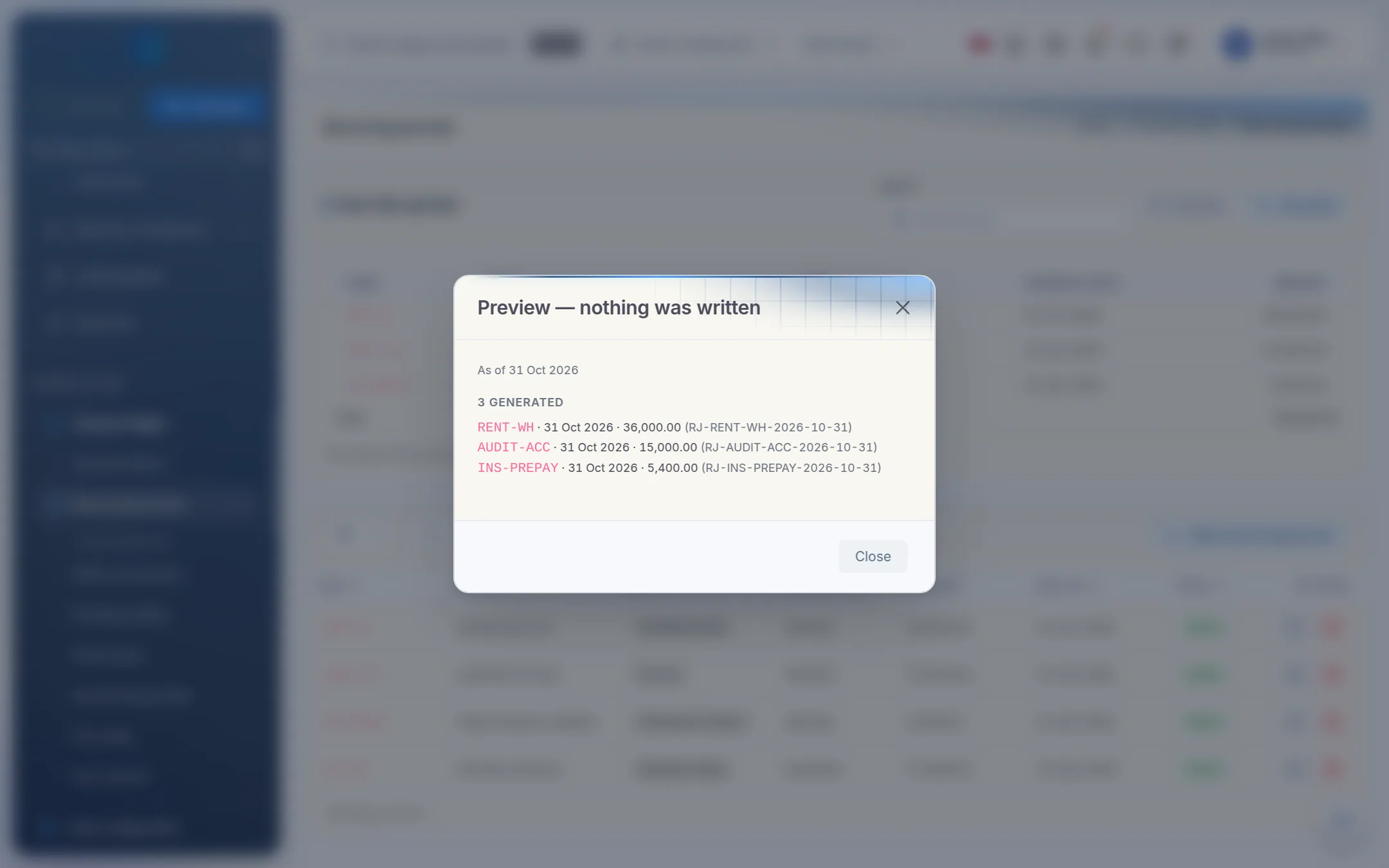
Close the preview and click Generate. Kipdesky creates one entry per template. For accruals, it also creates the reversing entry, dated the first day of the next period.
Generated entries are drafts. Open Journal entries, review them and post them like any other journal. See Journal entries.
Kipdesky never generates the same template twice for the same date, so clicking Generate again is safe.
Tips and common mistakes
- Forgetting to post. Generating only creates drafts. Nothing reaches the ledger until the entries are posted.
- A prepayment without an end date. It would carry on releasing forever. Always set the end date to the last month of the prepaid period.
- Generating into a closed period. Templates dated in a closed period are skipped, and the result says why.
- Changing a template mid-year. Edits affect future runs only. Entries already generated are unchanged.
FAQs
Why was a template skipped?
The result window lists each skipped template with a reason, for example:
- already generated for this date
- schedule has ended; marked inactive
- template does not balance
- the period is closed.
What happens if I delete a template that has already run?
Kipdesky makes it inactive instead of deleting it, so the journals it created still show where they came from.
Do the generated entries need a second approver?
No. Generated entries are system entries, so the two-person rule doesn't apply. They still need posting, though.