
Appearance
Chart of accounts
The chart of accounts is the list of every account your company posts to: bank, receivables, payables, revenue, expenses and so on. Every journal line, payroll posting and invoice ends up in one of these accounts.
Open it from Finance & ERP › General ledger › Chart of accounts. It's a configuration page, so you may need to click Show configuration first.
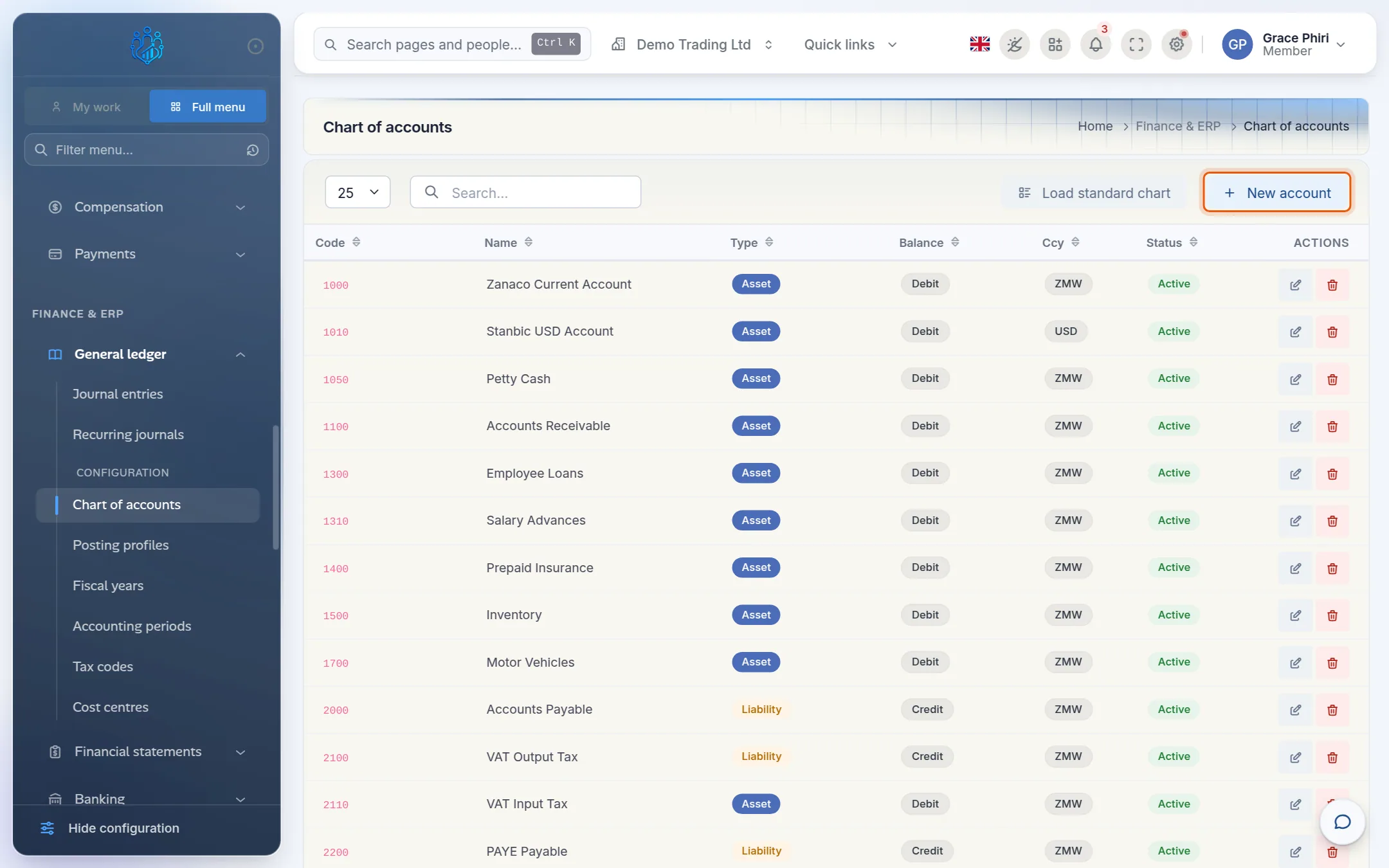
Each account has:
| Column | Meaning |
|---|---|
| Code | The account number, for example 6100. Codes must be unique and can't be changed later. |
| Name | What the account is for, for example Rent. |
| Type | Asset, Liability, Equity, Income or Expense. This decides where the account appears in the financial statements. |
| Balance | The account's normal side: Debit for assets and expenses, Credit for liabilities, equity and income. |
| Ccy | The account's currency. |
| Status | Active accounts can be used. Inactive ones are kept for history. |
Start from the standard chart
A new company can load Kipdesky's standard chart of accounts instead of typing every account. It includes the accounts payroll and invoices post to, such as salaries, PAYE, NAPSA and NHIMA payables, receivables and payables.
Click Load standard chart.
Kipdesky shows which accounts it would add and how many you already have. Nothing is written yet.
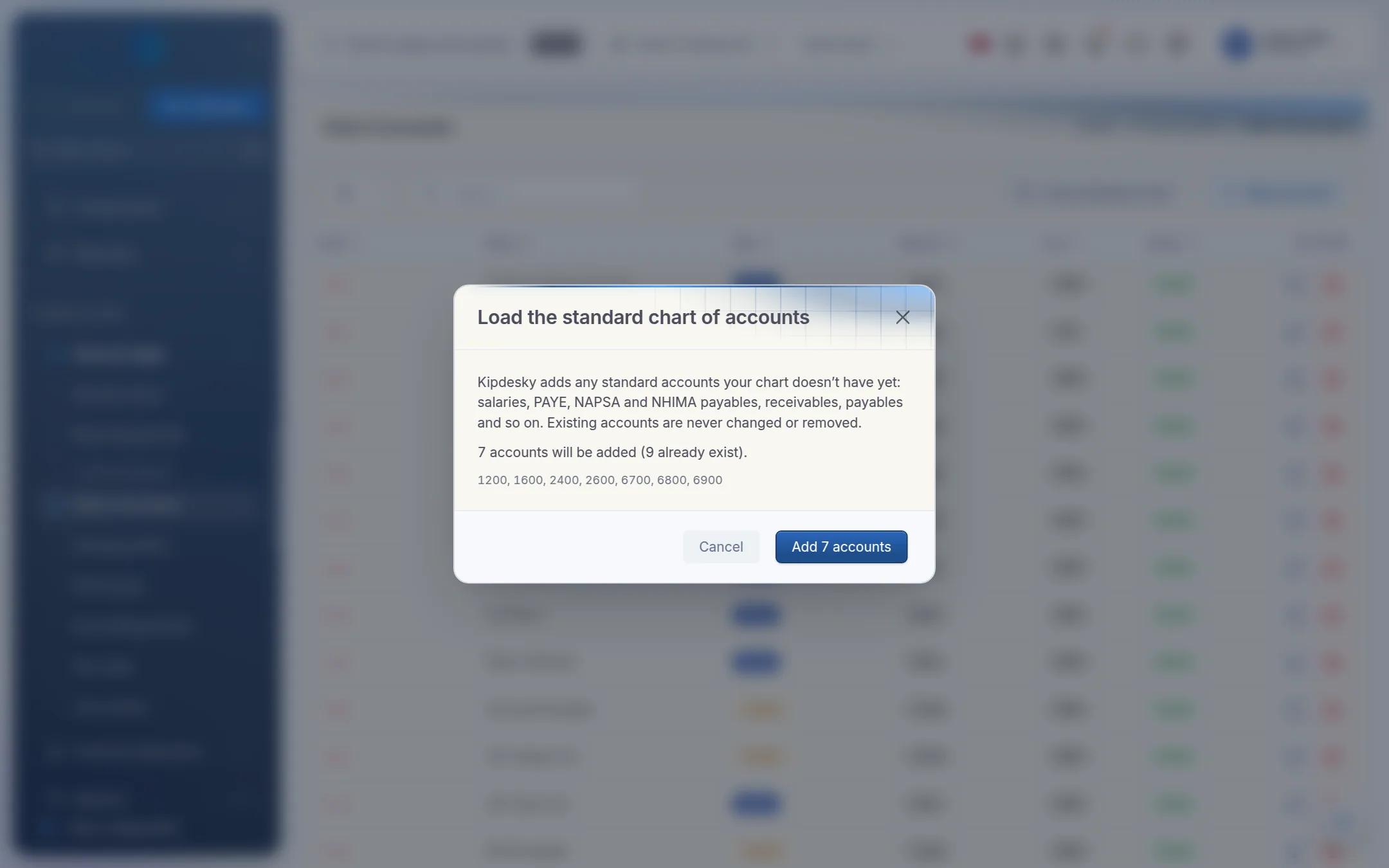
Click Add … accounts to create them.
Only missing account codes are added. Existing accounts are never changed or removed, so it's safe to run again later, for example after deleting an account by mistake.
Add an account
Click New account.
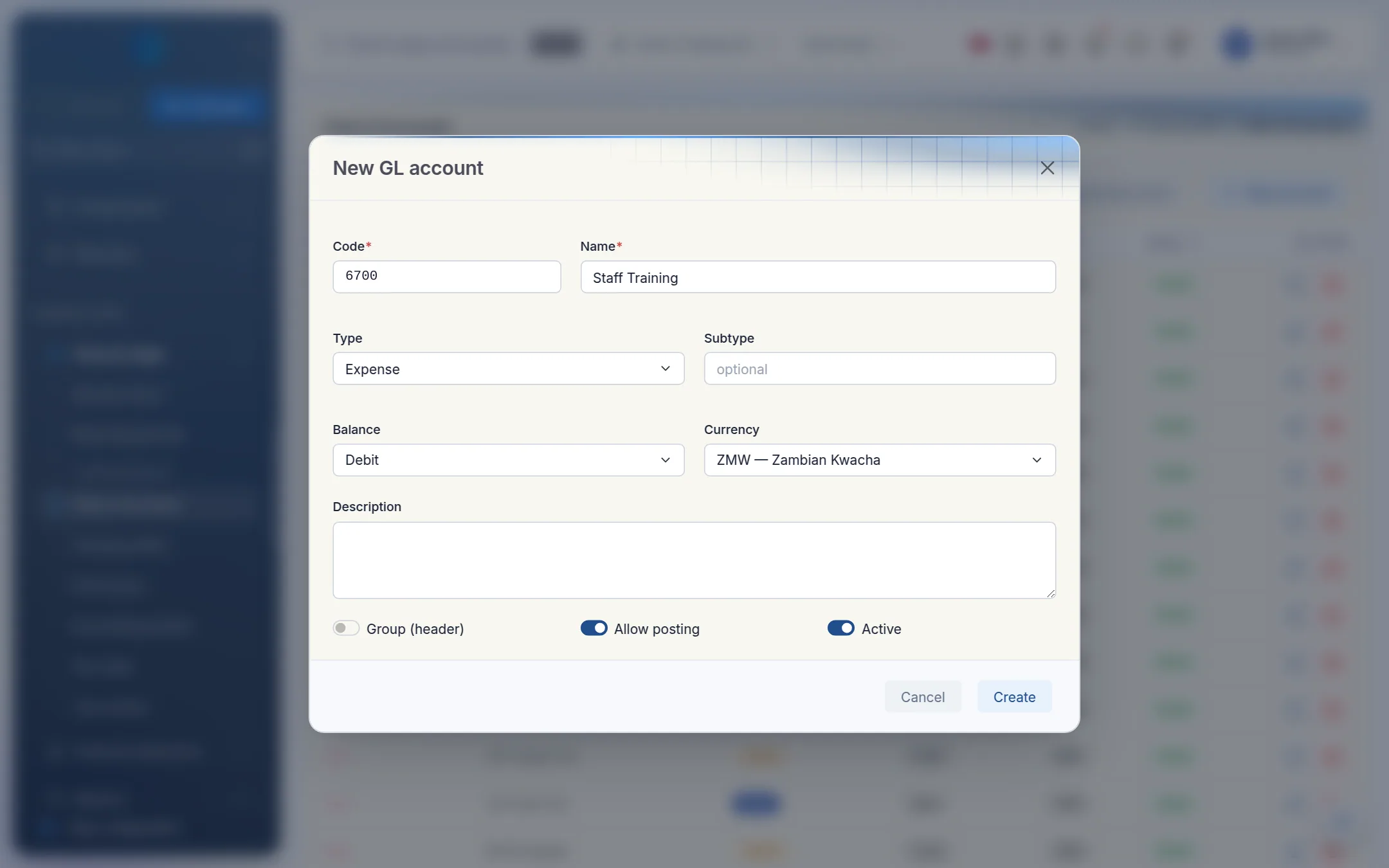
Fill in the form:
- Code: the account number. Follow your numbering scheme, for example 1xxx assets, 2xxx liabilities, 3xxx equity, 4xxx income, 5xxx–6xxx expenses.
- Name: a clear, specific name.
- Type and Balance: choose the type, then its normal balance.
- Subtype (optional): a finer grouping, for example bank or fixed_asset.
- Currency: usually your company currency.
- Description (optional): when to use the account.
Set the switches:
- Group (header): switch on only for a heading account that groups others and is never posted to.
- Allow posting: leave on for normal accounts.
- Active: leave on.
Click Create.
Edit or retire an account
Click the pencil icon on the account's row. You can change everything except the Code.
To stop using an account, switch off Active rather than deleting it. Inactive accounts keep their history and still appear in reports for past periods, but can't be chosen for new entries.
Don't delete accounts that have been used
Deleting an account that journal entries have been posted to breaks those entries. Kipdesky warns you: "Journal entries posted to this account will break." Delete only accounts created by mistake and never used. Otherwise, make the account inactive.
Tips and common mistakes
- Choosing the wrong type. The type decides whether an account appears on the income statement or the balance sheet. A cost recorded as an Asset won't reduce profit.
- Adding near-duplicates. Before adding Office Rent, check whether Rent already exists. Search the list first.
- Accounts for posting profiles. Payroll and invoice postings need accounts such as Salaries & Wages, PAYE Payable, NAPSA Payable, Net Salaries Payable, Accounts Payable and Accounts Receivable. Create these before setting up posting profiles.
- Group accounts with Allow posting on. A heading account shouldn't receive postings. Switch Allow posting off for groups.
FAQs
Can I change an account's code?
No. The code is fixed once the account is saved. If you need a different code, create a new account, make the old one inactive and post a journal to move the balance across.
Can I import my own chart of accounts from a spreadsheet?
Not from this page. Use Load standard chart and add or rename accounts to suit you, or ask Kipdesky support to import your chart when your company is set up.
Why does an account I created not appear when I add a journal line?
For recurring journals, only accounts that are active, allow posting and aren't group headers can be chosen. Check those three settings.