
Appearance
Posting profiles
Posting profiles are the rules that turn activity elsewhere in Kipdesky into journal entries. Each profile says which account to debit and which to credit when something happens: a payroll component is paid, a supplier invoice is posted, fuel is used, or stock moves.
Open Finance & ERP › General ledger › Posting profiles (a configuration page).
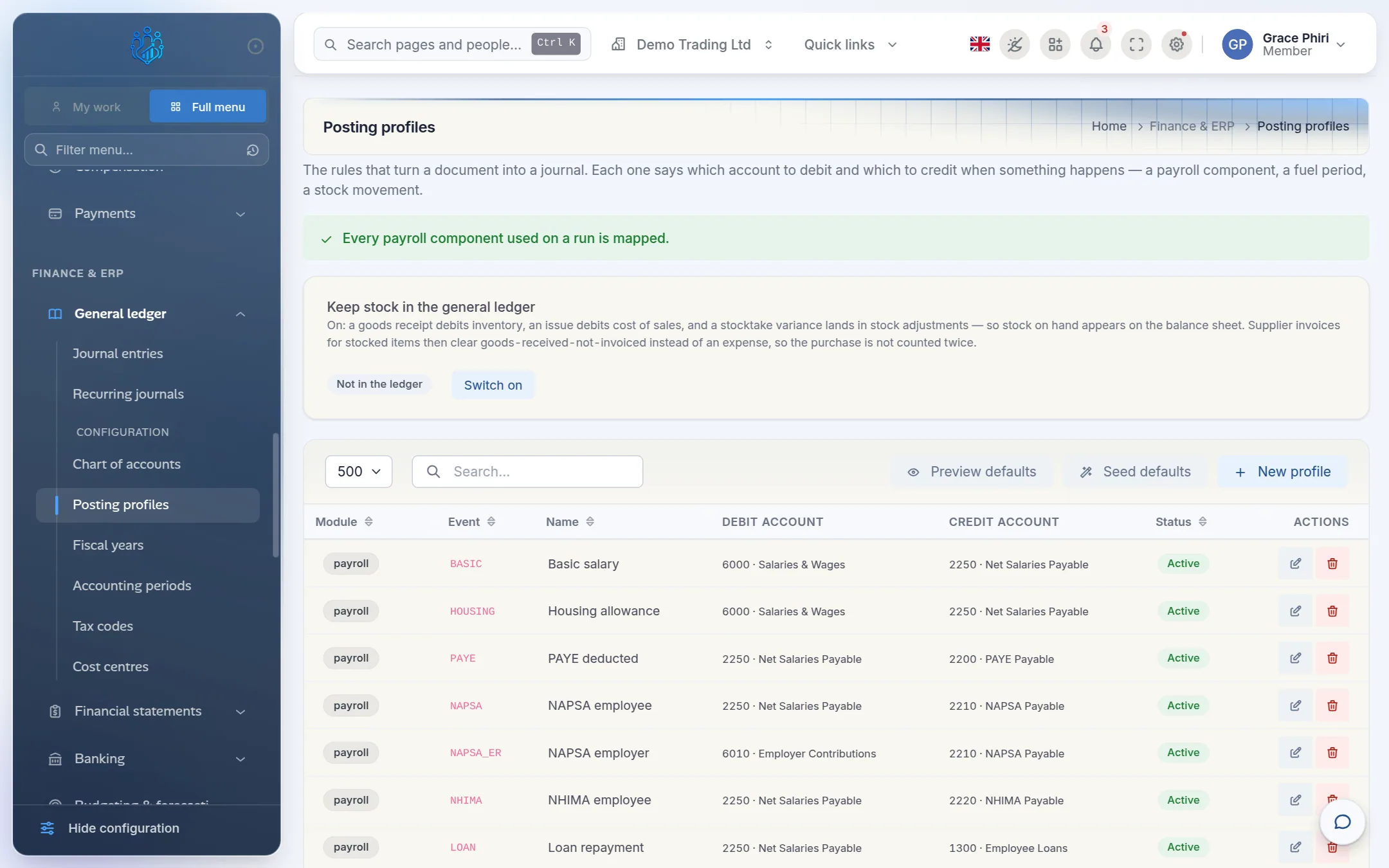
At the top of the page:
- The payroll banner shows whether payroll can post. Green, "Every payroll component used on a run is mapped", means you're ready. Amber lists the pay components that still need a profile. Until they're mapped, the payroll journal is refused.
- Keep stock in the general ledger controls whether stock movements post to the ledger. When it's on, goods received debit inventory, and stock issues debit cost of sales.
Start with the standard profiles
Kipdesky can create a standard set of profiles for you, using the usual account codes. For example, salaries are debited to 6000 Salaries & Wages and credited to 2250 Net Salaries Payable, and PAYE is credited to 2200 PAYE Payable.
Click Preview defaults. Kipdesky shows what it would create, under the title Preview — nothing was written.
Check the Skipped list. A profile is skipped when an account it needs doesn't exist in your chart of accounts yet. Add the missing accounts first. The quickest way is Load standard chart on the Chart of accounts page.
Click Seed defaults to create them. The summary shows how many were created and how many already existed. Existing profiles are left alone.
Add or change a profile
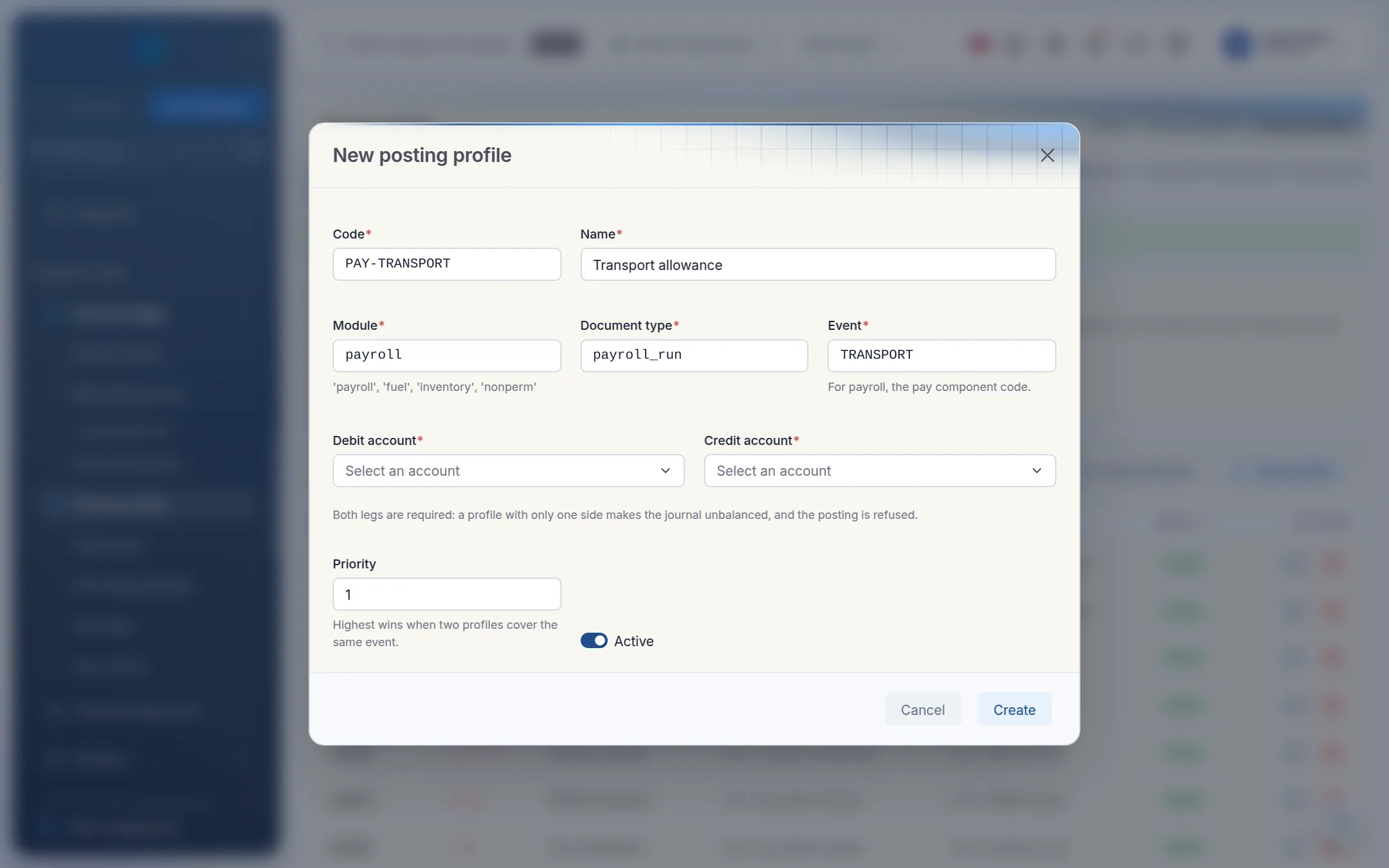
Click New profile, or the pencil icon on an existing one.
Fill in:
- Code and Name.
- Module: where the activity comes from, for example
payroll,fuel,inventoryornonperm. - Document type: for payroll,
payroll_run. - Event: for payroll, the pay component code, for example
TRANSPORT. - Debit account and Credit account: both are required.
- Priority: if two profiles cover the same event, the higher number wins.
Click Create or Save.
How payroll posts
| Pay item | Debit | Credit |
|---|---|---|
| Earnings (basic pay, allowances) | Salaries & Wages | Net Salaries Payable |
| Employee deductions (PAYE, NAPSA, NHIMA) | Net Salaries Payable | PAYE / NAPSA / NHIMA Payable |
| Loan and advance repayments | Net Salaries Payable | Employee Loans / Salary Advances |
| Employer contributions (NAPSA, NHIMA, SDL) | Employer Contributions | The matching payable |
After a payroll run posts, Net Salaries Payable holds the net pay due to staff, and each payable account holds what's owed to ZRA, NAPSA and NHIMA.
Tips and common mistakes
- Adding a new pay component and forgetting its profile. Payroll will be refused at posting. Check the banner after adding any earning or deduction.
- A profile with only one account. Both sides are required. A one-sided profile makes the journal unbalanced, and the posting is refused.
- Deleting a profile. Documents that relied on it will be refused until another profile covers the same event.
FAQs
What happens if no profile matches a supplier or customer invoice?
Kipdesky falls back to an account that looks like Accounts Payable (code starting 20) or Accounts Receivable (code starting 11). Set up explicit profiles so you know exactly where postings go.
Should I switch on "Keep stock in the general ledger"?
Switch it on if you want your balance sheet to show stock on hand, and your income statement to show cost of sales as stock is issued. Agree it with your accountant first, because it changes how purchases of stock items are recorded.