
Appearance
Budgets
A budget sets out what you plan to spend or earn over a period, line by line. Kipdesky compares each line with what's actually been posted to the ledger, and with what's committed but not yet posted, so you can see the variance at any time.
Open Finance & ERP › Budgeting & forecasting › Budgets.
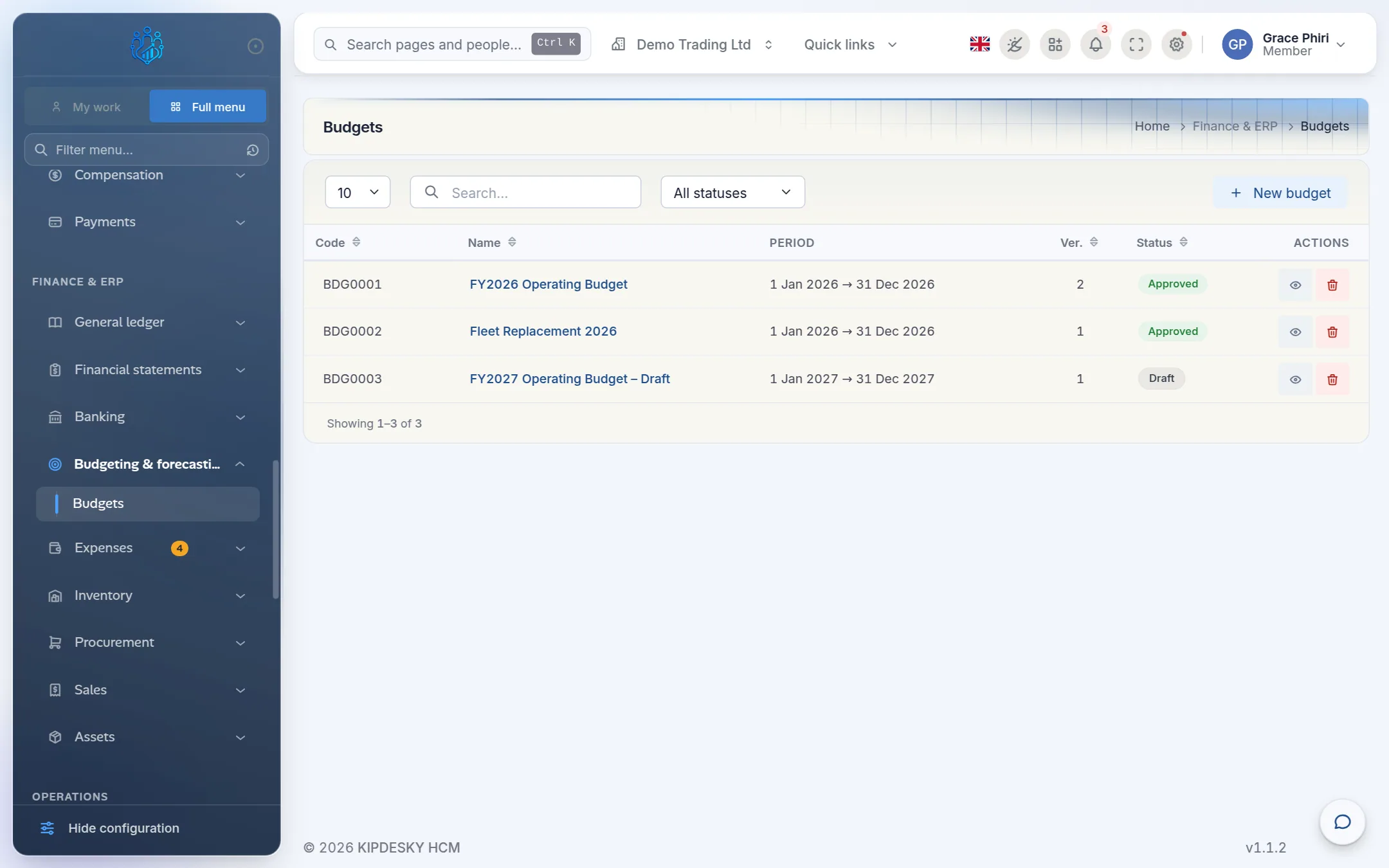
Each budget has a code, a name, a period, a version number and a status: Draft, Submitted, Approved, Active or Closed.
Create a budget
Click New budget.
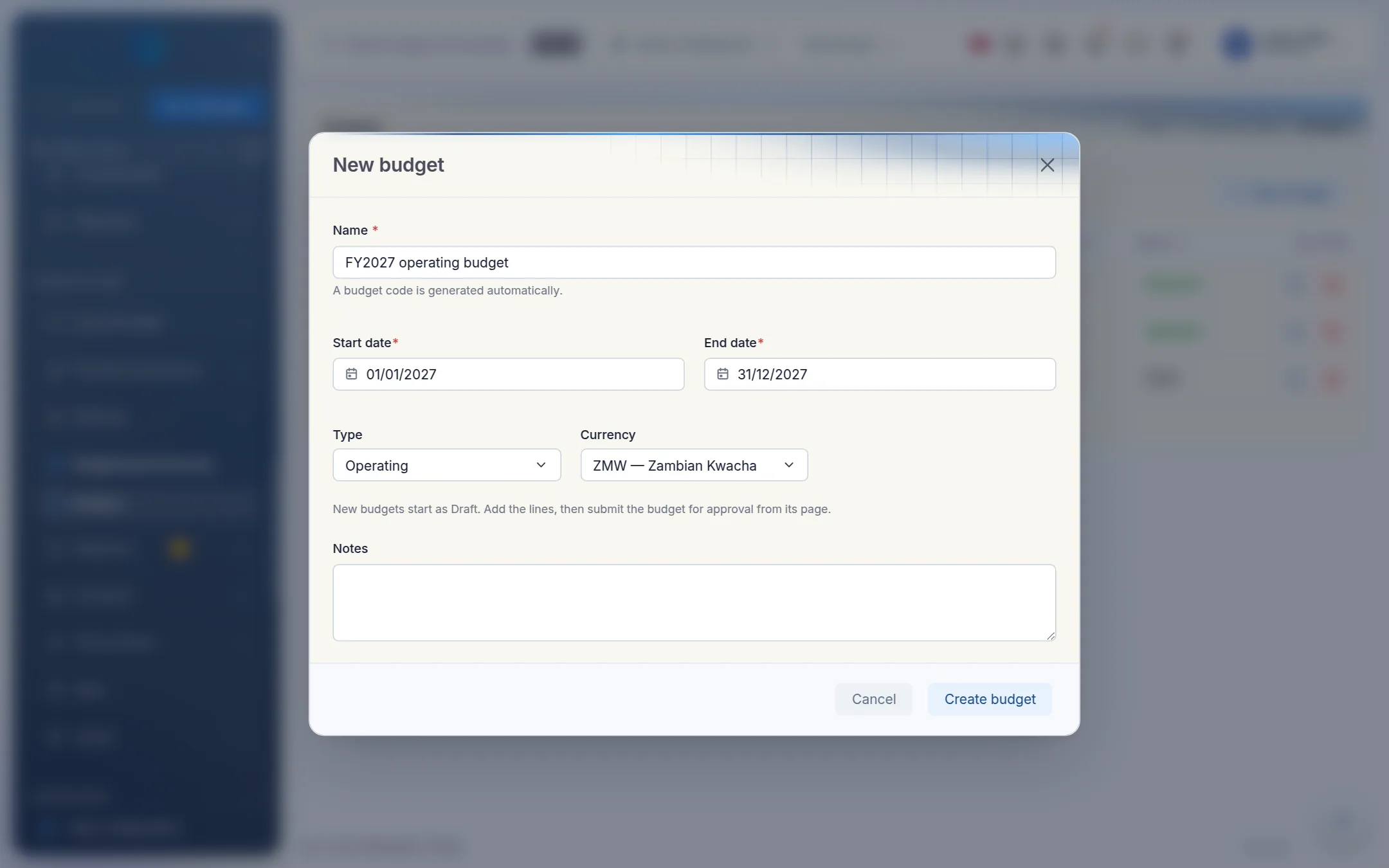
Enter:
- Name: for example FY2027 operating budget. Kipdesky gives it a code automatically (
BDG0001,BDG0002, …). - Start date and End date: usually your fiscal year.
- Type: Operating, Capital, Project or Cash.
- Currency and any Notes.
- Name: for example FY2027 operating budget. Kipdesky gives it a code automatically (
Click Create budget. New budgets start as Draft, and Kipdesky opens the budget so you can add its lines. The version number is assigned automatically.
Add budget lines
On the budget page, click Add line.
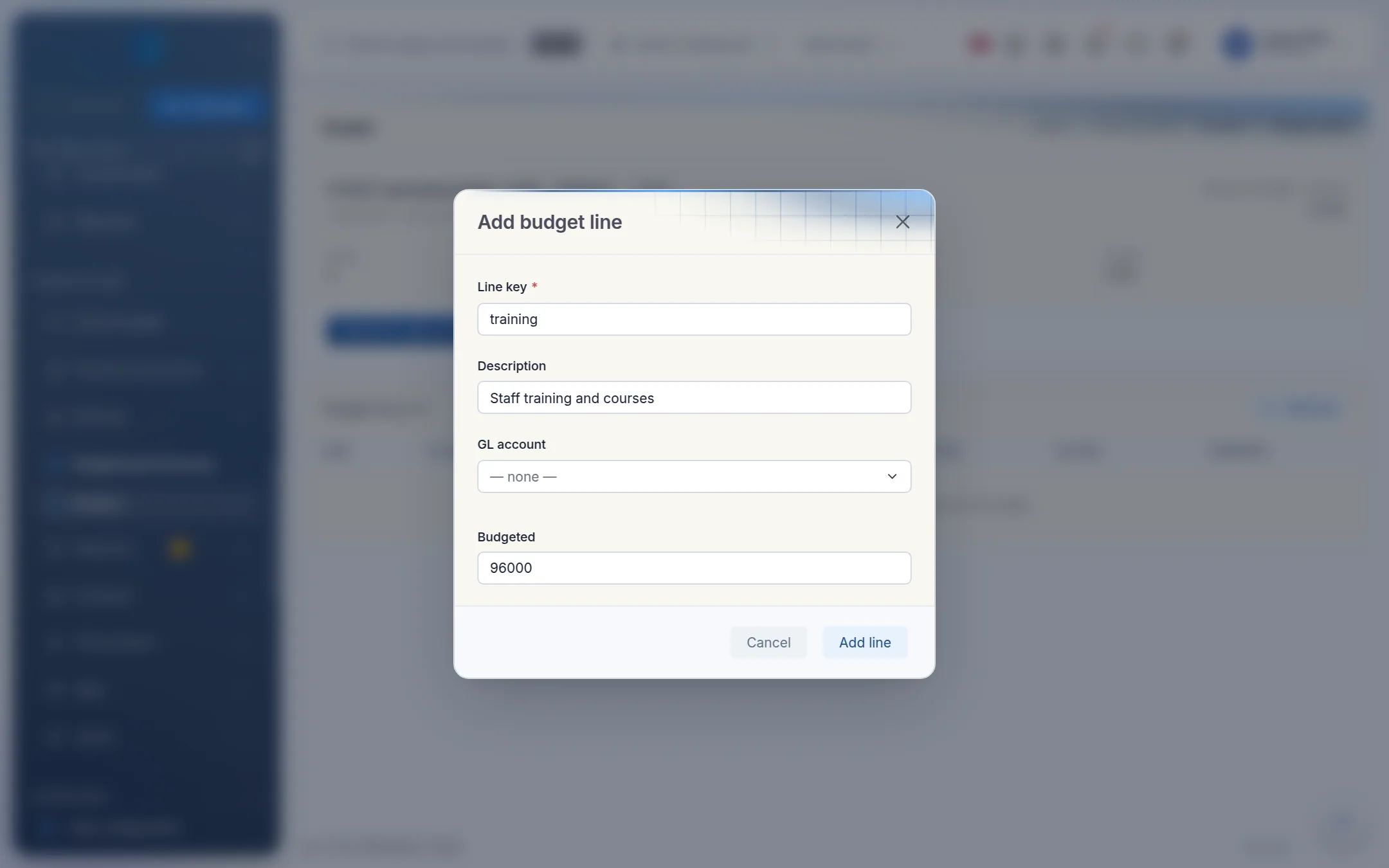
Enter:
- Line key: a short identifier, for example
trainingorsalaries-q1. - Description: what the line covers.
- GL account: the account whose actual spending this line is compared with.
- Budgeted: the amount for the budget period.
- Line key: a short identifier, for example
Click Add line. Repeat for each line.
Submit and approve a budget
| Status | What can happen next |
|---|---|
| Draft | Submit for approval |
| Submitted | Approve, Reject or Reopen |
| Approved | Close budget or Reopen |
| Rejected | Reopen |
| Closed | Final |
When the lines are complete, open the budget and click Submit for approval.
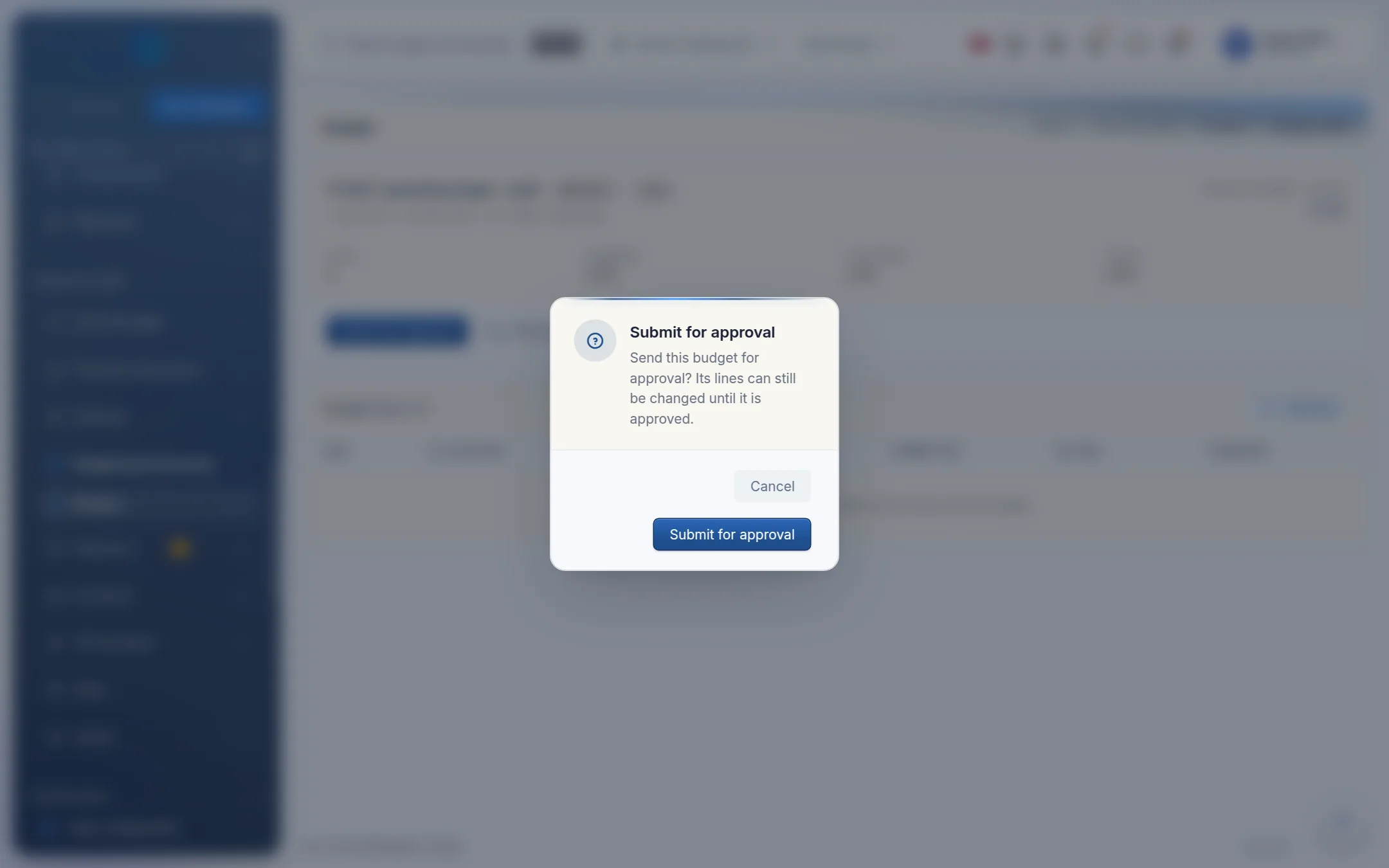
The approver opens it, reviews the lines and clicks Approve, or Reject if it needs rework. The person who submitted a budget can't approve it. Kipdesky says "You submitted this budget and cannot also approve it."
When the budget period is over, click Close budget.
Once a budget is approved, its figures are locked. Add line and the line edit buttons are unavailable, and the page shows "Figures are locked once a budget is approved." To change an approved budget, click Reopen. It goes back to Draft and the approval is cleared.
Read budget against actual
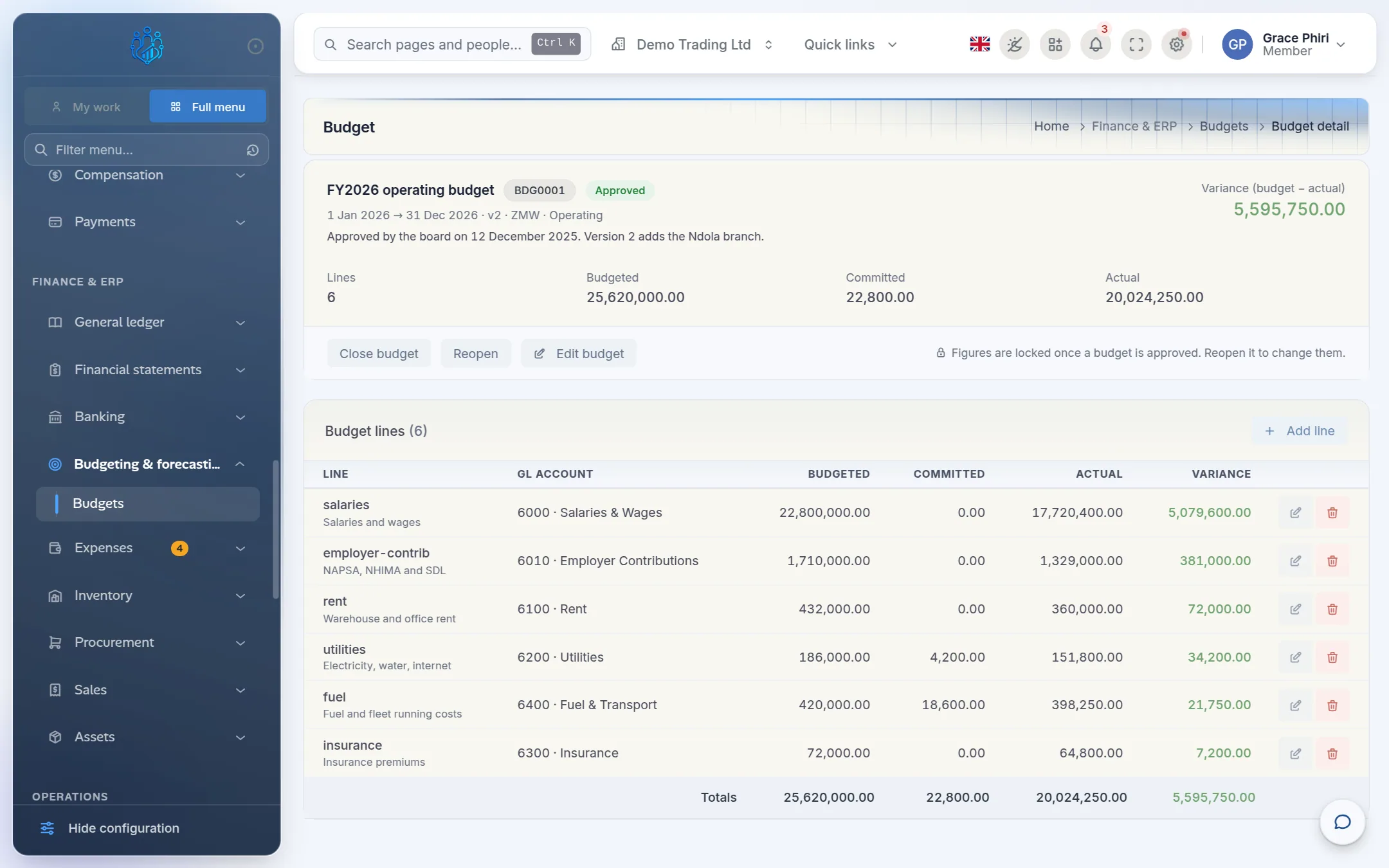
For each line, and in total:
| Column | Where it comes from |
|---|---|
| Budgeted | The amount you entered. |
| Committed | Approved expense claims and supplier invoices for that account that aren't yet in the ledger. |
| Actual | Posted journal lines on that GL account between the budget's start and end dates. |
| Variance | Budgeted minus actual. Green means you're under budget, red means over. |
Actual and committed figures update by themselves as entries are posted. There's nothing to refresh.
Tips and common mistakes
- No GL account on a line. Without an account, Kipdesky can't work out the actual spend, and the line shows zero actual.
- Two lines on the same account. Each line counts every posting to its account, so the actual figure would appear twice. Use one line per account.
- Budgets don't block spending. Kipdesky reports variances but doesn't stop a purchase or journal that takes a line over budget. Review the budget page regularly.
FAQs
Can I change a budget once it's approved?
Not while it's approved: its figures are locked and it can't be deleted. Click Reopen to take it back to Draft, make the changes, then submit it again.
Why can't I approve this budget?
Either you submitted it yourself (someone else must approve it), or it isn't in Submitted status, or your role can view budgets but not approve them.
Can I budget by month rather than for the whole year?
Each line covers the budget's full date range. To track spending month by month or quarter by quarter, create a separate budget for each month or quarter, with matching start and end dates.