
Appearance
Bank transactions
Bank transactions are the lines on your bank statement: receipts, payments, charges and transfers. Recording them in Kipdesky lets you match them against your books in a [bank reconciliation](./bank-reconciliation).
Open Finance & ERP › Banking › Bank transactions.
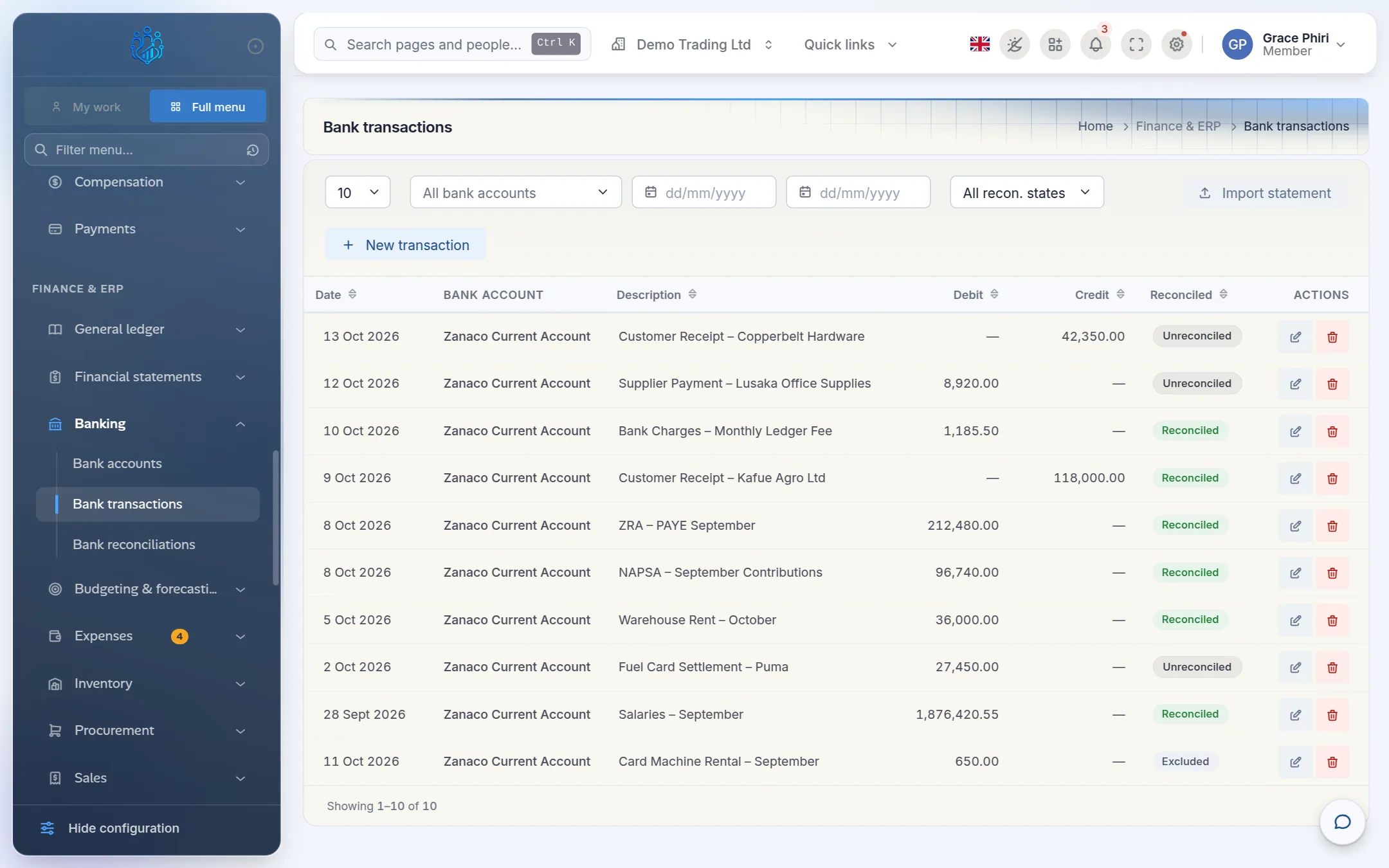
Filter the list by bank account, date range or reconciliation status. Debit is money going out and Credit is money coming in, as on your bank statement.
The Reconciled column shows one of these:
- Unreconciled: not yet matched.
- Reconciled: matched in a bank reconciliation.
- Excluded: set aside in a reconciliation.
The status changes only through bank reconciliation. You don't edit it here.
Import a bank statement
The quickest way to get statement lines into Kipdesky is to import the file from your online banking.
In your online banking, export the statement for the period as a CSV file.
In Kipdesky, click Import statement.
Choose the Bank account and the Statement file (CSV), then click Import.
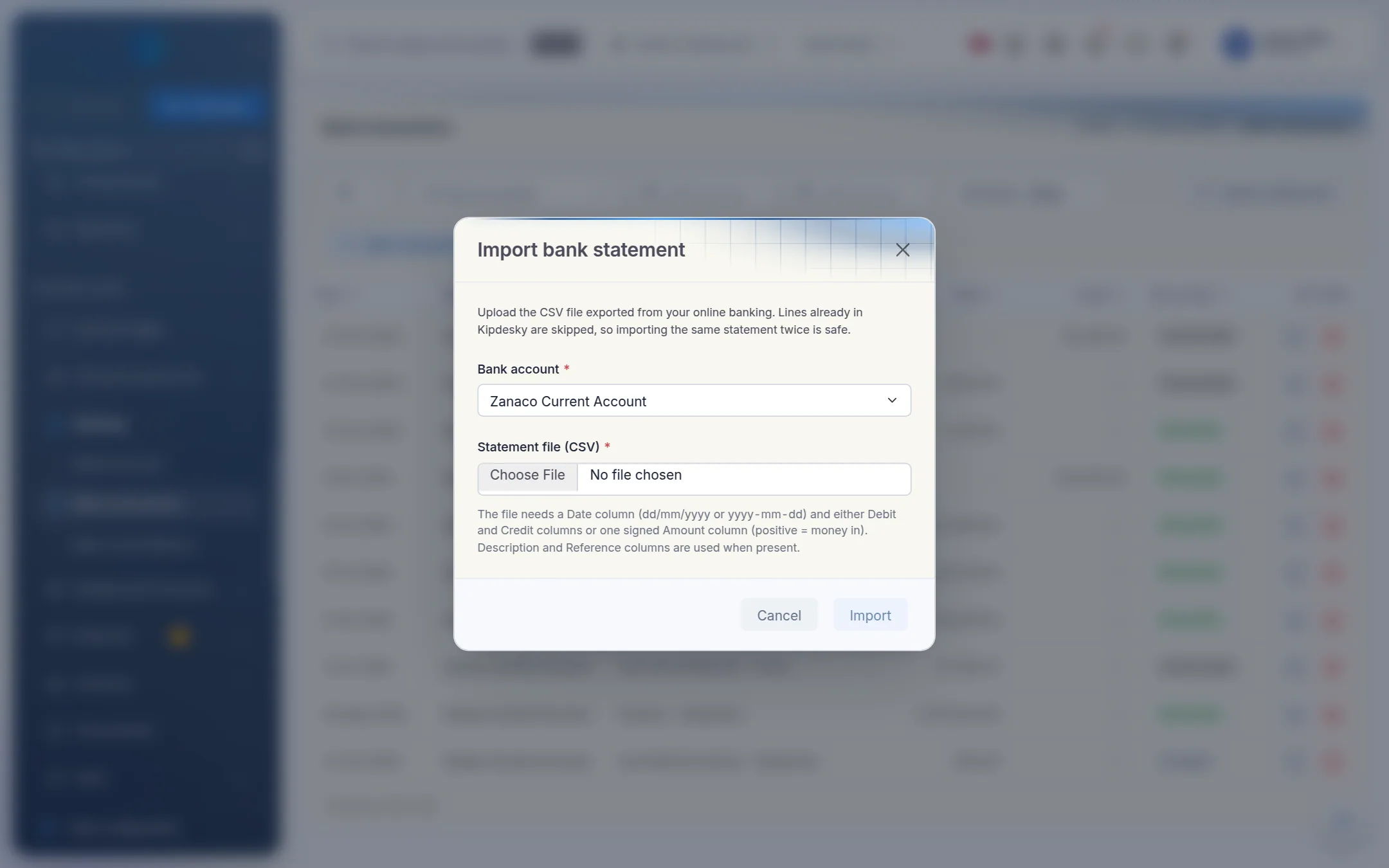
Kipdesky reports how many transactions were imported and how many were already there. If any rows couldn't be read, it lists the first few with their line numbers.
The file needs these columns. The first row must hold the column names.
| Column | Required | Notes |
|---|---|---|
| Date | Yes | dd/mm/yyyy, yyyy-mm-dd, dd-mm-yyyy or dd.mm.yyyy |
| Debit and Credit | One of the two layouts | Money out in Debit, money in in Credit |
| Amount | One of the two layouts | A single signed column: positive = money in, negative = money out |
| Description | No | Shown in the list and on the reconciliation |
| Reference | No | Helps automatic matching |
Importing the same statement twice is safe. Lines already in Kipdesky, with the same date, reference and amounts, are skipped.
If your bank's file has different column names
Rename the column headings in a spreadsheet to Date, Description, Reference, Debit and Credit (or Amount), then save as CSV and import.
Record a single transaction by hand
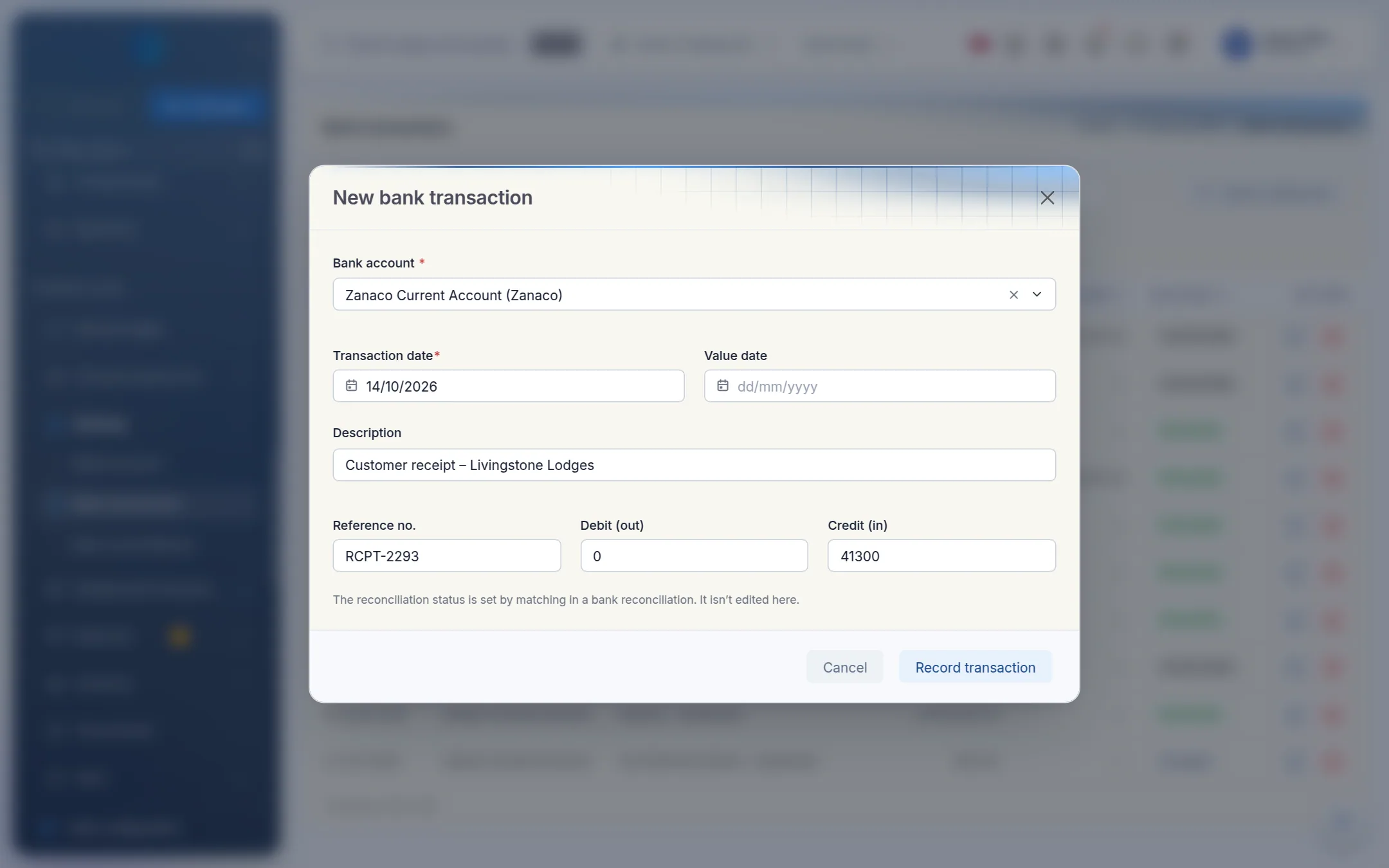
Click New transaction.
Fill in the details from your bank statement:
- Bank account
- Transaction date, and the Value date if your bank shows a different one
- Description: who paid or was paid, and what for
- Reference no.: the bank's reference, which makes matching easier later
- Debit (out) for payments, or Credit (in) for receipts. Fill in one, not both.
Click Record transaction. New transactions start as Unreconciled.
Correcting a transaction
Click the pencil icon on the row, correct the details and click Save. To remove a line entered by mistake, use the bin icon.
You can't change or delete a transaction once it's matched in an approved reconciliation. Kipdesky says: "This bank transaction is matched in an approved or cancelled reconciliation and can no longer be changed." Correct it in the next period's reconciliation instead.
Tips and common mistakes
- Debit and credit the wrong way round. Here they follow your bank statement: money out is a debit, money in is a credit.
- Entering statement lines twice. Filter by date and bank account before adding a batch, to check what's already there.
- Leaving the reference blank. A good reference makes reconciliation much faster.
FAQs
The import says some rows couldn't be read.
Each problem row is listed with its line number. The usual causes are a date in an unexpected format, an amount containing text (such as "ZMW 1,250.00"), or totals and balance rows at the bottom of the export. Fix or delete those rows in the CSV, then import again. Rows that already imported are skipped.
Can I connect Kipdesky to my bank directly?
Not at the moment. Use Import statement with the CSV from your online banking.
Does recording a bank transaction post to the ledger?
No. Bank transactions are your statement lines, used for reconciliation. The ledger side comes from your journals, payments and receipts.