
Appearance
Journal entries
A journal entry records a transaction in the general ledger as balanced debit and credit lines. Use manual journals for accruals, corrections, reclassifications and anything not posted automatically from payroll, invoices or other modules.
Open Finance & ERP › General ledger › Journal entries.
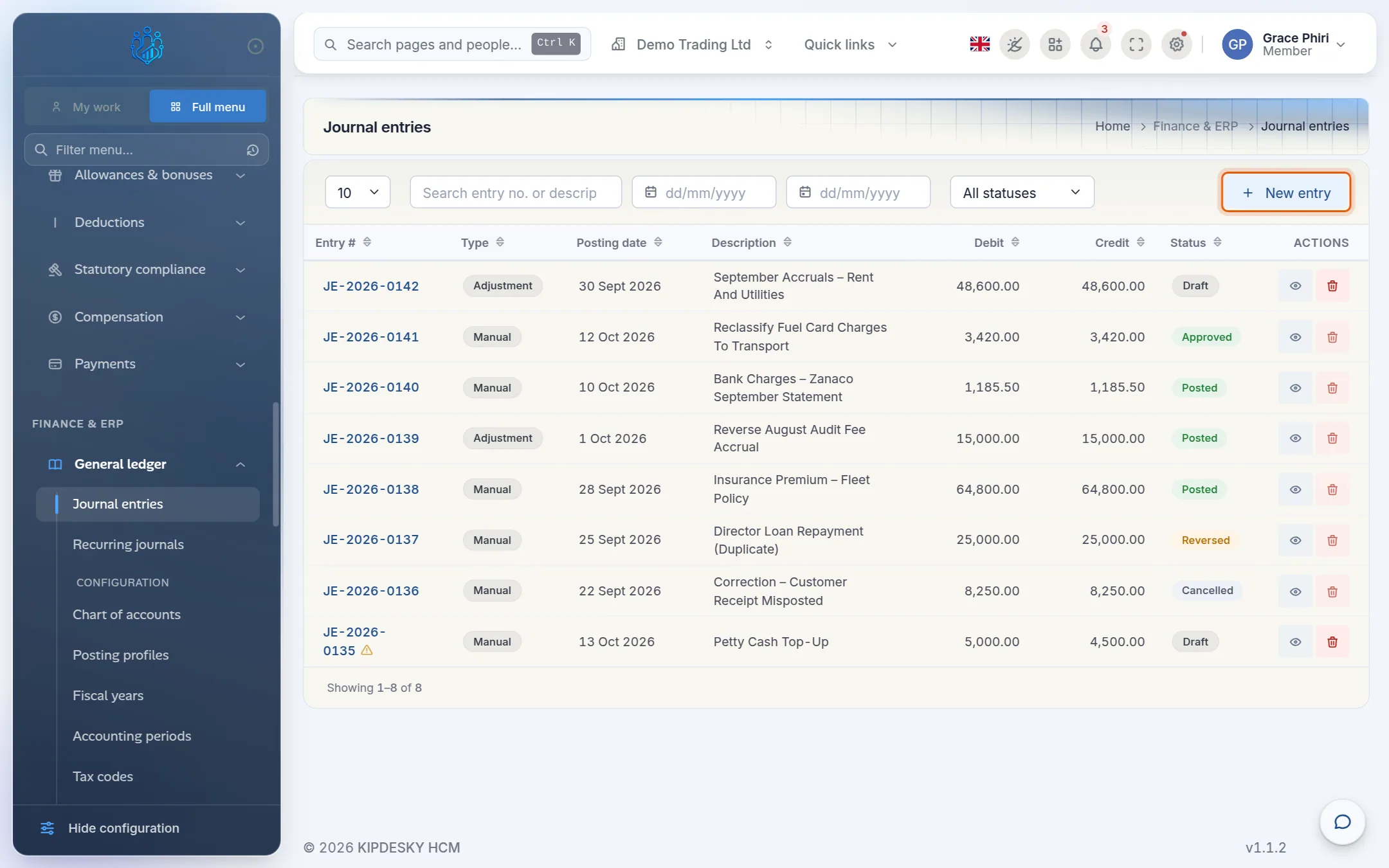
Use the search box, the date boxes and the All statuses menu at the top to find entries. A warning triangle beside an entry number means its debits and credits don't match yet.
How a journal moves from draft to posted
| Status | Meaning |
|---|---|
| Draft | Being prepared. Lines can be added, changed and removed. |
| Approved | Checked by a second person and ready to post. |
| Posted | In the ledger. It counts in every balance and report and can no longer be changed. |
| Cancelled | Abandoned without posting. It has no effect. |
| Reversed | Posted, then cancelled out by a reversal entry. |
The buttons at the bottom of the entry change with its status:
| Status | Buttons |
|---|---|
| Draft | Approve, Edit entry, Cancel entry |
| Approved | Post entry, Edit entry, Return to draft, Cancel entry |
| Posted | Reverse entry |
Create a journal entry
1. Create the entry
Click New entry.
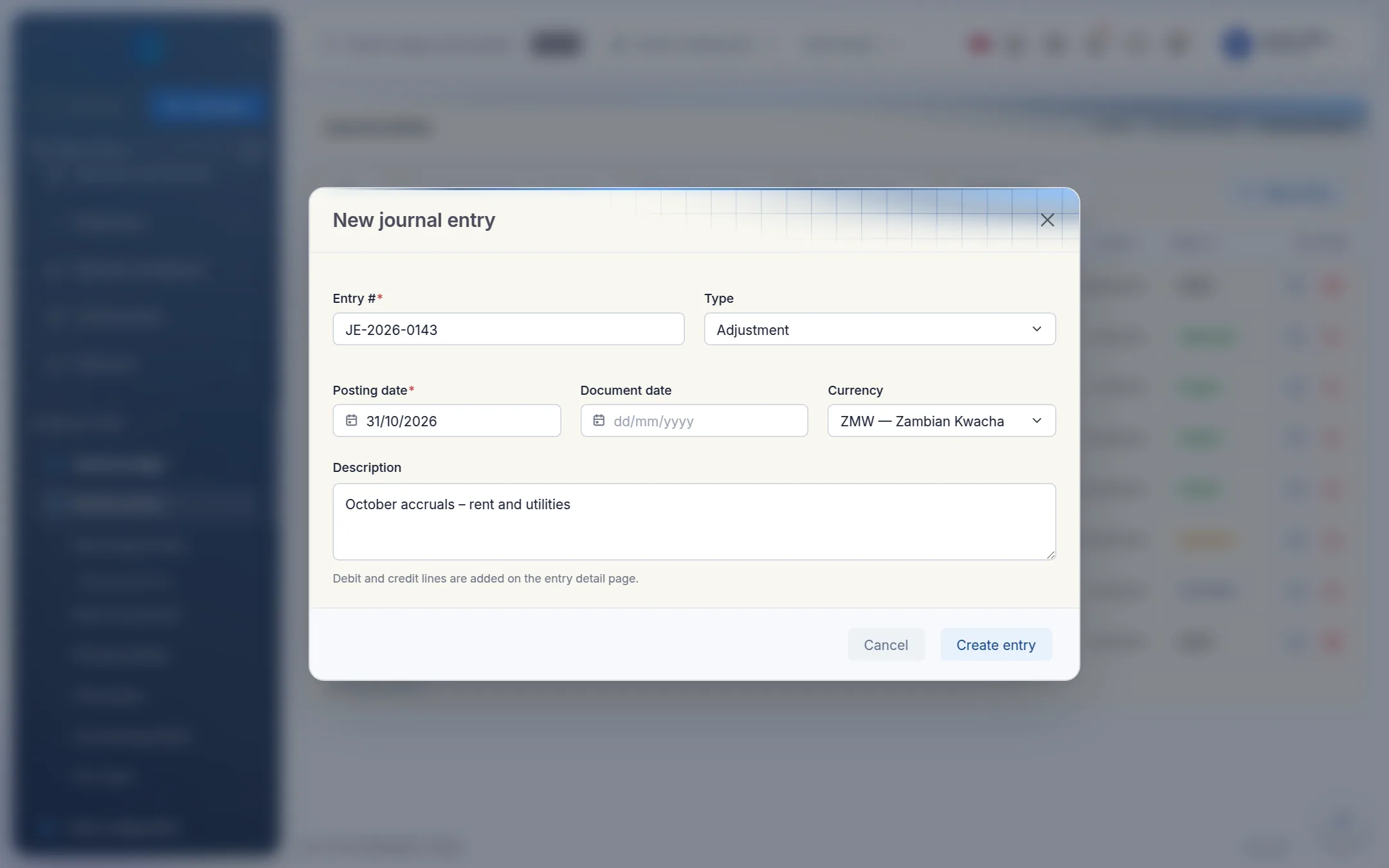
Fill in the header:
- Entry #: your reference, for example
JE-2026-0143. - Type: choose one of these.
- Manual for everyday entries.
- Adjustment for accruals and period-end adjustments.
- Opening for opening balances.
- Closing for year-end closing entries.
- Posting date: the date the entry belongs to. This decides which accounting period it falls in.
- Document date (optional): the date on the supporting document.
- Currency and Description.
- Entry #: your reference, for example
Click Create entry. Kipdesky opens the entry so you can add its lines.
2. Add the lines
On the entry page, click Add line.
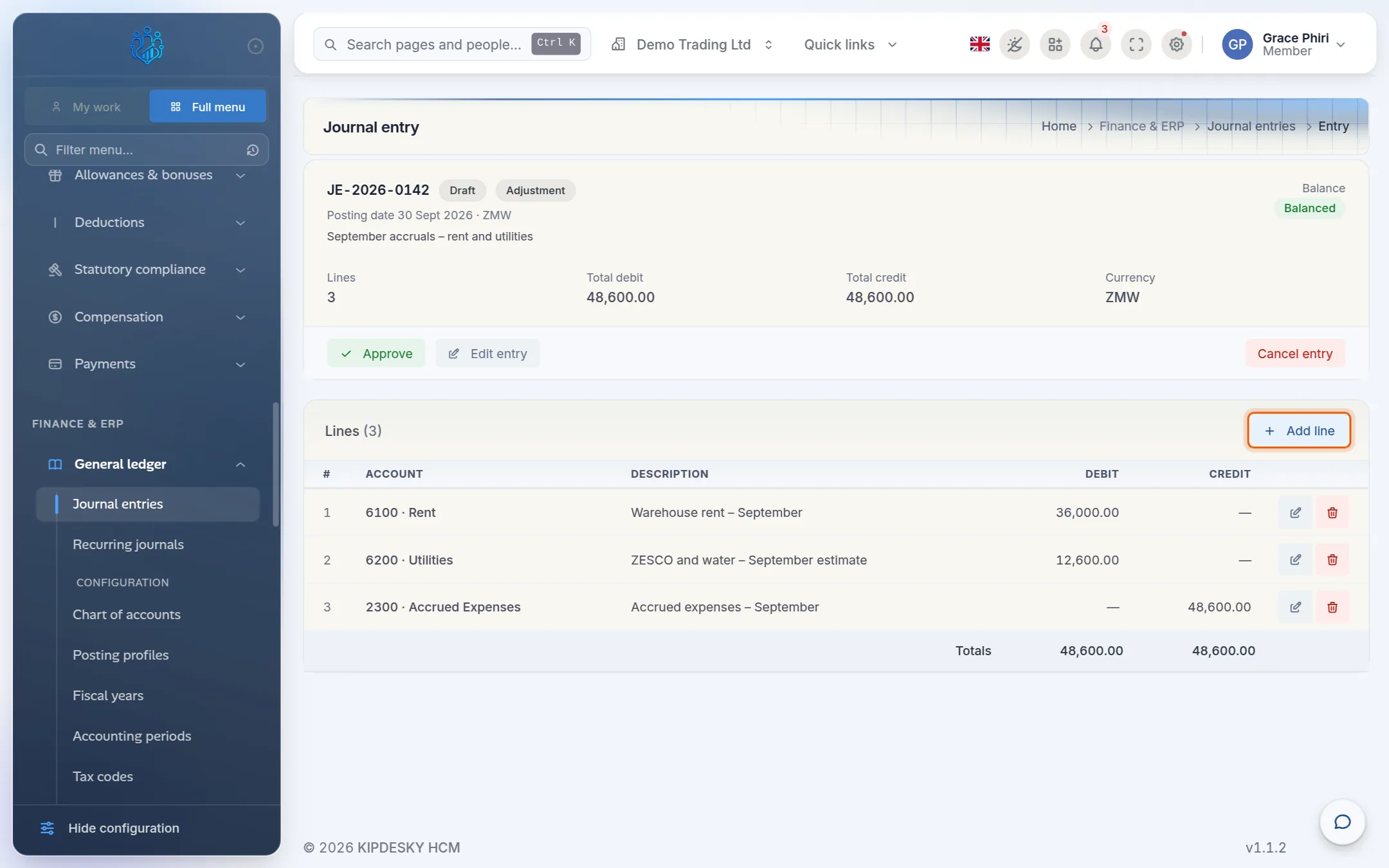
Choose the GL account, add a Description, and enter either a Debit amount or a Credit amount, not both.
Click Add line. Repeat until the entry is complete.
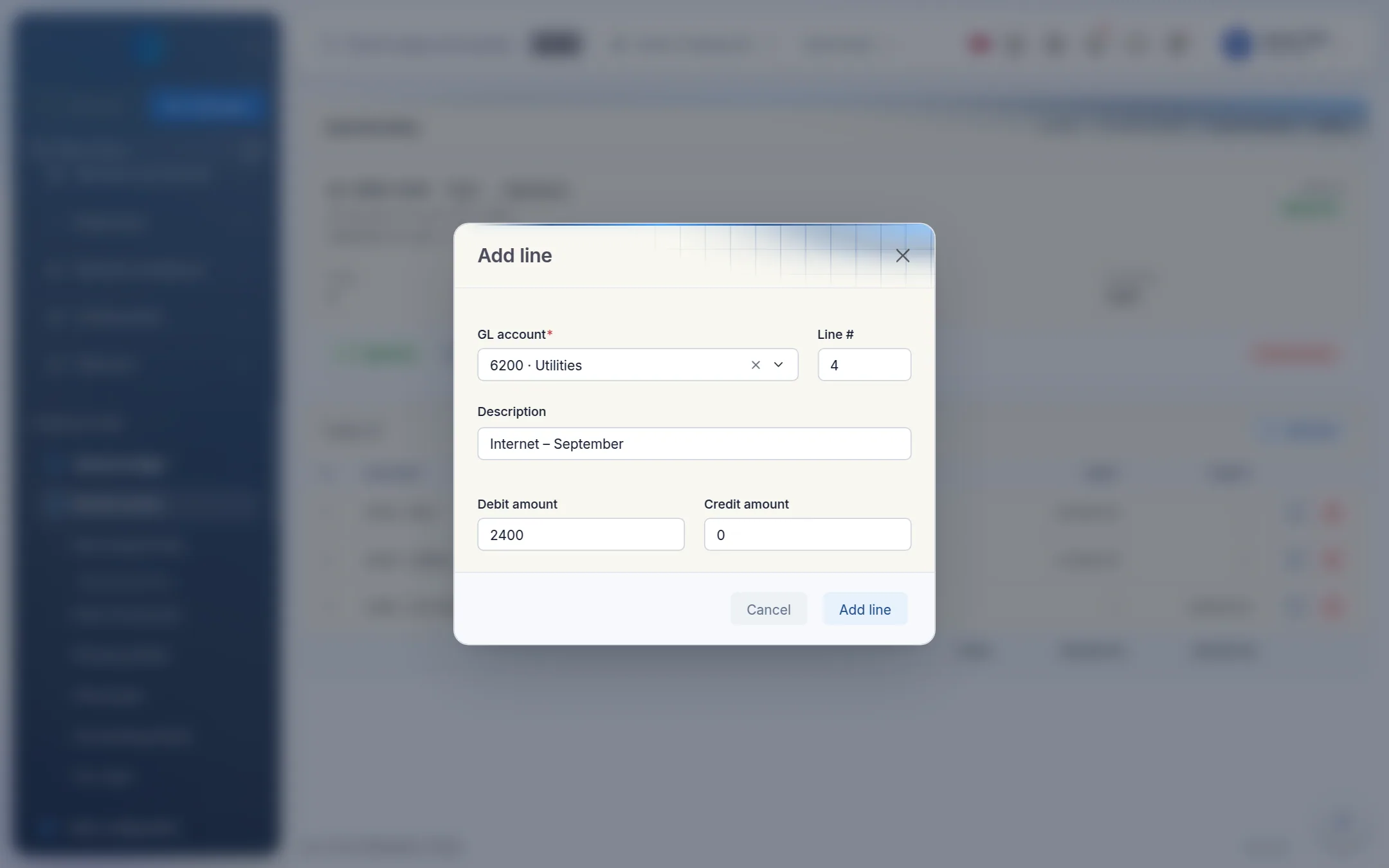
Check the Balance in the top-right corner. It must say Balanced before the entry can be posted. Otherwise it shows Off by and the difference.
To change or remove a line while the entry is a draft, use the pencil and bin icons on that line.
3. Approve the entry
Approval must be done by someone other than the person who created the entry. If you try to approve your own entry, Kipdesky says: "You created this journal entry and cannot also approve it. Ask another user to approve it."
The approver opens the entry, checks the lines and clicks Approve.
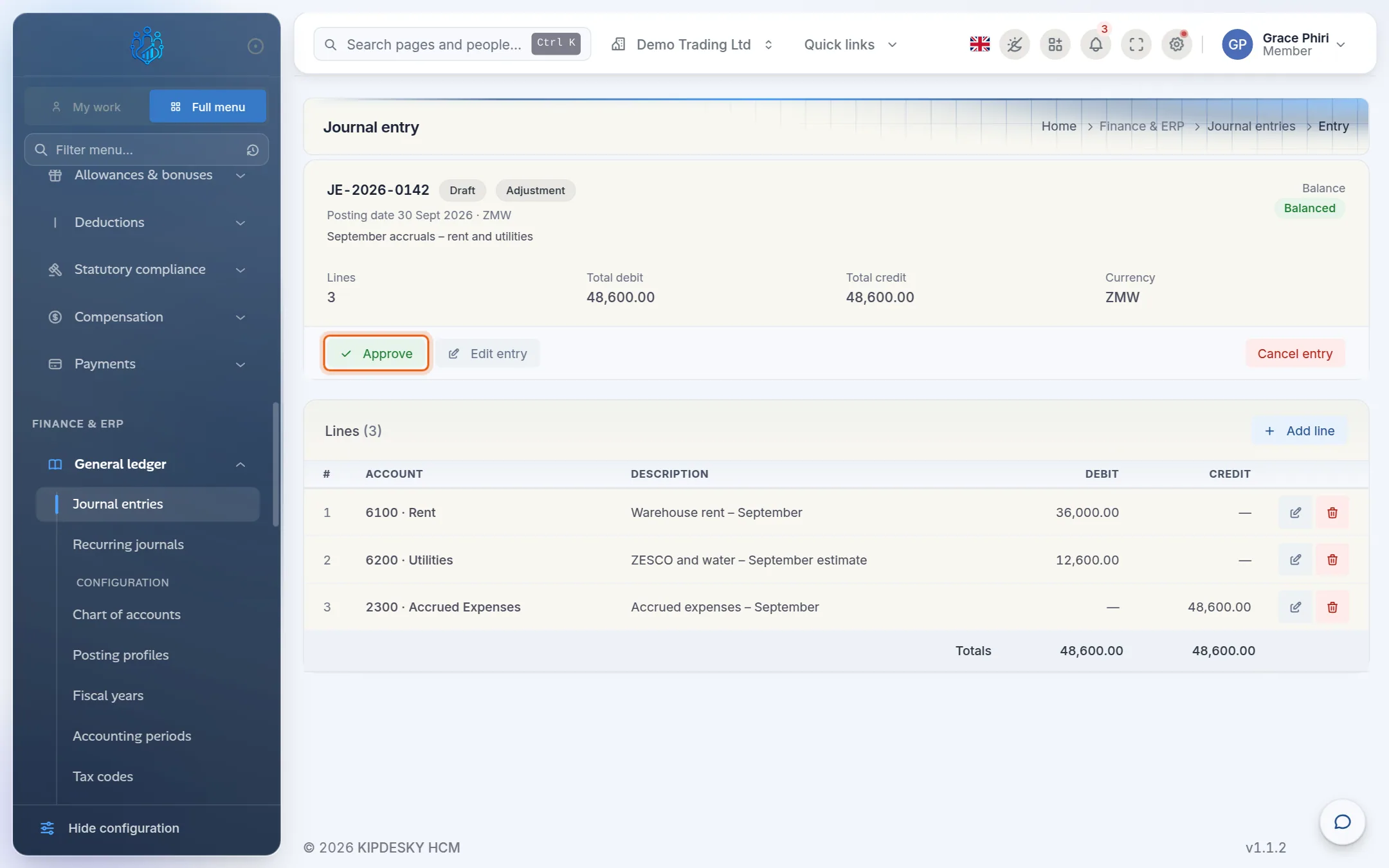
They confirm Approve this entry? The status changes to Approved.
If something needs correcting after approval, click Return to draft. The approval is cleared, and the entry must be approved again once it's fixed.
4. Post the entry
Open the approved entry and click Post entry. The button is unavailable until the entry balances.
Confirm Post this entry?
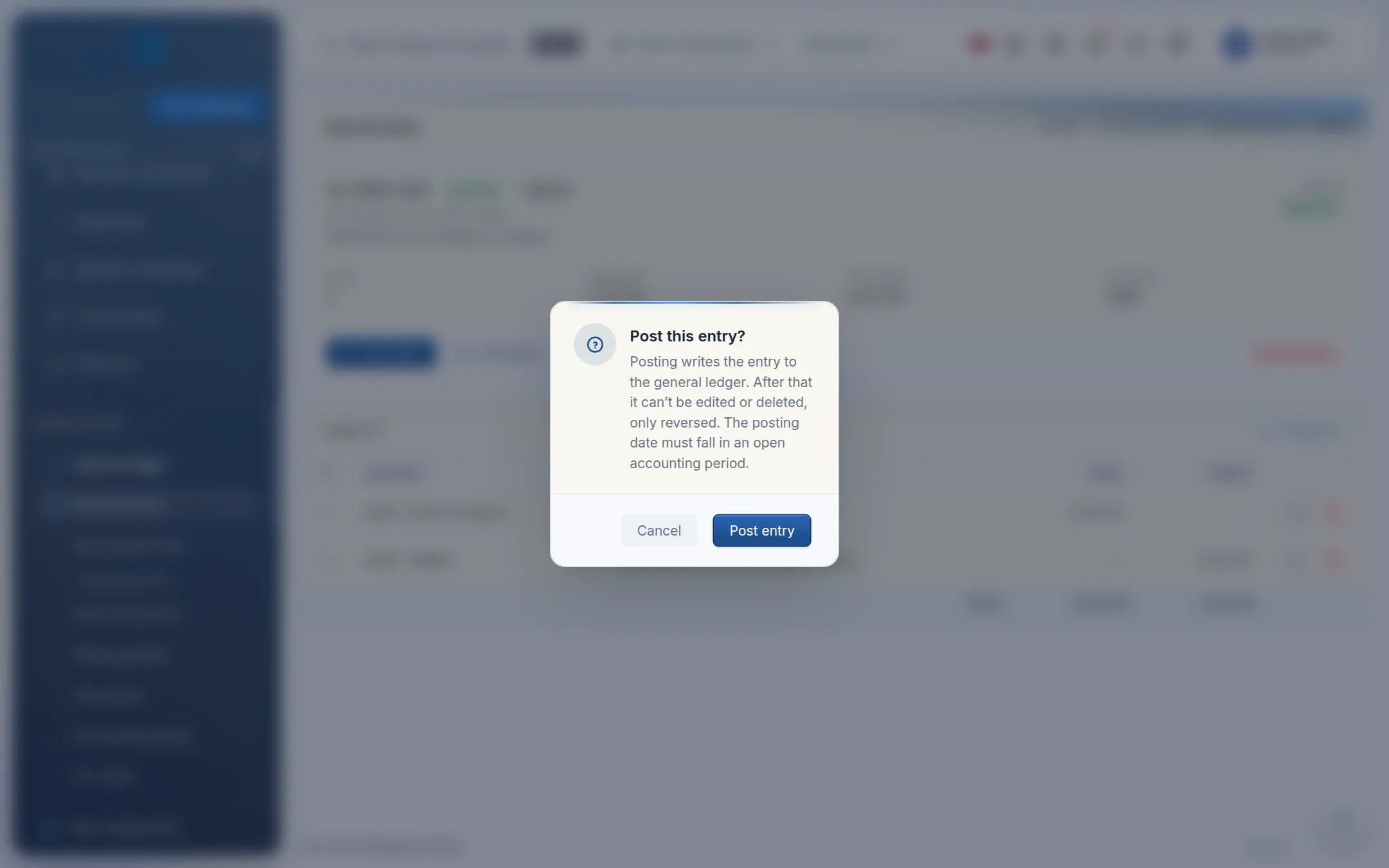
Before posting, Kipdesky checks that:
- the entry has at least two lines
- debits equal credits
- the total isn't zero
- an accounting period covers the posting date, and that period is open.
If a check fails, the message tells you which one. For example: "Period 2026-09 is closed; cannot post".
Once posted, the entry is locked and shows "Locked — reverse this entry to change it."
Reverse a posted entry
A posted entry can't be edited or deleted. To undo it, reverse it.
Open the posted entry and click Reverse entry.
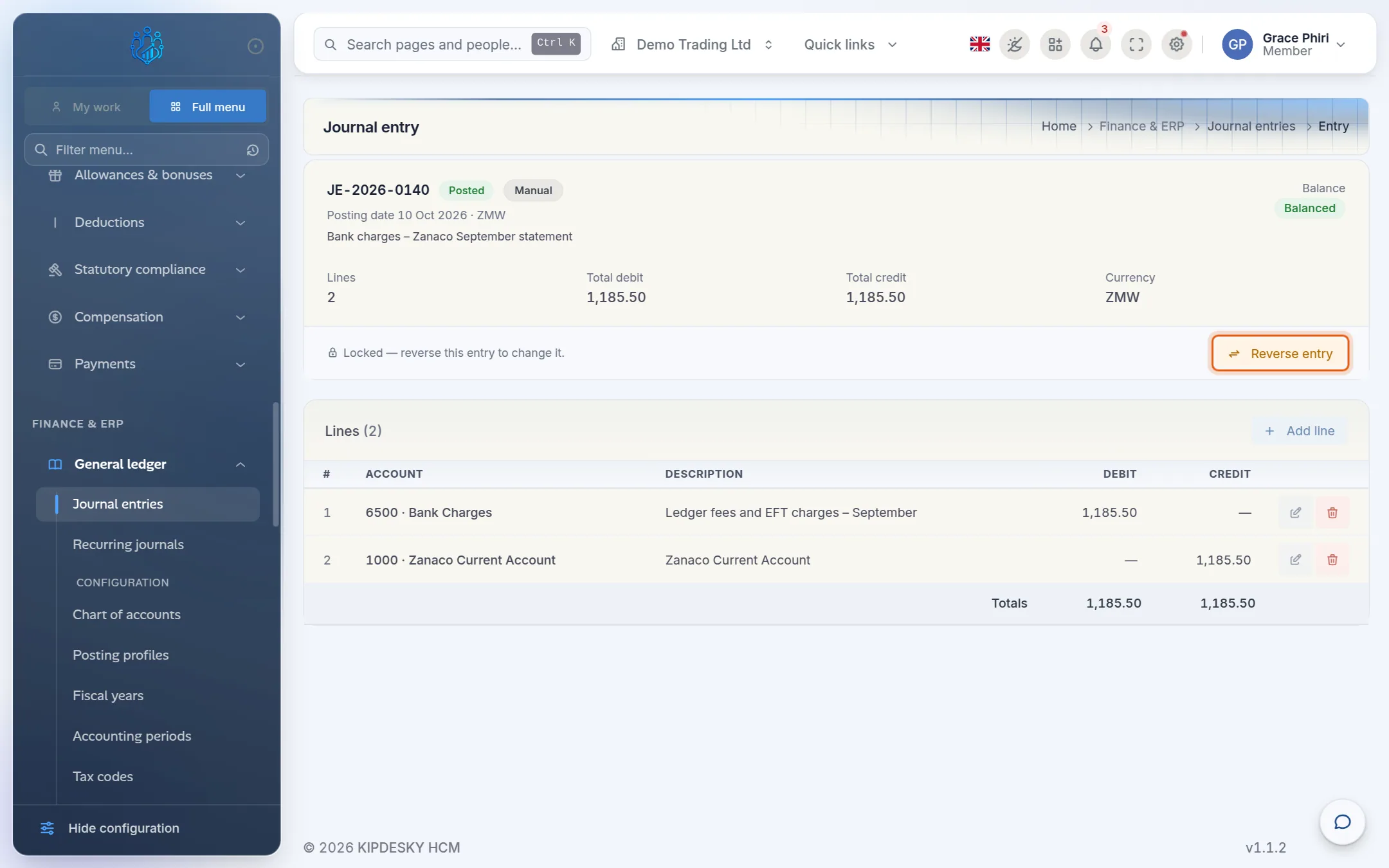
Choose the Reversal date. It must fall in an open period, usually today or the first day of the current month.
Click Reverse entry.
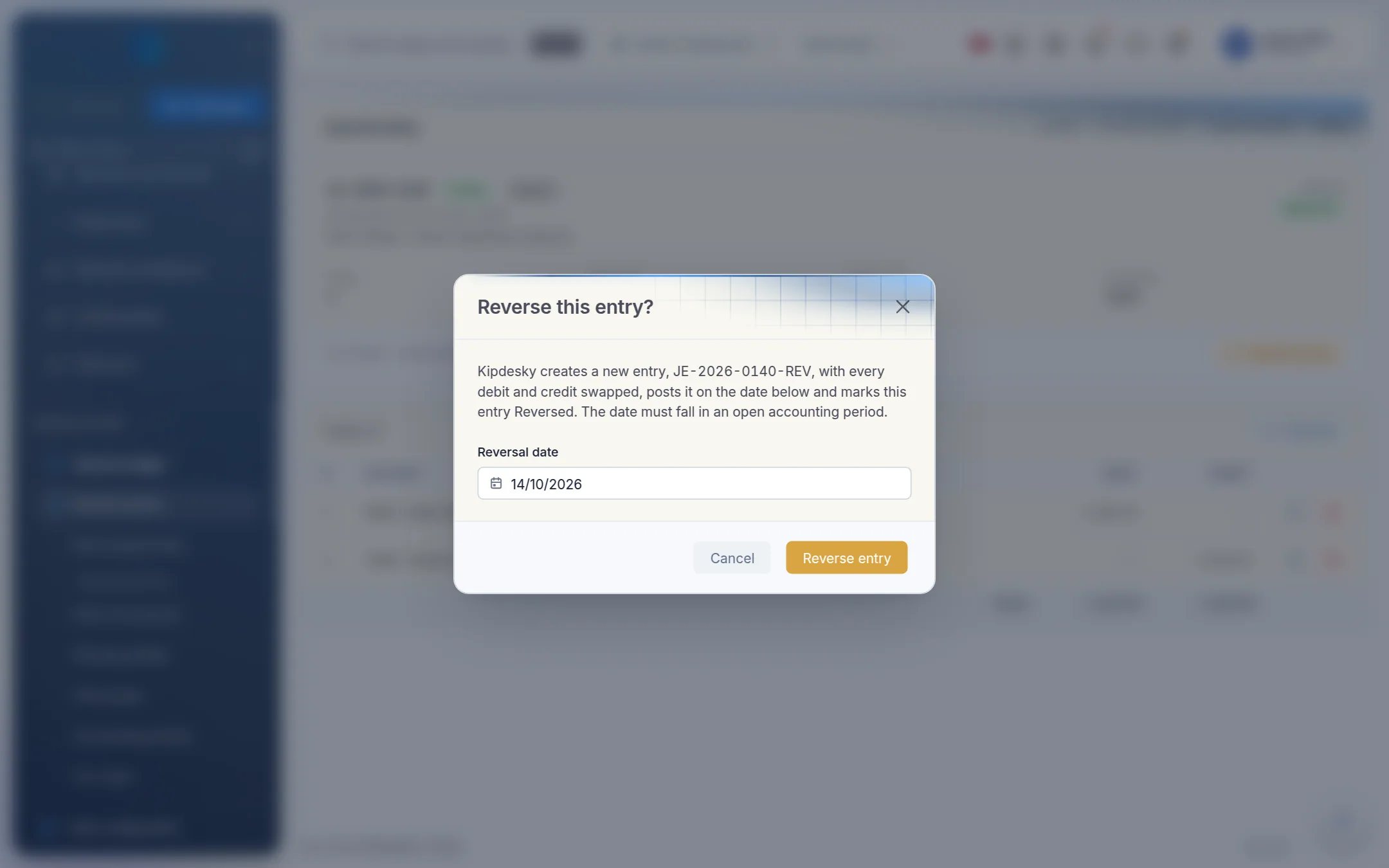
Kipdesky then:
- creates a new entry, {entry number}-REV, with every debit and credit swapped
- posts it on the reversal date
- marks the original as Reversed
- opens the reversal for you.
The reversal shows a link back to the entry it cancels out. If the original was wrong rather than unwanted, post a new, correct entry afterwards.
Tips and common mistakes
- Posting into a closed month. If the posting date's period is closed, posting is refused. Use a date in an open period, or ask for the period to be reopened.
- Lines on both sides. A single line holds either a debit or a credit. For a transfer between two accounts, use two lines.
- Reversing to fix a typo. If the entry is still a draft or approved, just edit it. Reversal is only for entries already posted.
- Deleting instead of cancelling. Only drafts can be deleted. If an approved entry is no longer needed, set its status to Cancelled so there's a record of it.
- Forgetting the second person. Plan for an approver before month end. You can't approve your own manual journals.
FAQs
I tried to approve or post and got an error. What does it mean?
The message says exactly what's wrong:
| Message | What to do |
|---|---|
| You created this journal entry and cannot also approve it. | Ask a colleague to approve it. |
| Journal entry is unbalanced: debit=…, credit=… | Add or correct lines until the header says Balanced. |
| Journal entry must have at least 2 lines. | Add the other side of the entry. |
| No accounting period covers [date] | Create the missing period, or change the posting date. See Fiscal years and periods. |
| Period … is closed; cannot post | Change the posting date to an open period, or ask for the period to be reopened. |
| Period … is soft_closed; cannot post | Only Adjustment entries can post into a soft-closed period, and only if the period allows adjustments. |
See Finance troubleshooting for more messages.
Why don't I see an Approve or Post button?
The buttons depend on the status: Approve on drafts, Post entry on approved entries, Reverse entry on posted ones. If you see none, the entry is cancelled or reversed, or your role can view journals but not change them.
How do I find an old entry?
Type part of the entry number or description in the search box above the list. You can also filter by posting date and status.
Do payroll and invoice postings need approving too?
The two-person rule applies only to manual journals. Journals Kipdesky creates itself, from payroll, invoices or recurring journals, are exempt. Recurring journals do arrive as drafts, though, so you still review and post them. See Recurring journals.
Can I attach a document to a journal entry?
Not at the moment. Use the Description to refer to the supporting document, and keep the document in your normal filing system.