
Appearance
Tax codes
Tax codes hold the tax rates used on supplier and customer invoices, such as standard-rated VAT at 16%, zero-rated VAT, and withholding tax. The VAT return adds up invoices by tax code, so the codes must be right before you file.
Open Finance & ERP › General ledger › Tax codes (a configuration page).
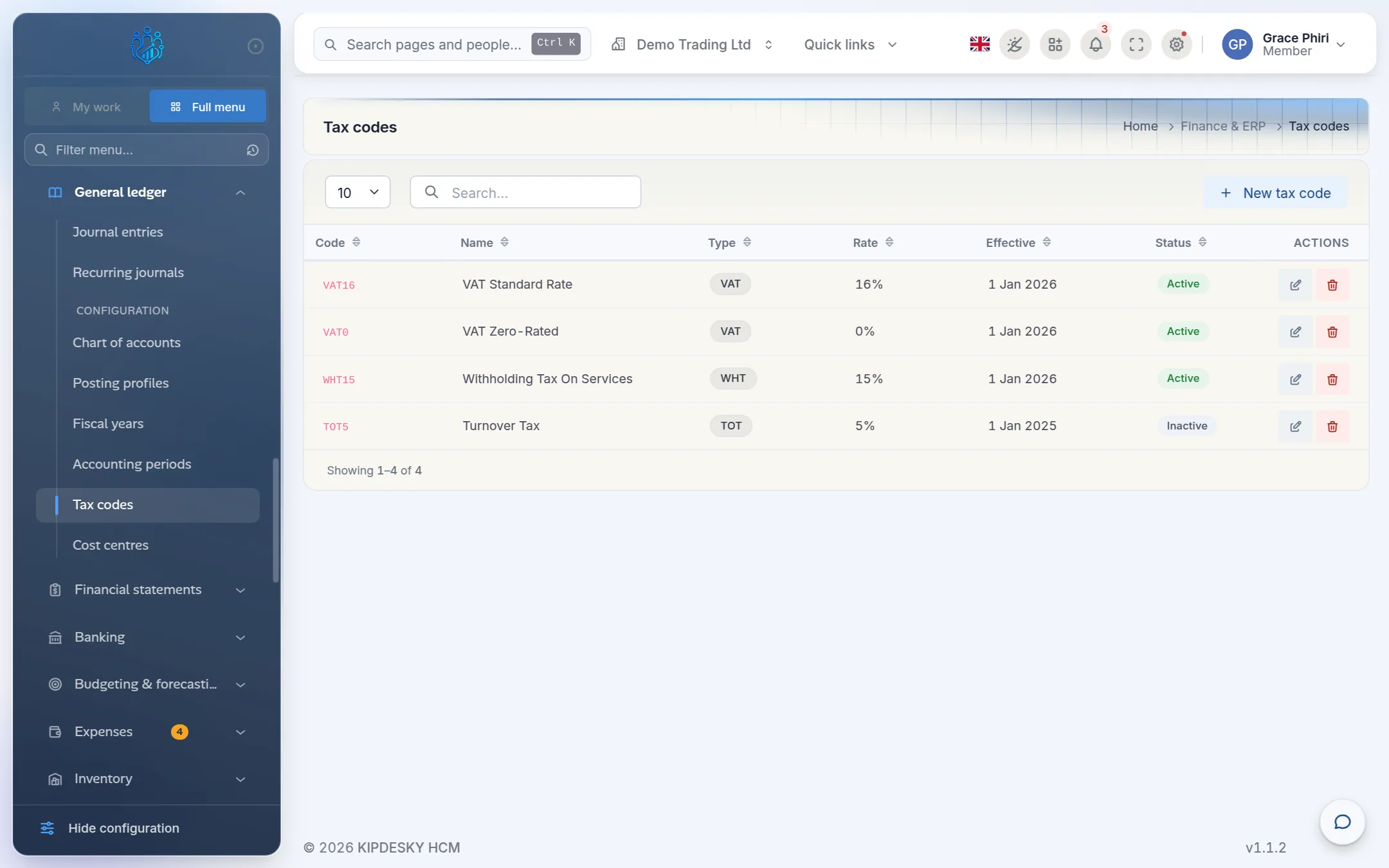
Add a tax code
Click New tax code.
Enter:
- Code: a short code, for example
VAT16. It can't be changed later. - Name: for example VAT standard rate.
- Tax type:
VATfor value added tax. Use other types, such asWHTorTOT, for other taxes. - Rate (%): the rate as a percentage. Enter
16for 16% and0for zero-rated. - Effective from: the date the rate starts.
- Effective to (optional): the last date it applies. Leave blank if there's no end date.
- Code: a short code, for example
Leave Active on and click Create.
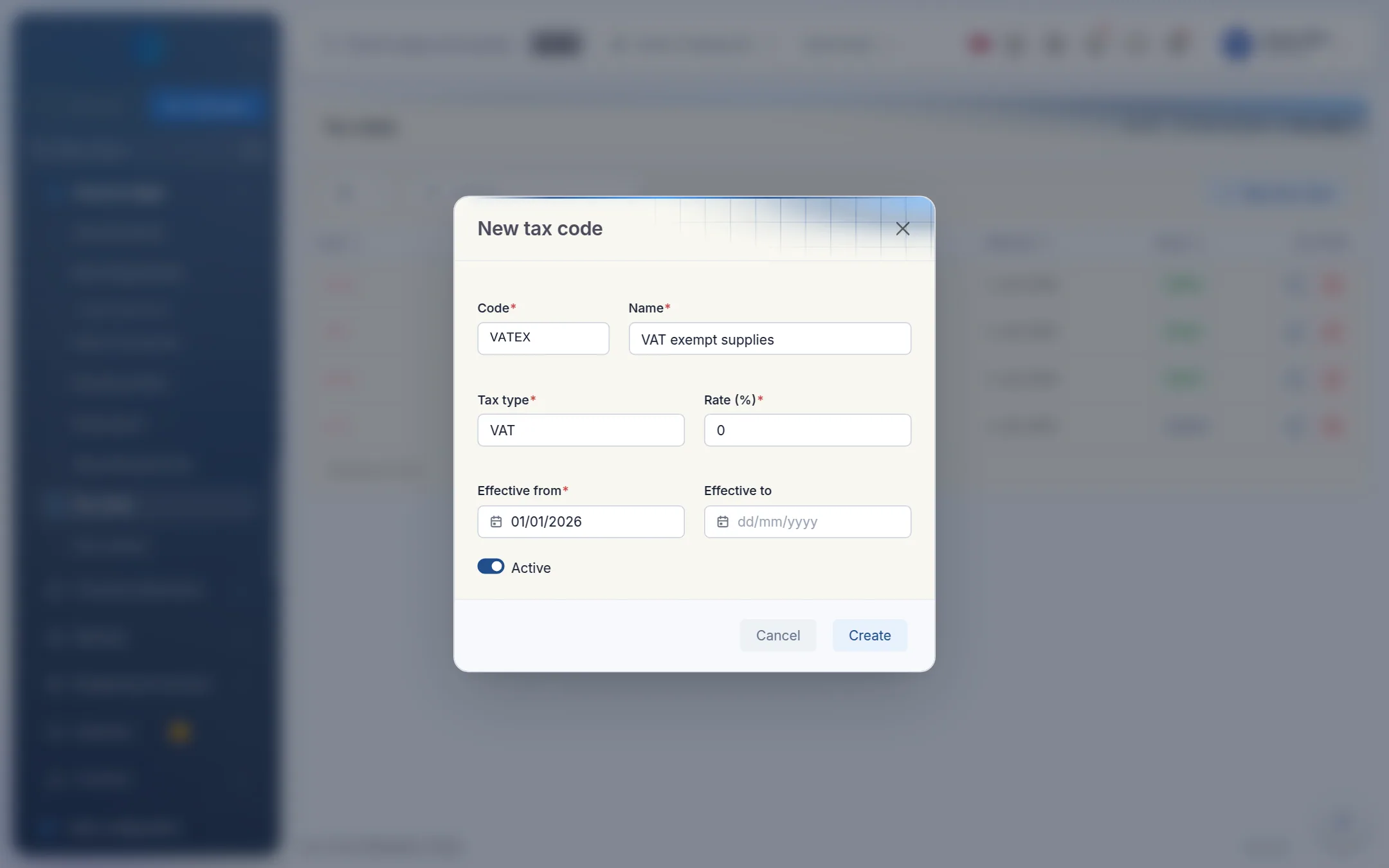
Enter the rate as a percentage
Type 16 for 16%, not 0.16. The list then shows 16%.
When a rate changes
Don't edit the existing code's rate, because that would change how past invoices are reported. Instead:
- Edit the old code and set Effective to to the last day of the old rate.
- Add a new code with the new rate and an Effective from date of the first day of the new rate.
Tips and common mistakes
- Tax type spelled differently. Only codes with tax type
VATare counted on the VAT return. Value Added Tax or V.A.T. won't be. - Invoices without a tax code. The VAT return lists them separately as No tax code — classify before filing. Fix those invoices before you submit your return.
- Deleting old codes. Make a code inactive instead of deleting it. Invoices and journals that used it may break.
FAQs
What's the difference between zero-rated and exempt?
Both carry 0% VAT. Zero-rated supplies are taxable at 0%, so they're still reported as taxable on the return. Exempt supplies aren't taxable at all. Set up a separate code for each so your return shows them correctly. Check with your tax adviser which applies to your goods or services.
How do I know the VAT return matches my books?
The VAT return compares its output and input tax with the VAT movements in your general ledger, and tells you whether they agree. See Financial reports › VAT return.