
Appearance
Your dashboard
The dashboard is a one-page summary of your company: headcount, payroll, attendance, leave, finance and anything that needs attention. It's the first page managers and administrators see after signing in.
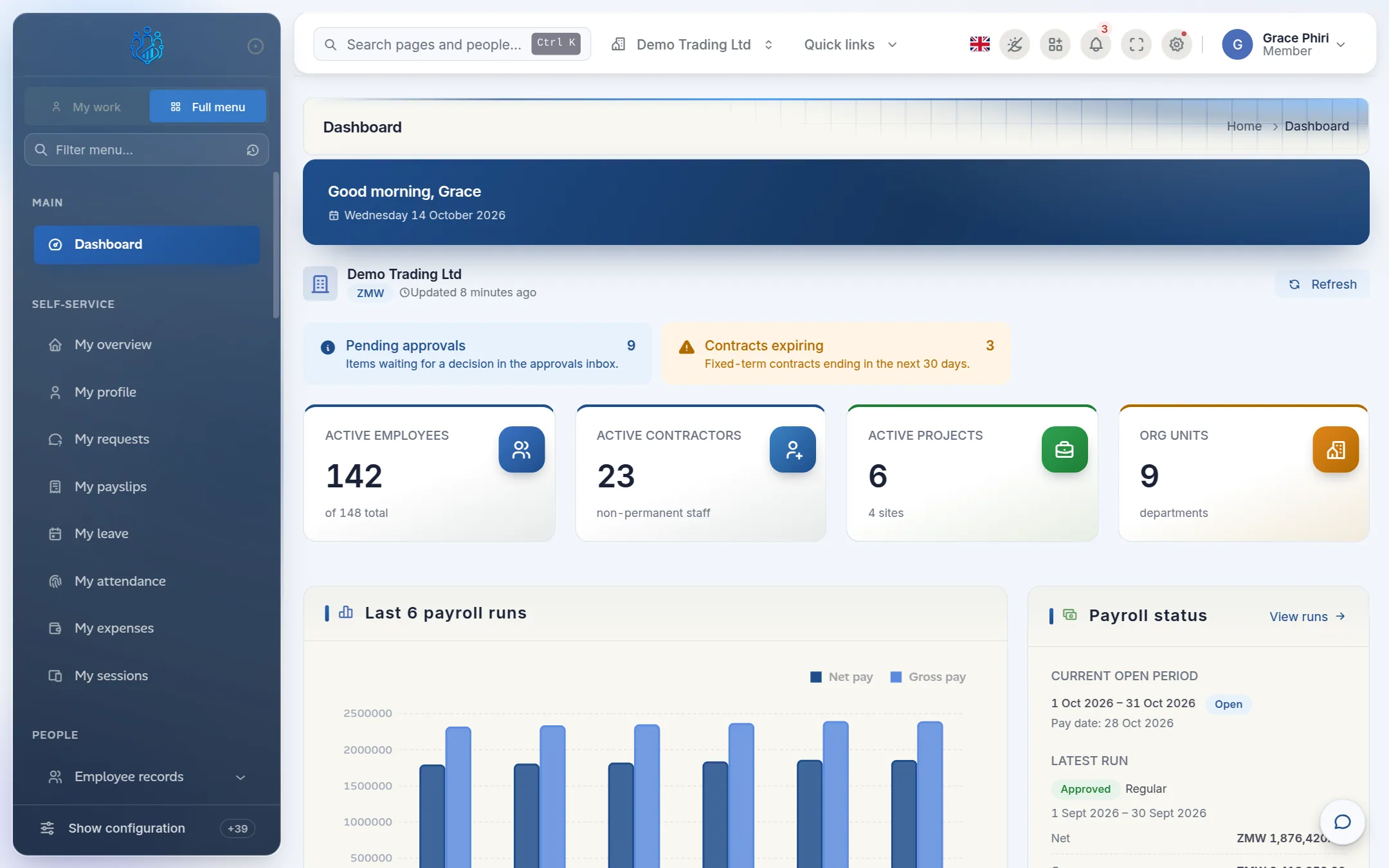
You only see the sections your role covers. For example, the payroll and finance sections appear only for people who can see payroll.
What's on the dashboard
From top to bottom:
| Section | What it shows |
|---|---|
| Greeting and company | Today's date, the company you're viewing, its currency and when the figures were last refreshed. |
| Alerts | Coloured cards for things needing attention, such as pending approvals, expiring contracts or overdue statutory returns. Click a card to open the list behind it. |
| Headline figures | Active employees, active contractors, active projects and departments. |
| Payroll | The last 6 payroll runs as a chart, the current open pay period, the latest run's totals, and any pending or failed payments. |
| Attendance and expenses | Attendance over the last 7 days and expense claims over the last 6 months. |
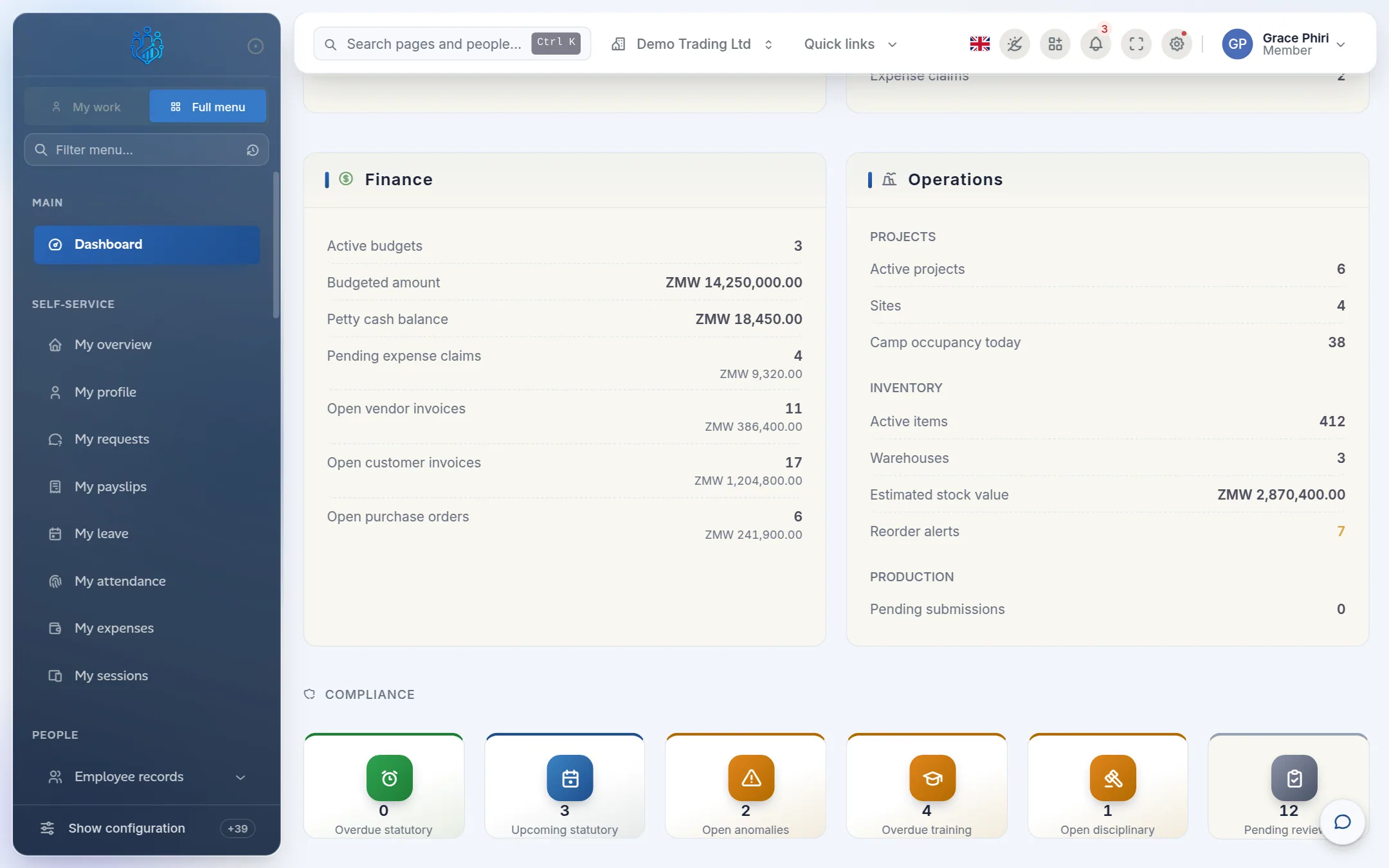
| People | Headcount by department, new hires and leavers this month, and how many budgeted positions are filled. |
| Time, leave and approvals | Hours and overtime this month, pending timesheets, pending leave, people on leave today, and approvals waiting by type. |
| Finance and operations | Active budgets, petty cash, pending expense claims, and open supplier invoices, customer invoices and purchase orders. Also projects, stock value and reorder alerts. |
| Compliance and expiries | Overdue and upcoming statutory deadlines, open anomalies and disciplinary cases, and contracts, probations, certificates and medicals expiring in the next 30 days. |
Refresh the figures
The dashboard refreshes itself every 5 minutes. To refresh it straight away, for example after approving a batch of leave, click Refresh next to the company name.
The Getting started card
When a company is new, administrators see a Getting started card at the top of the dashboard with the four set-up steps needed to run payroll:
- Create a pay calendar.
- Generate pay periods.
- Add your first employees.
- Add a contract for each employee.
Click Set up → beside a step to go straight to it. The card disappears once all four are done.
Today's attendance board
For a live view of who's away today, open Time & Leave › Time & attendance › Today's attendance. It lists who is On leave (and until when), Absent and Late, and refreshes every 5 minutes.
Tips and common mistakes
- Checking the wrong company. The dashboard shows one company at a time. Check the company name under the greeting.
- Expecting live figures to the second. Figures can be up to 5 minutes old. Click Refresh if you've just made a change.
- A chart that says "No data." The underlying records don't exist yet. For example, the payroll chart stays empty until the first payroll run.
FAQs
Why can't I see the payroll or finance sections?
They only appear for people allowed to see payroll figures. Ask your administrator if you need them.
Can I build my own dashboard?
Yes. Use Reports & Analytics › Analytics › Custom dashboards to build dashboards from saved reports.
I'm an employee and I see "My space" instead. Is that right?
Yes. Employees start on My space, which shows your own leave balance, payslips and requests rather than company figures.