
Appearance
Profile and settings
Your profile shows who Kipdesky thinks you are: your details, roles, permissions and security settings. You can also see every device you're signed in on, and sign out any you don't recognise.
Open these pages from the menu under your name in the top-right corner: Profile, Active sessions and Account settings.
View your profile
Click your name in the top-right corner and choose Profile.
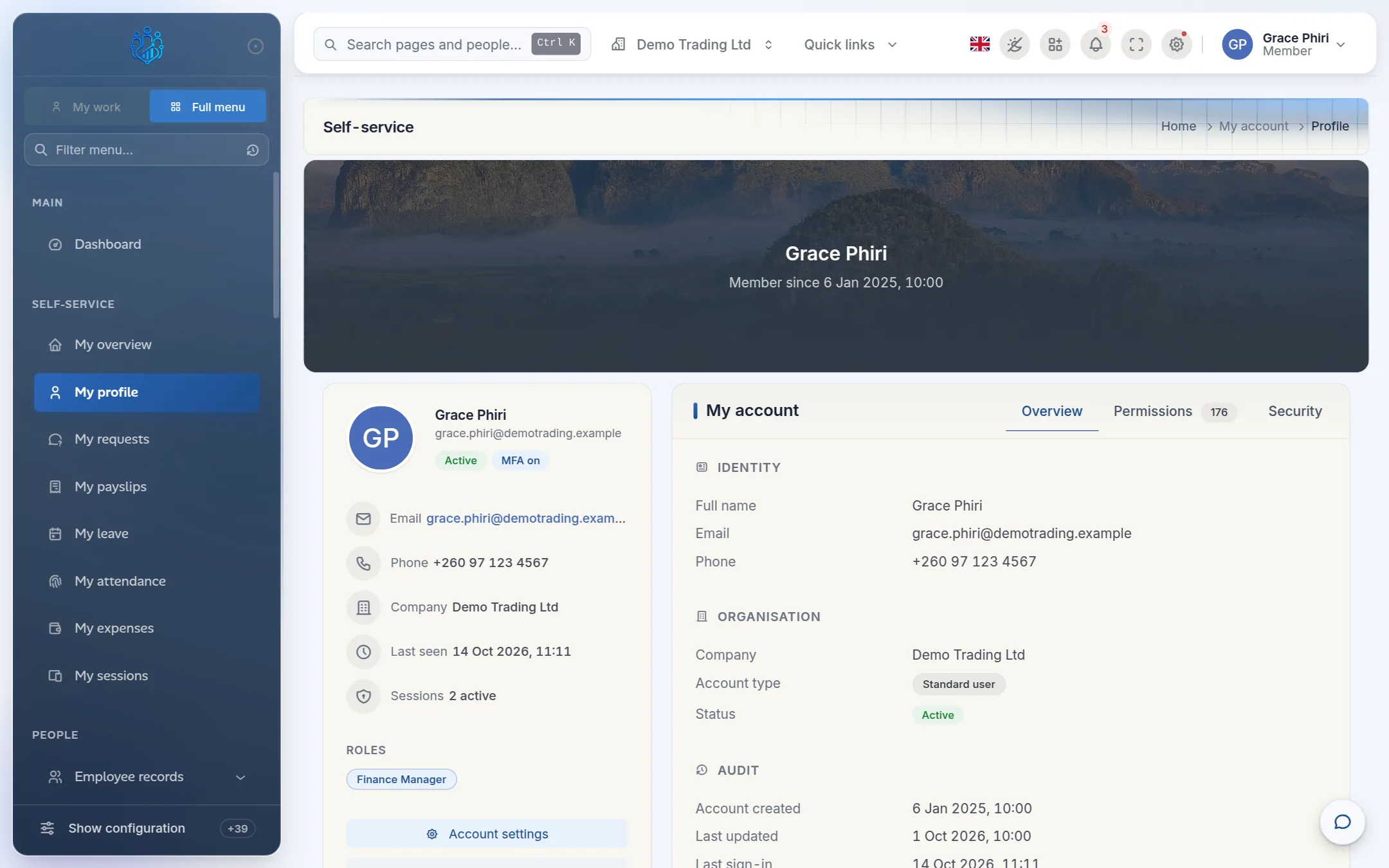
The profile has three tabs:
- Overview shows your name, email and phone, your company and account type, and when your account was created and last used.
- Permissions lists everything your roles allow you to do, grouped by area. This tab is useful when you're asking an administrator for more access.
- Security covers two-step verification, your password and your recent sessions.
The panel on the left shows your roles, your last sign-in and how many sessions are active.
Update your name or phone number
- If your login is linked to an employee record (most staff), your name and phone come from HR. To change them, contact HR or raise a request under My requests.
- If your login isn't linked to an employee record, for example an administrator or service account, click Edit on the Overview tab, change Full name or Phone, then click Save changes.
Only an administrator can change your email address.
See and sign out your devices
Each browser or device you've signed in from is a session. Check your sessions now and then, and sign out any you don't recognise.
Click your name in the top-right corner and choose Active sessions.
Each card shows the browser and system, the IP address, and when it was last used, signed in and due to expire. Active sessions have a green edge.
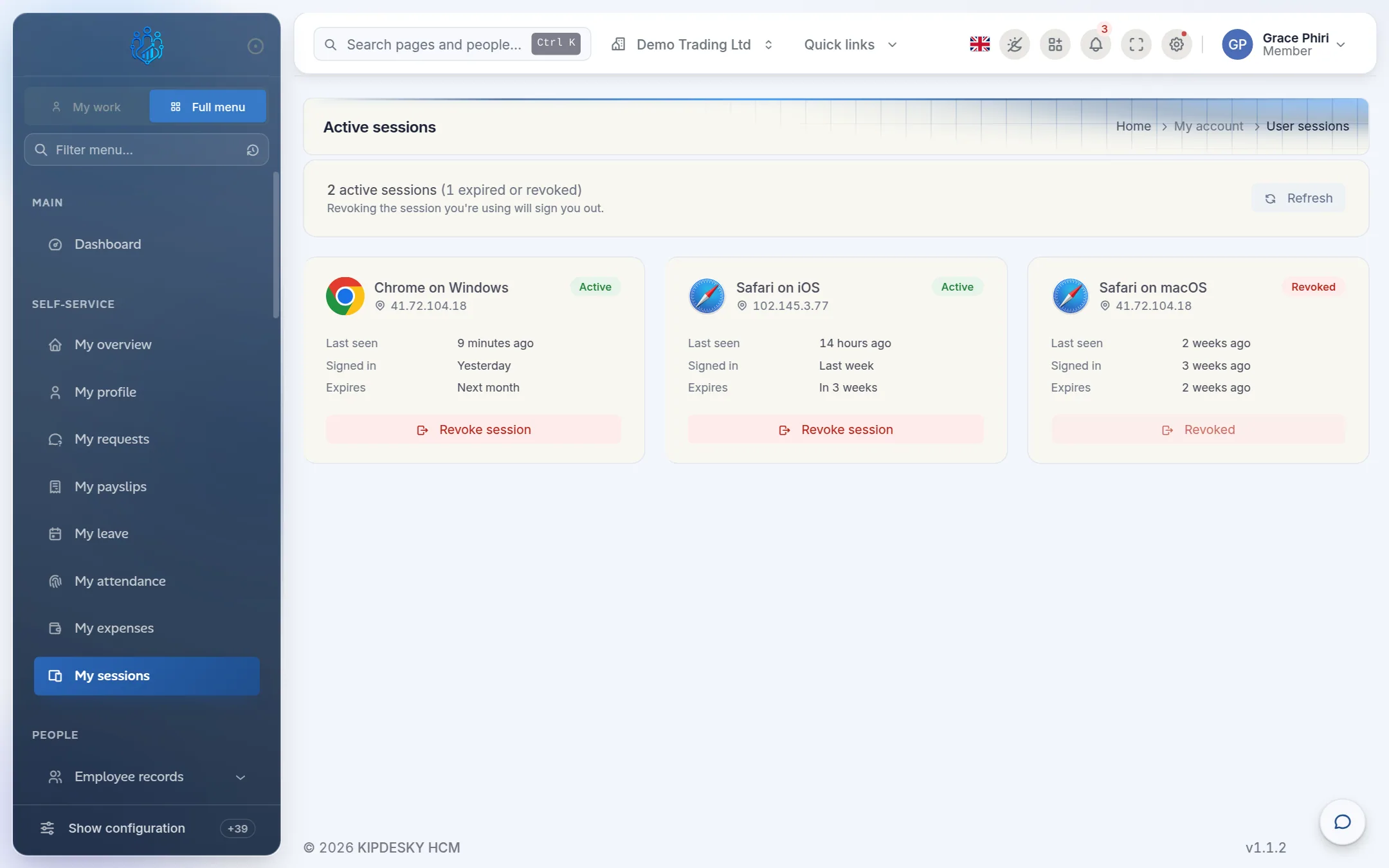
To sign out a device, click Revoke session on its card.
Check the device details, then click Revoke session to confirm. That device is signed out at once.
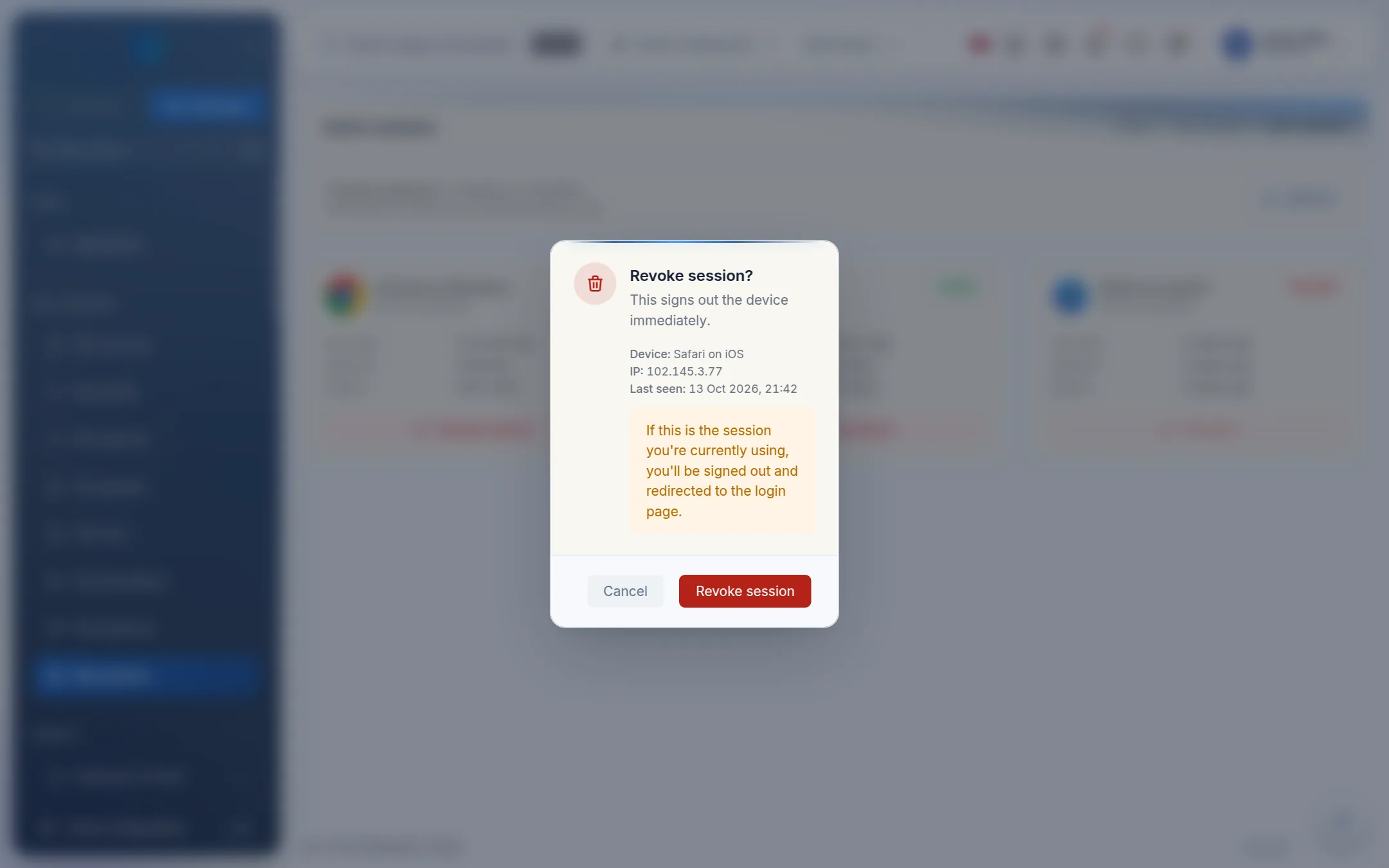
Revoking the session you're using signs you out
To sign out everywhere at once, change your password. That ends every session, including this one.
Display preferences
Under Account settings › Appearance, choose Light, Dark or Auto (follows your computer's setting). This is saved in your browser, so set it once on each device you use.
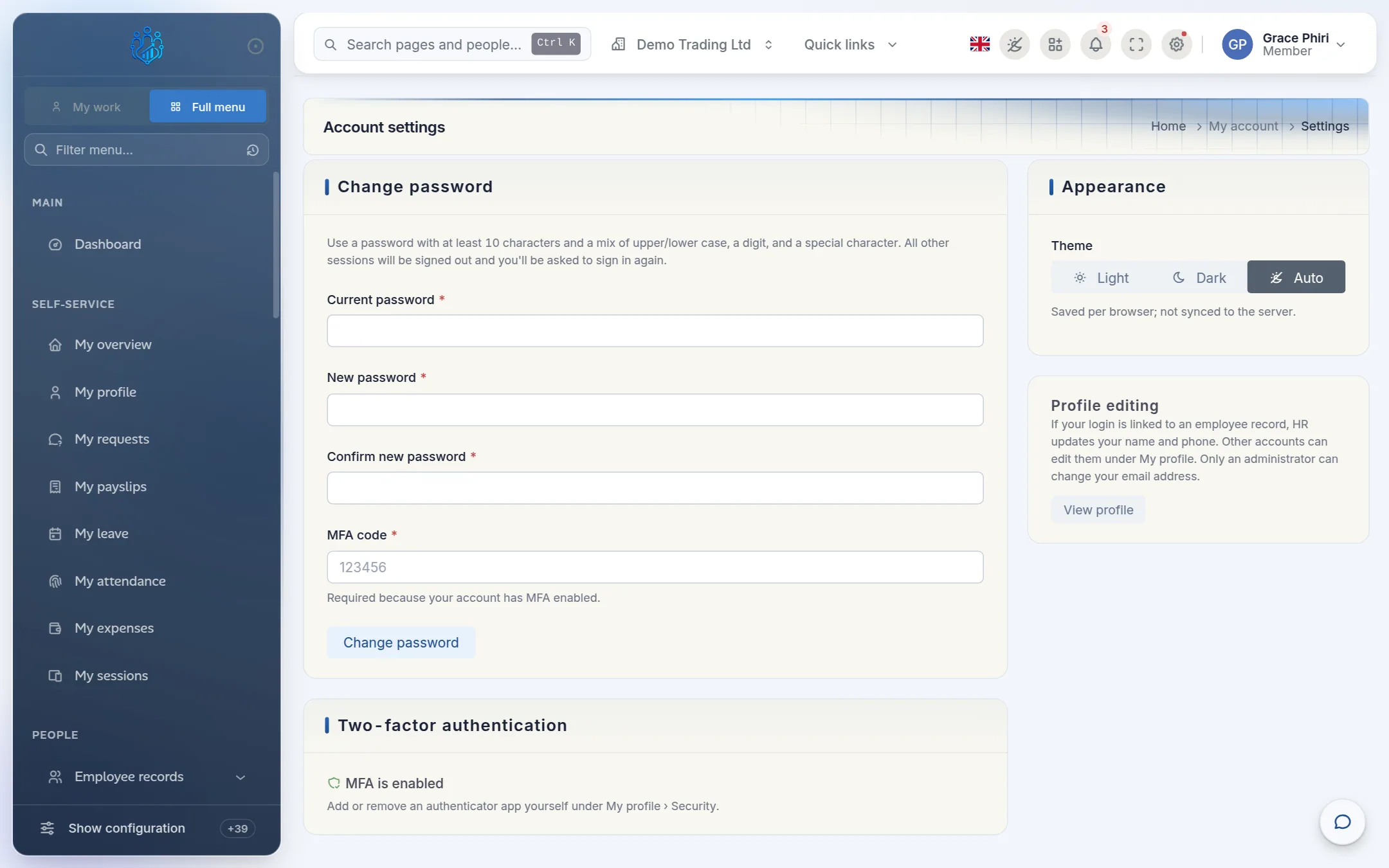
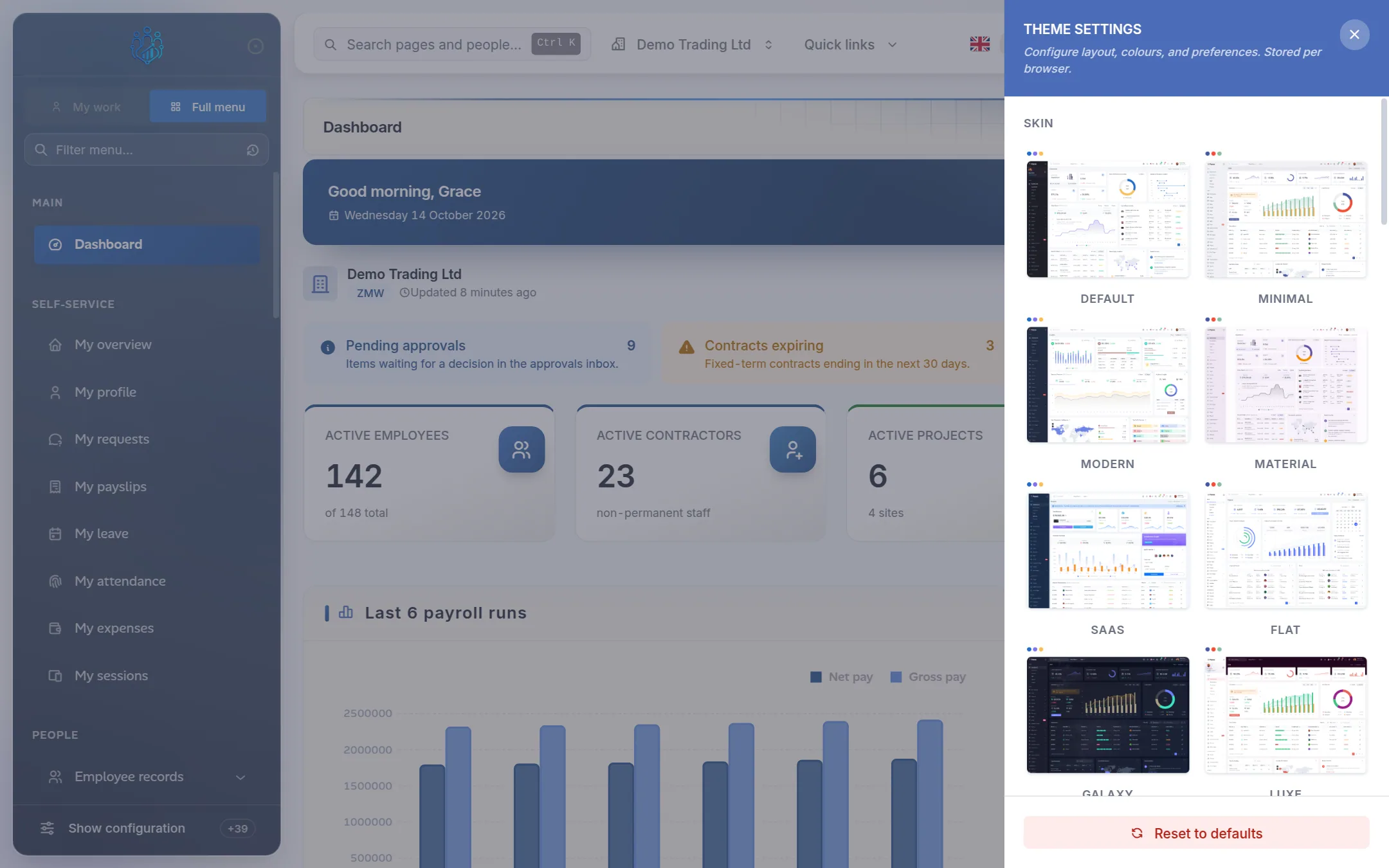
For more options, such as compact layout, menu style and colours, click the cog icon in the top bar to open Theme settings. Click Reset to defaults to undo your changes.
Tips and common mistakes
- Leaving old devices signed in. Revoke sessions on computers you no longer use, especially shared ones.
- An IP address you don't recognise. Revoke that session, then change your password straight away.
- Asking for "admin access". Open Profile › Permissions and tell your administrator exactly which action you can't do. They can grant just that.
FAQs
Can I turn off email notifications?
Not yet. Notification preferences aren't available in Kipdesky at the moment.
Why does it say "Member" or "Standard user" rather than "Super admin"?
That's your account type. Most people are standard users (shown as Member under your name), and what they can do comes from the roles assigned to them, listed under Roles on your profile. Super admins can do everything in their company.
Why can't I edit my name?
If your login is linked to an employee record, your name and phone come from that record, so HR changes them. Accounts not linked to an employee can edit them under Profile › Overview › Edit.